DigiHwy Certainty
Agentic Website Guide Agentic Project Management Agentic SEO Email Deliverability Astro + Cloudflare DSG Procurement
Free Tools Projects Contact Free Advisory
A Create the Purchase Order
Step 1 of 9 PDF
Exit
A
B
Requestor
40

Create Purchase Order

From the RFQ/RFP page, click on Create Purchase Order.

The PO is pre-populated with the awarded vendor's details, line items, and pricing. This also triggers a PO notification email to the vendor.
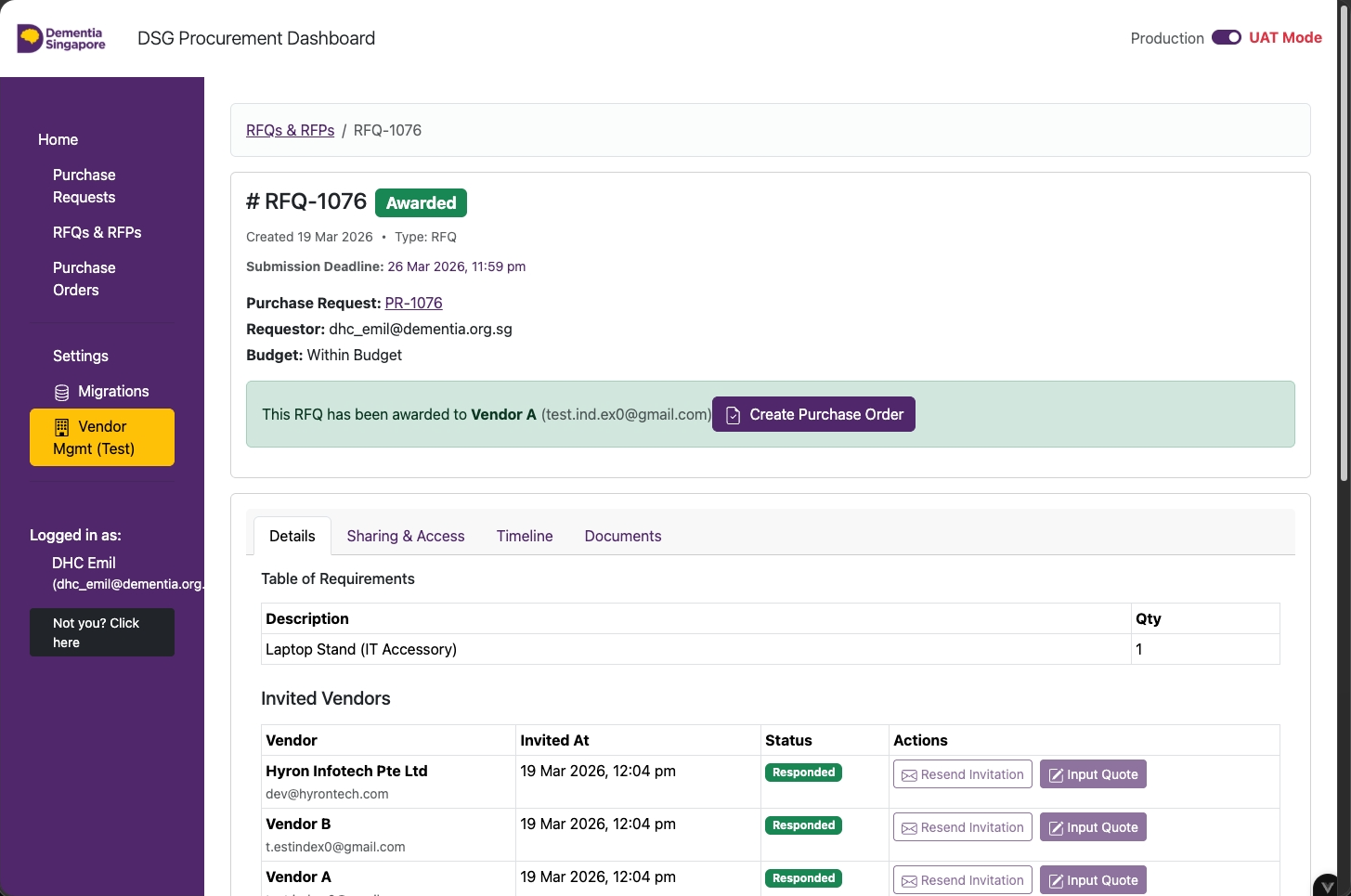
RFQ page after vendor award - click Create Purchase Order to proceed
Requestor
41

PO Page — Invoice Uploading

  • Click Submit New Invoice to enter the invoice details on behalf of the vendor
  • Click Send Invoice Request to request for the vendor to enter the invoice details
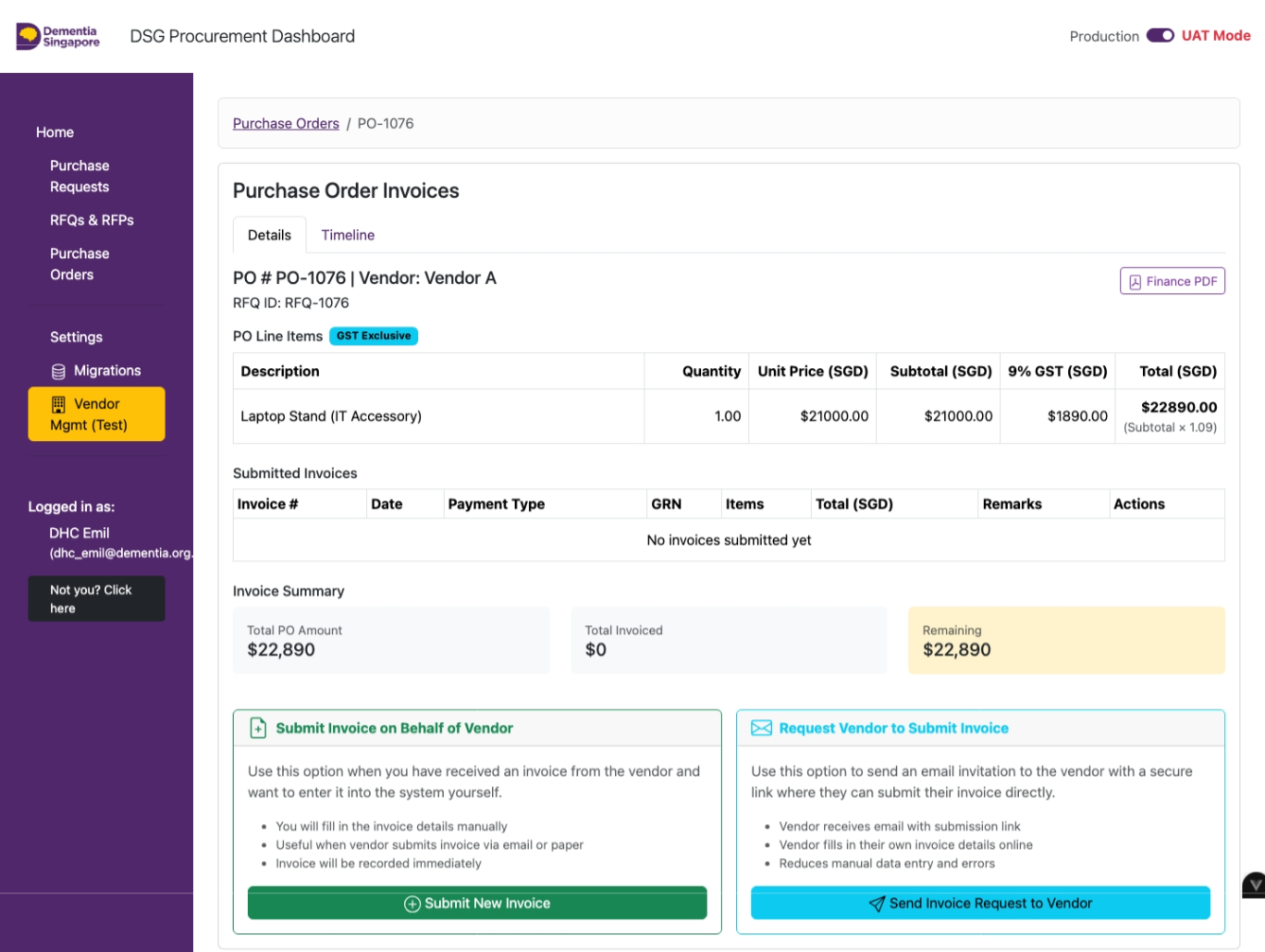
PO page showing Submit New Invoice and Send Invoice Request options
Requestor
42

Submit Invoice Form

Fill in the invoice form:

  1. Invoice Number
  2. Invoice Date
  3. Payment Type
  4. Line item quantities
  5. Upload official invoice
  6. Remarks
  7. Click OK

One-Time and Progressive invoices require a GRN before Finance can pay. Prepayment does not.
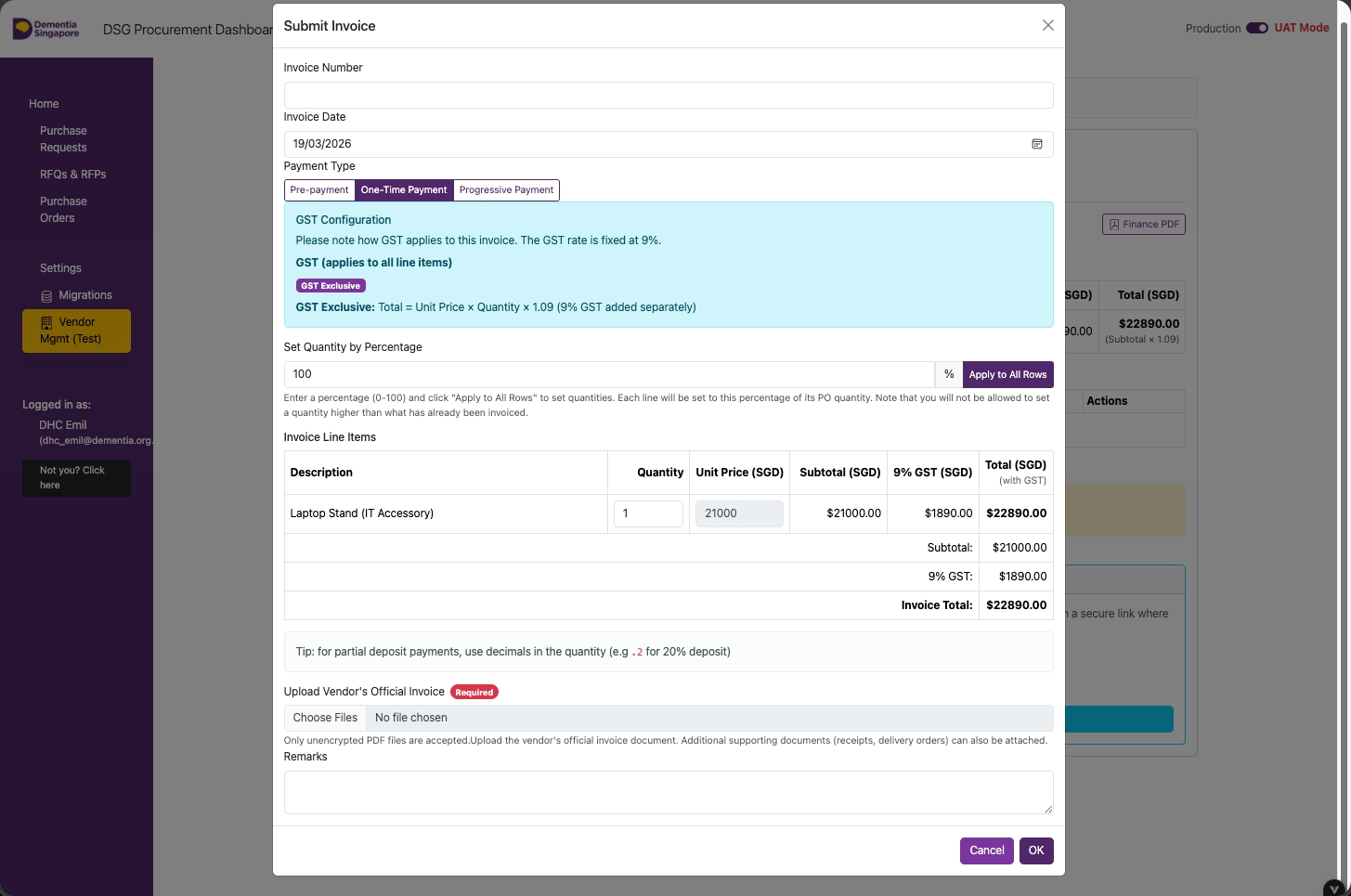
One-Time and Progressive invoices require a GRN (Goods Receipt Note) to be declared before Finance can process payment. Prepayment does not require a GRN.
Invoice modal - fill in number, date, payment type, quantities, upload document
Requestor
43

Invoices Submitted — Review

Click on View.

For One-Time and Progressive invoices, a GRN must be declared before Finance can process payment.
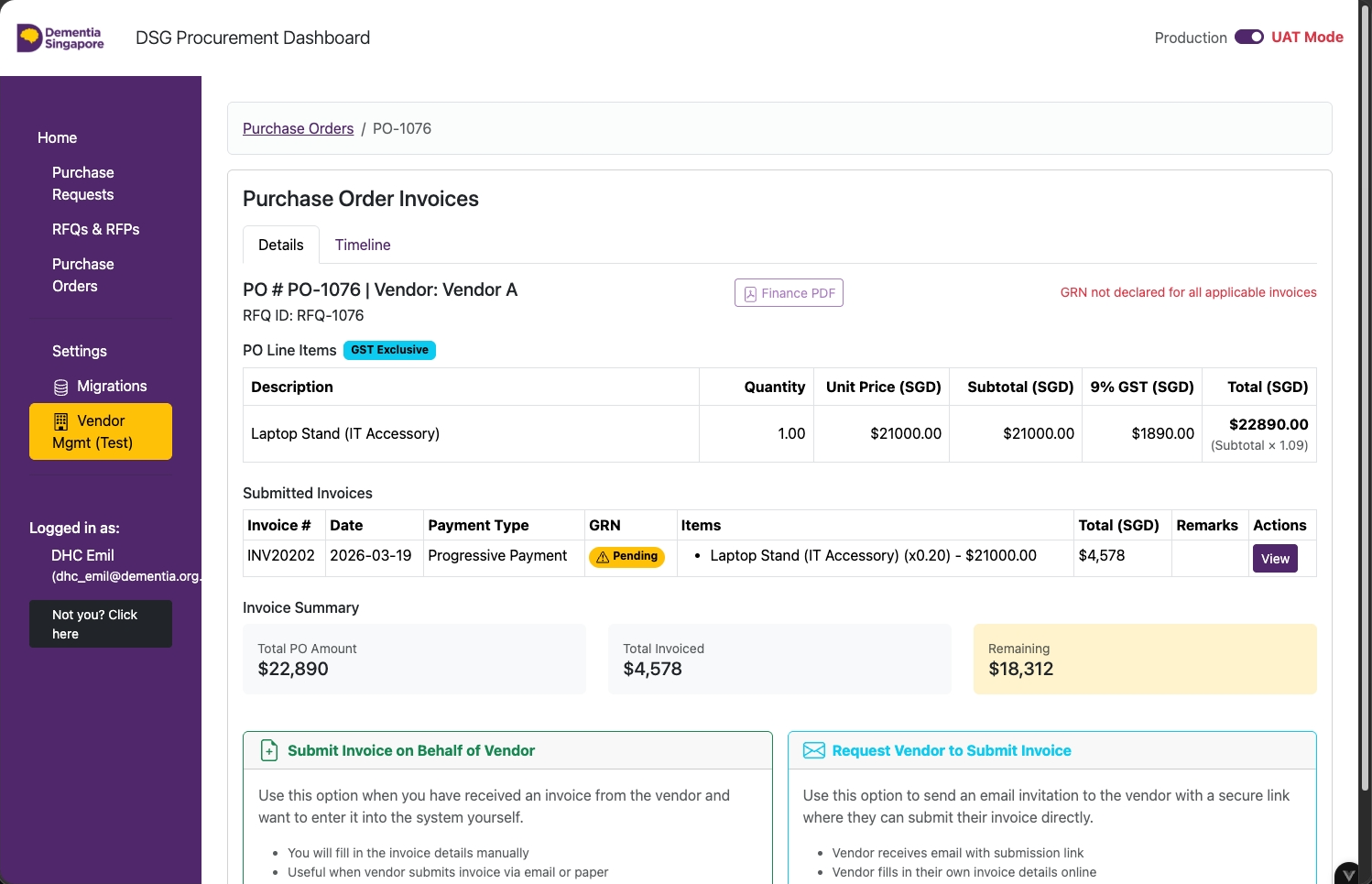
PO page showing submitted invoices - click View to open invoice and declare GRN
Requestor
44

Submitted Invoices - GRN Declaration

Scroll down and click Declare GRN.

This button only appears for invoice types that require a GRN (One-Time and Progressive).
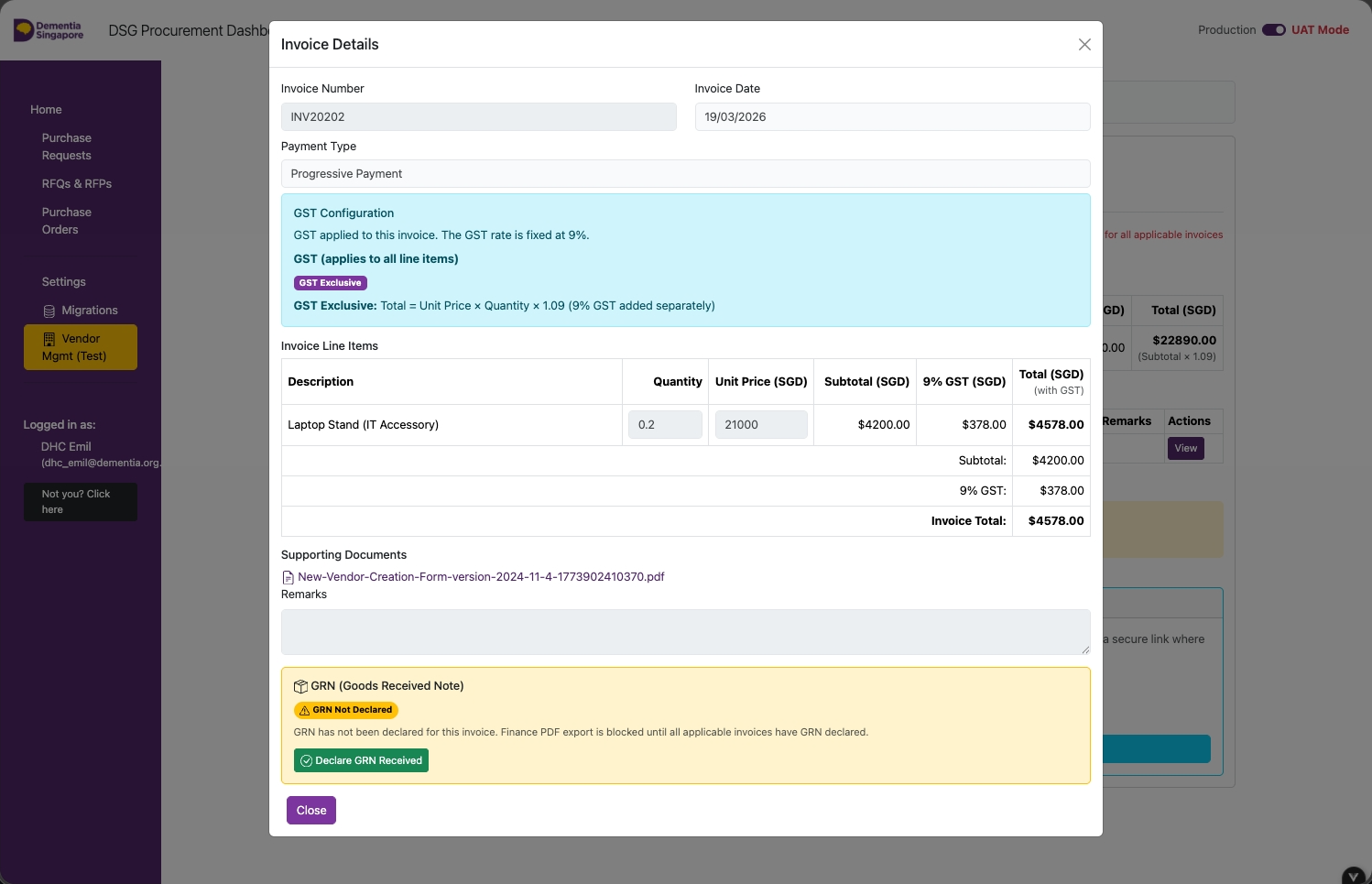
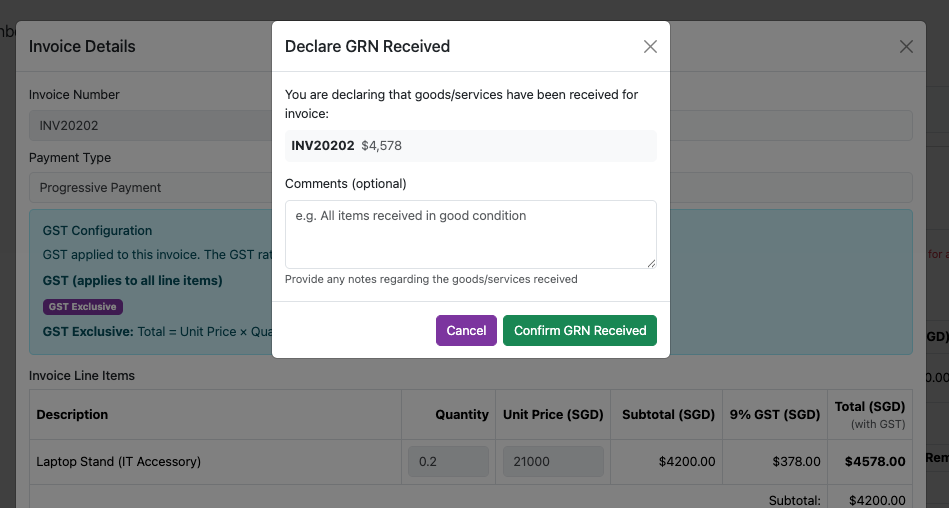
Invoice detail view - scroll to find the Declare GRN button
Requestor
45

GRN Declaration — Comments

  • Add comments (if any)
  • Click Confirm GRN Received
GRN declaration form - add remarks and submit
Requestor
46

GRN Declaration — Close Window

Click on Close.

With the GRN declared, the invoice is ready for the Finance team to process payment.
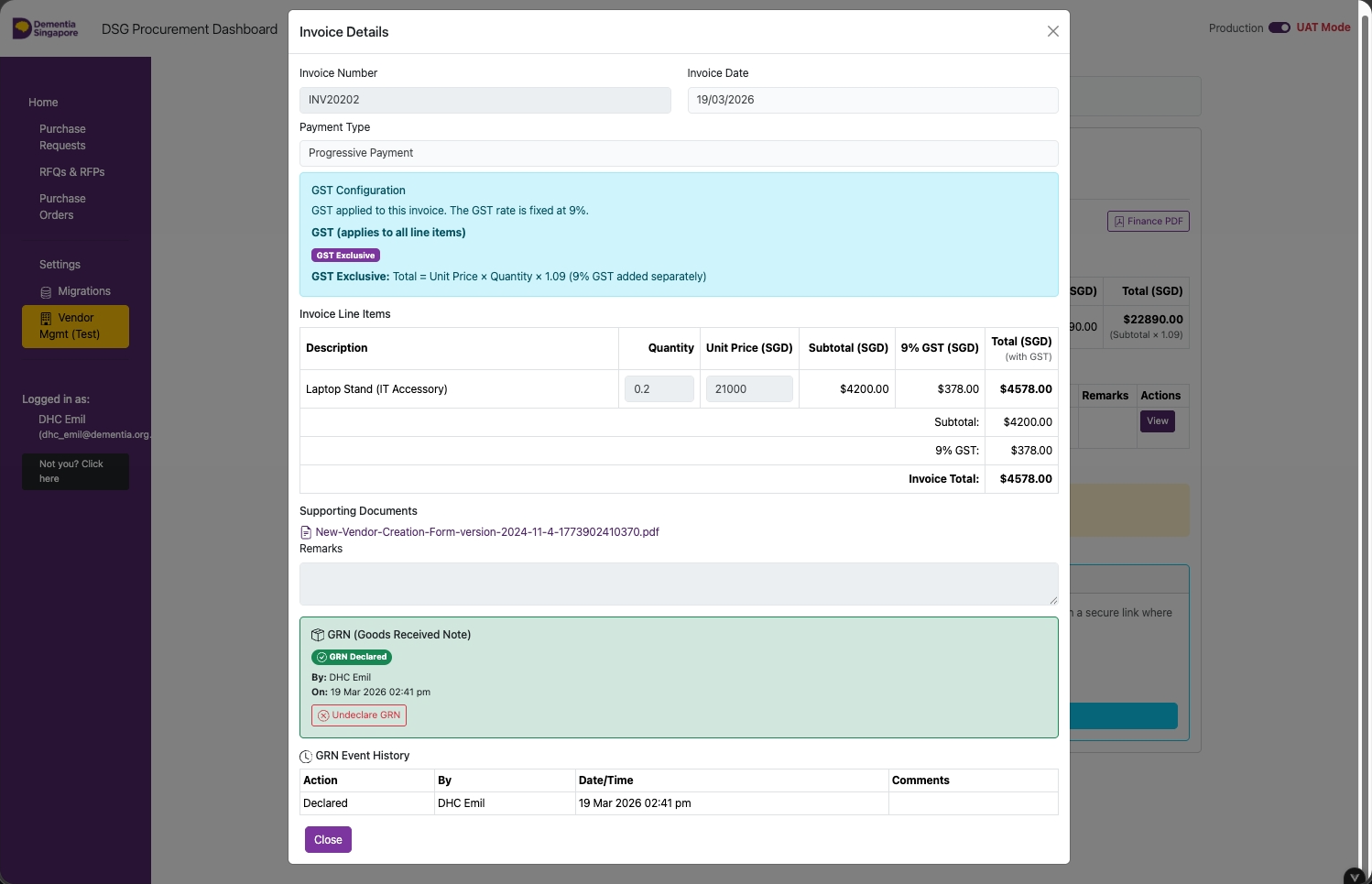
GRN history shown on invoice - all declarations with remarks and timestamps
Requestor
47

Export Finance PDF

Click Finance PDF to generate and download a PDF file for payment submission.

This is the formal payment request document to hand to the Finance team.
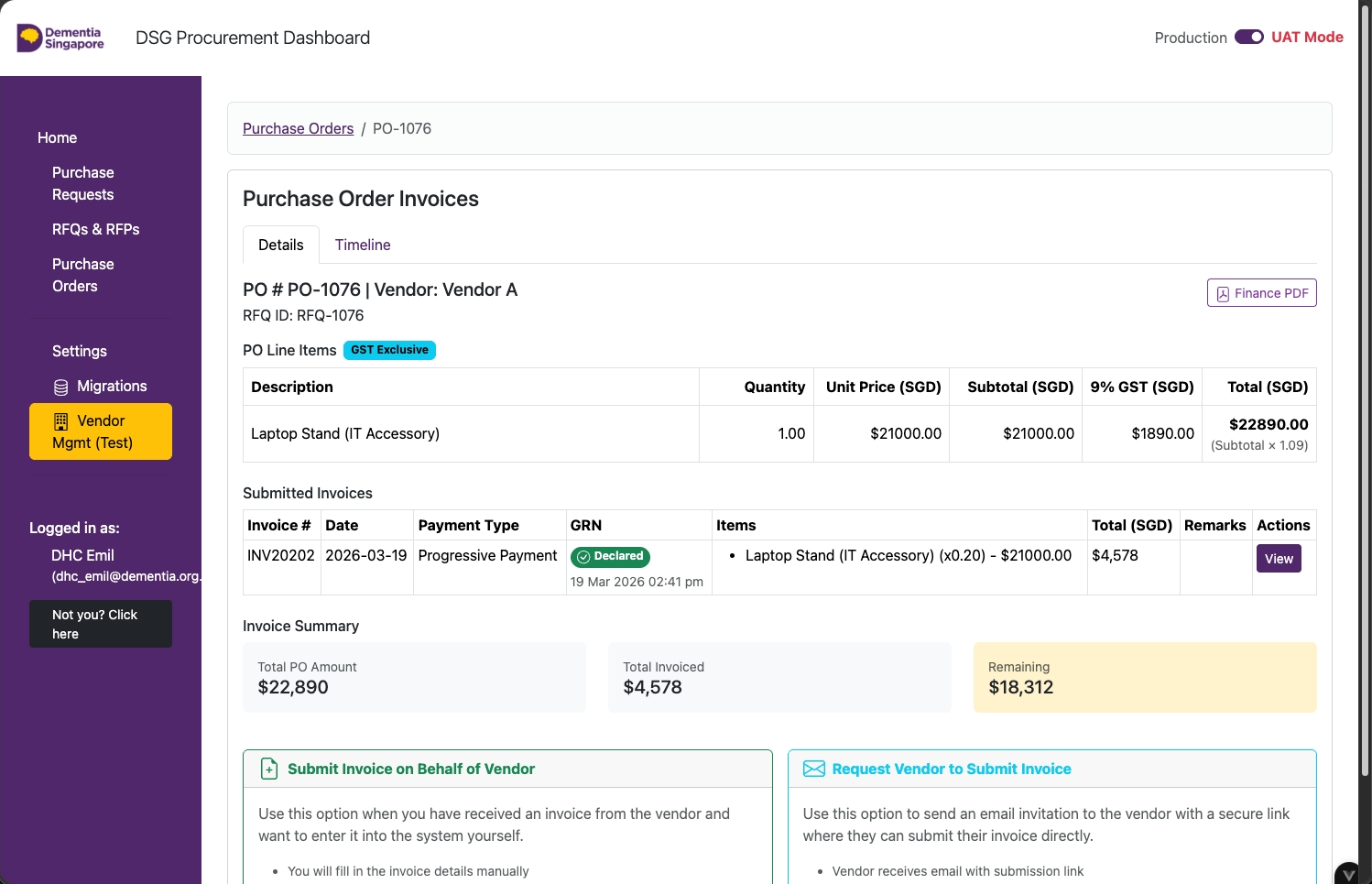
Export Finance PDF button on the PO or invoice page
Requestor
48

Finance PDF — Payment

Submit the exported Finance PDF to Finance for payment.

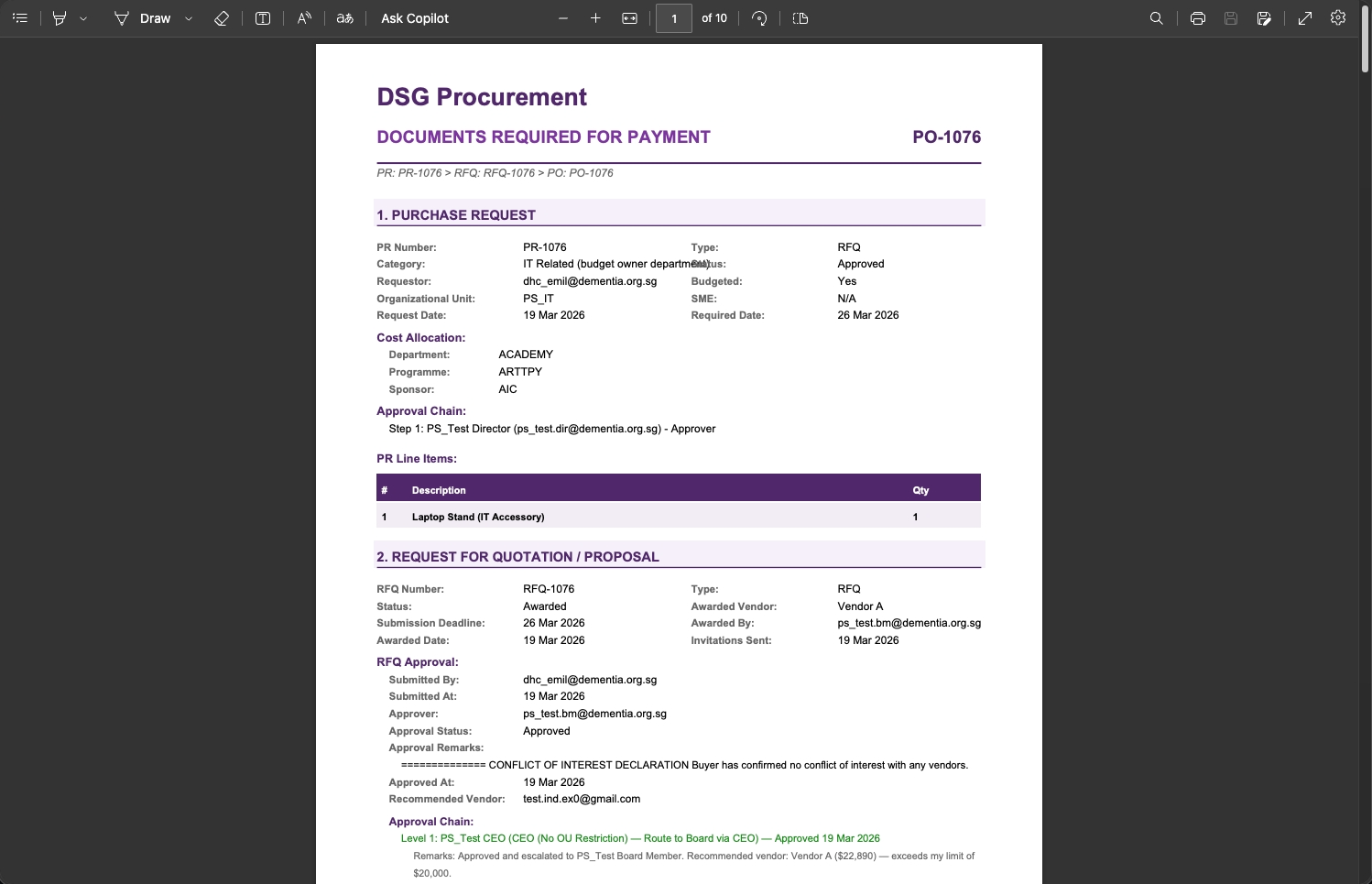
The PDF includes:

  • PO number, vendor name, and total amount
  • Line items, unit prices, and GST breakdown
  • Invoice number, date, and payment type
  • Approval trail and award details
Finance PDF showing all payment details for Finance team processing
🎉

You're all set!

Guide complete.
Back to Resources
DigiHwy Certainty

Tech resources for social and community organisations.

Yes, we know it's very purple.
Our brand was purple before it was an AI stereotype. We're as surprised as you are.

Resources

Agentic Website Guide Agentic Project Management Agentic SEO Email Deliverability Free Tools Open Source Projects

DigiHwy Certainty

dhcertainty.org GitHub Free Advisory partnerships@dhcertainty.com

DigiHwy

digihwy.org

Our sister organisation - digital infrastructure and community connectivity.

Third-party products, services, and organisations mentioned on this site are independent of DigiHwy Certainty. We are not affiliated with, endorsed by, or legally connected to any of them. References are provided for informational purposes only. Use of any third-party tool is at your own discretion and risk — we are not responsible for their availability, pricing, terms, or any outcomes arising from their use.

© 2026 DigiHwy Certainty. All rights reserved.

Contact