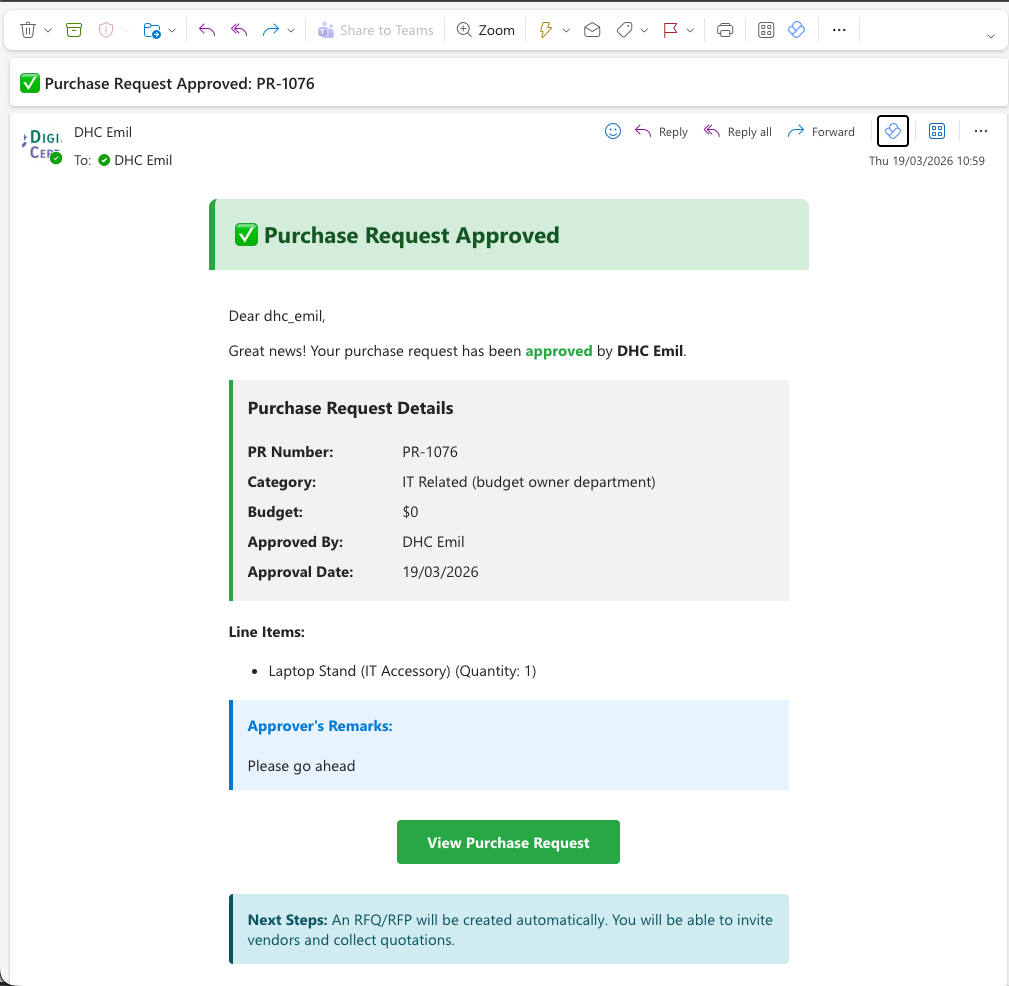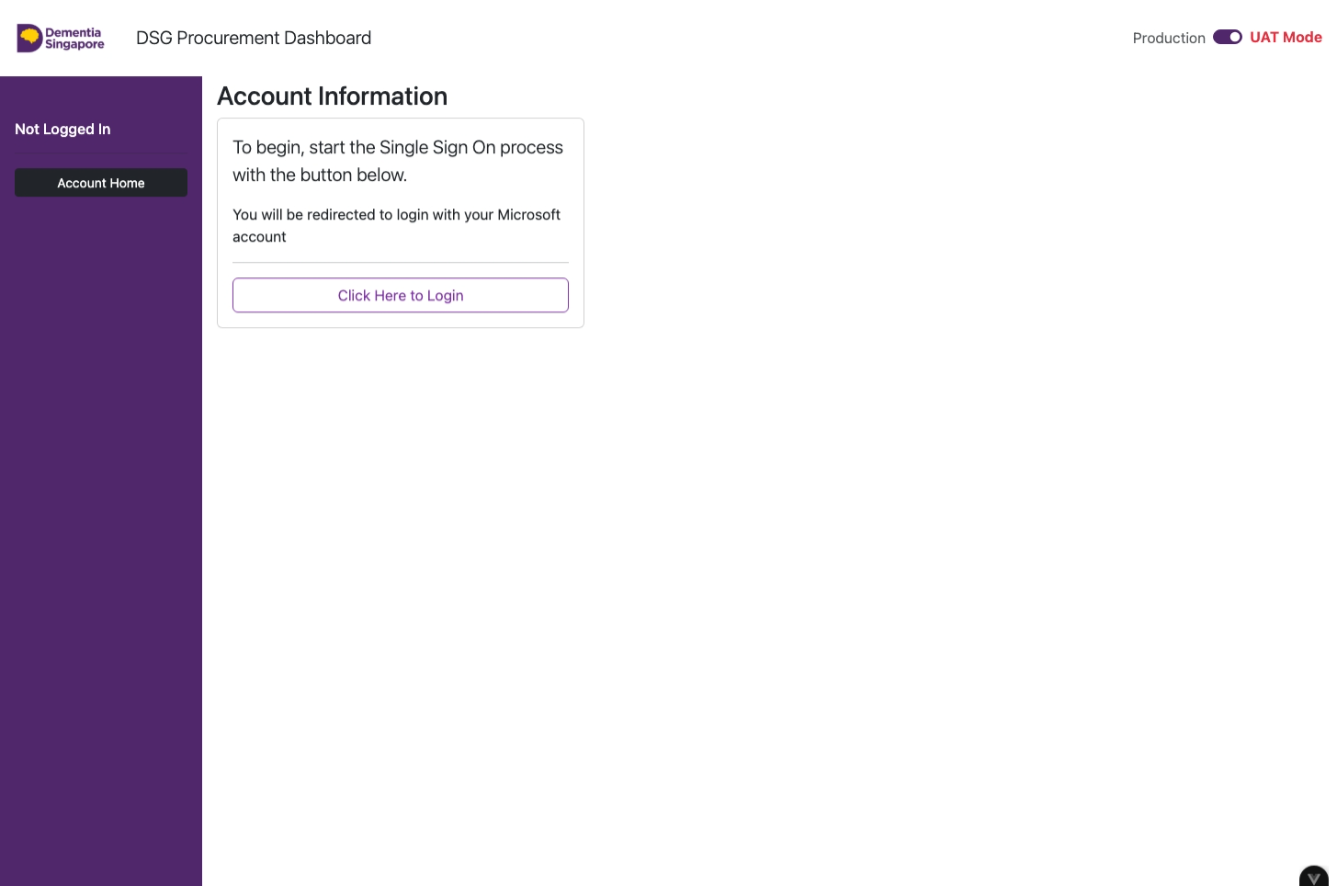
Login with Your Microsoft Account
Login with your DSG work account.
yourname@dementia.org.sg). Personal Microsoft accounts will not have access to the system.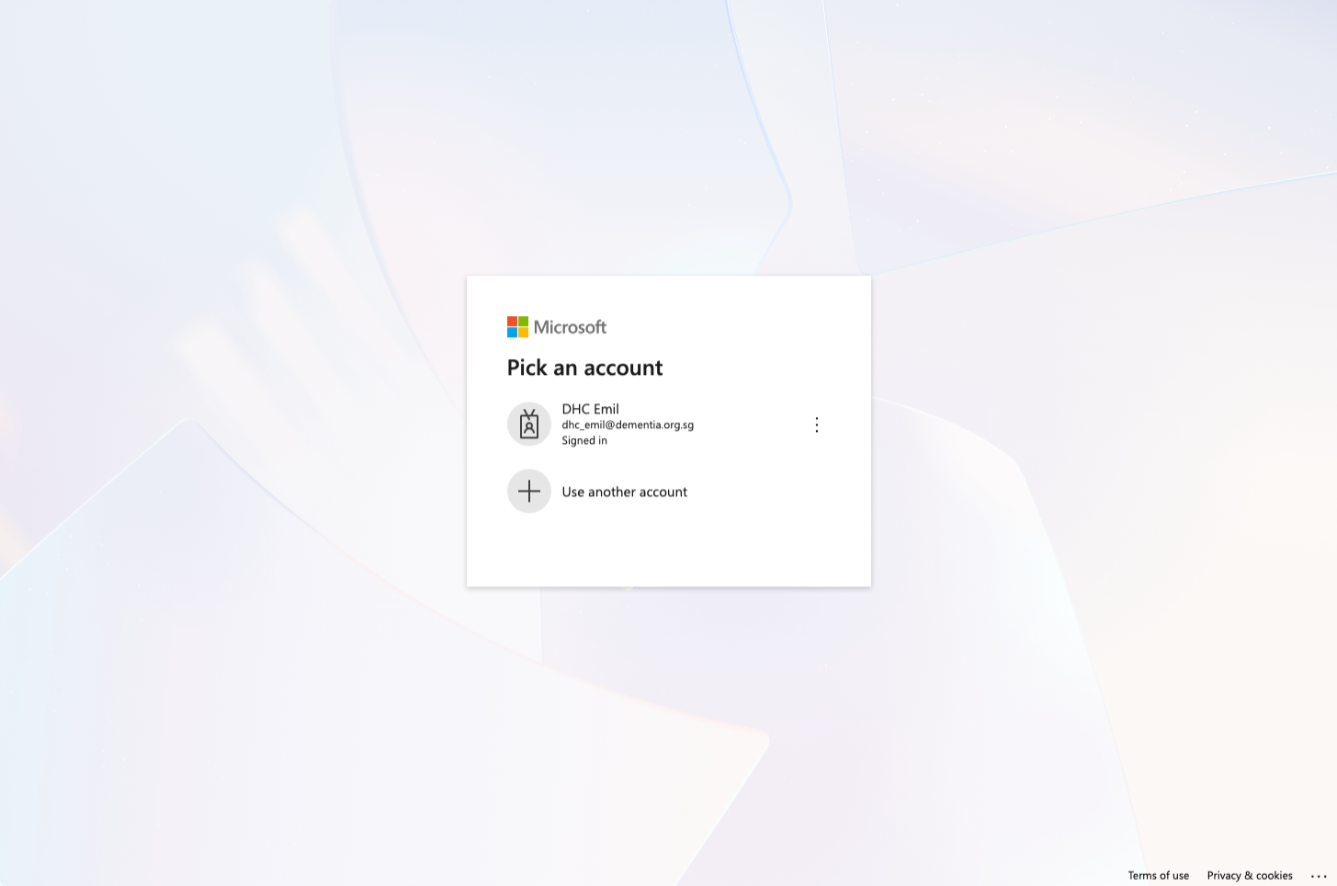
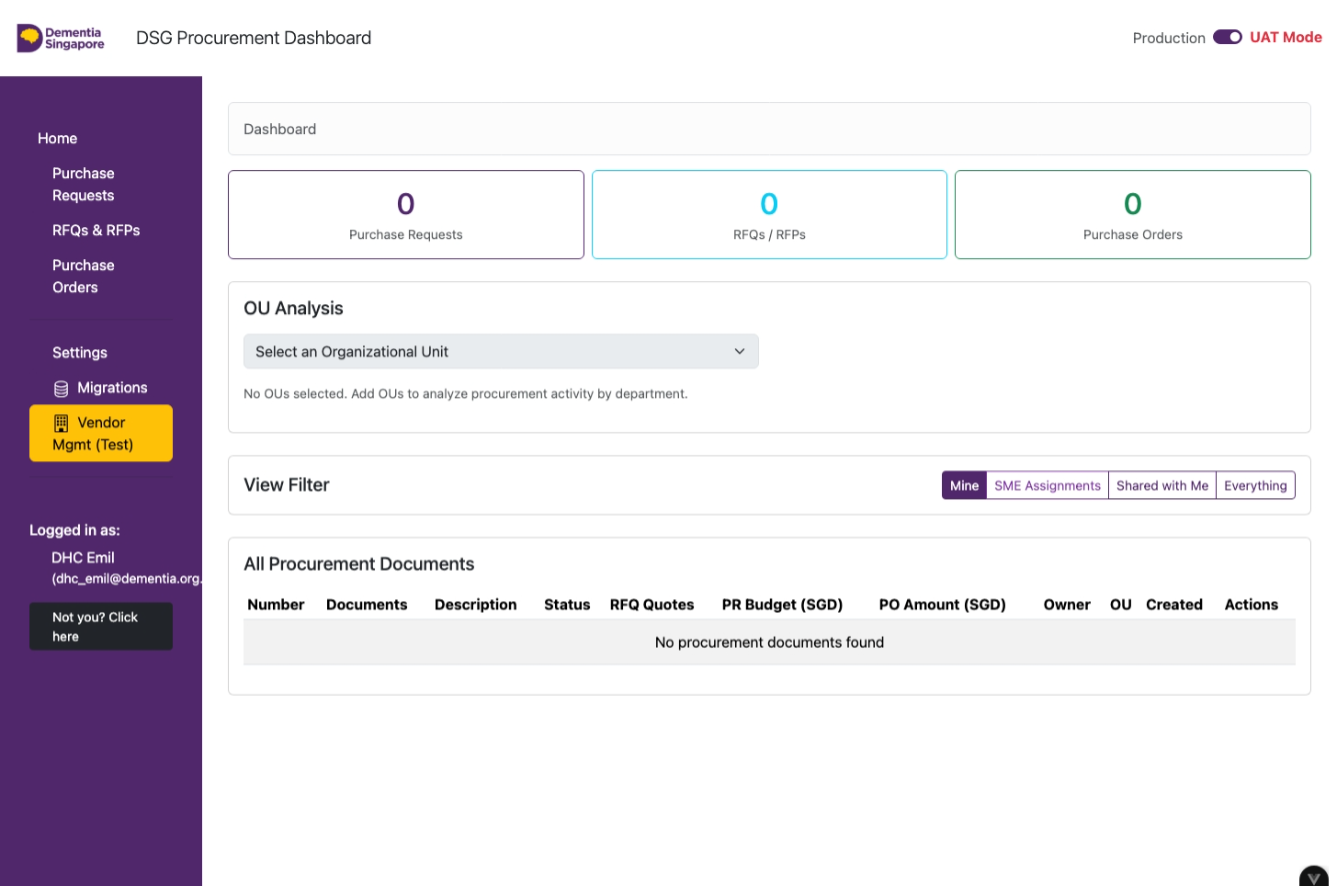
Start a Purchase Request
Click Purchase Requests in the left navigation menu.
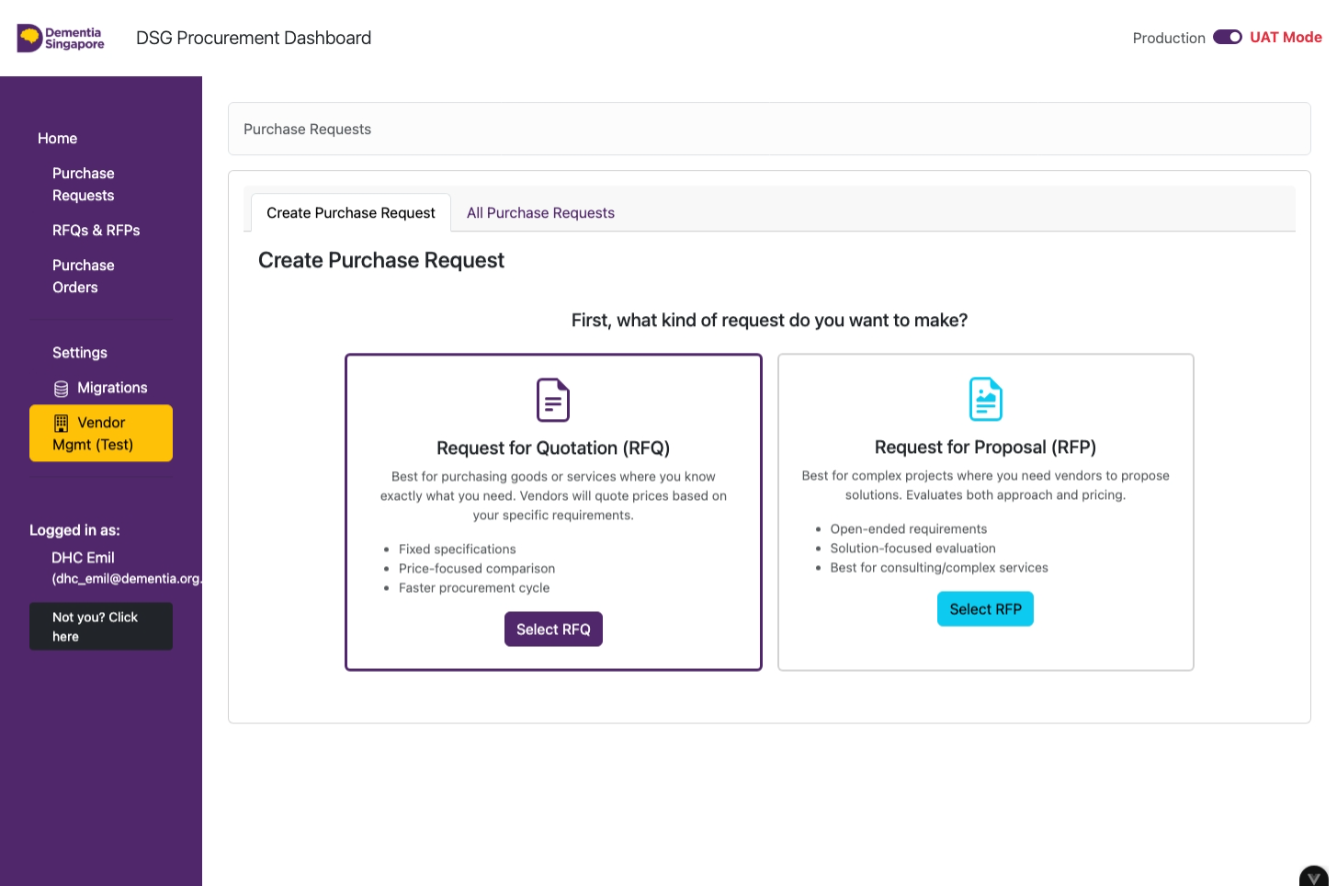
Choose RFQ or RFP
Click on 'Select RFQ' or 'Select RFP'
- RFQ (Request for Quotation) — specs are defined, you need vendors to quote a price. Best for standard goods and services.
- RFP (Request for Proposal) — you need vendors to propose how they'd deliver. Best for complex projects where approach and expertise matter.
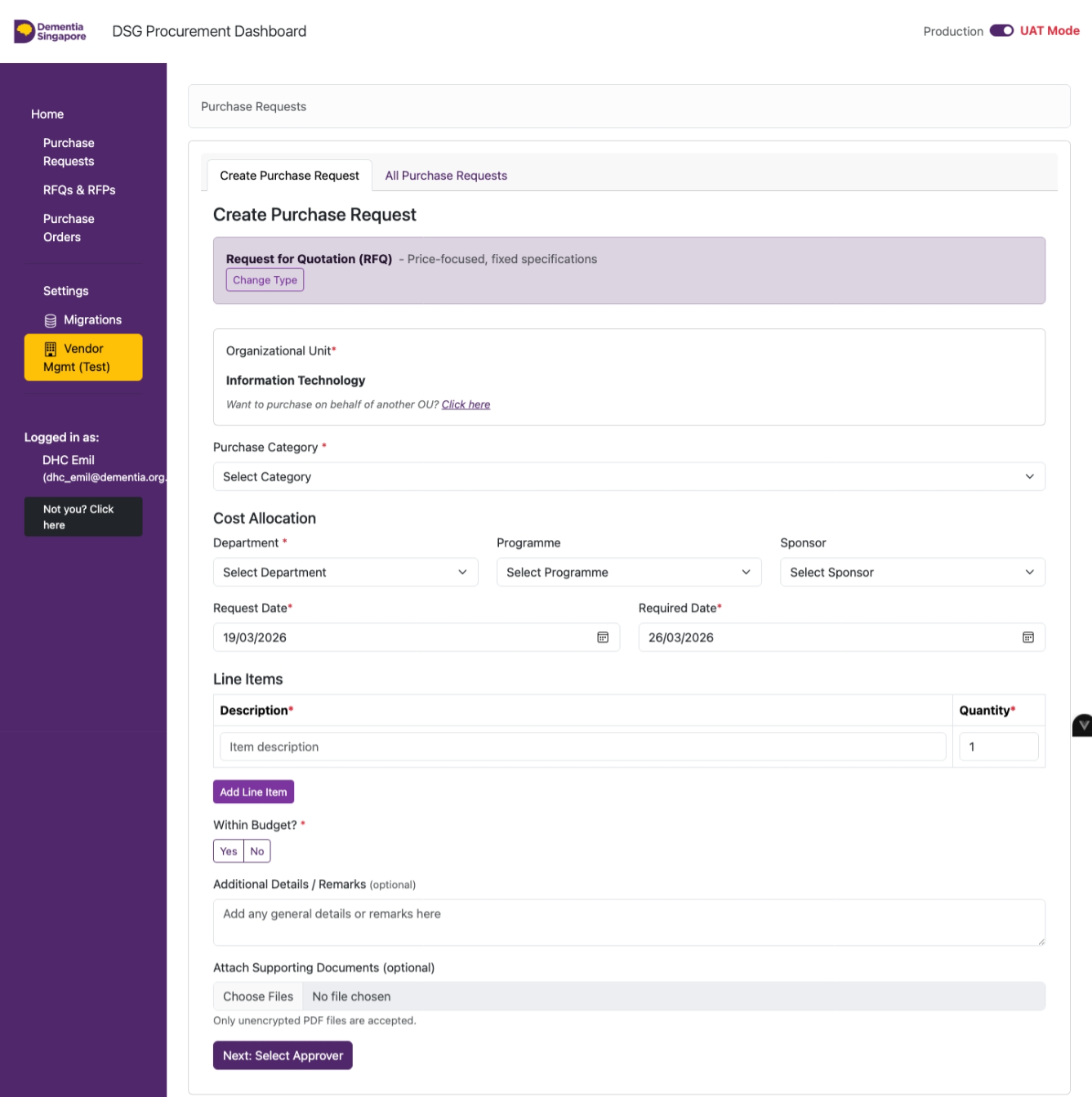
Fill In the Purchase Request Details
Fill in all required fields indicated by an asterisk (*).
- Purchase Category
- Cost Allocation - Department
- Request Date
- Required Date
- Description & Quantity (items to be purchased)
- Within Budget
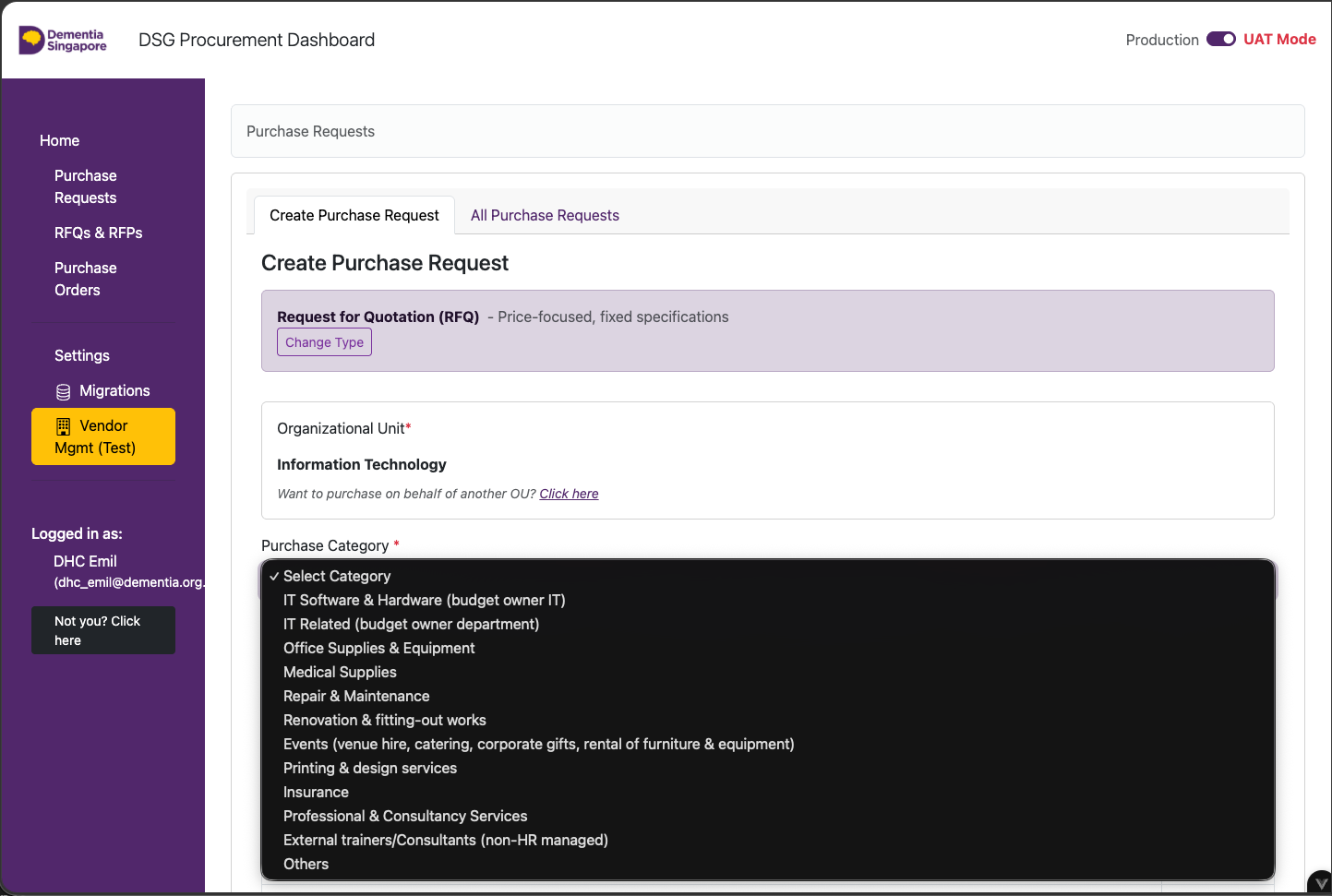
Choose a Purchase Category
Select the Purchase Category that best describes what you're buying.
The category determines the approval workflow. Common categories: Office Supplies, Professional Services, Marketing & Events, IT — Software & Hardware, Facilities & Maintenance.
Select Approver — Standard Flow
Select your direct superior as approver and click OK.
The system usually pre-suggests the approver. Confirm or search for the correct person if needed.
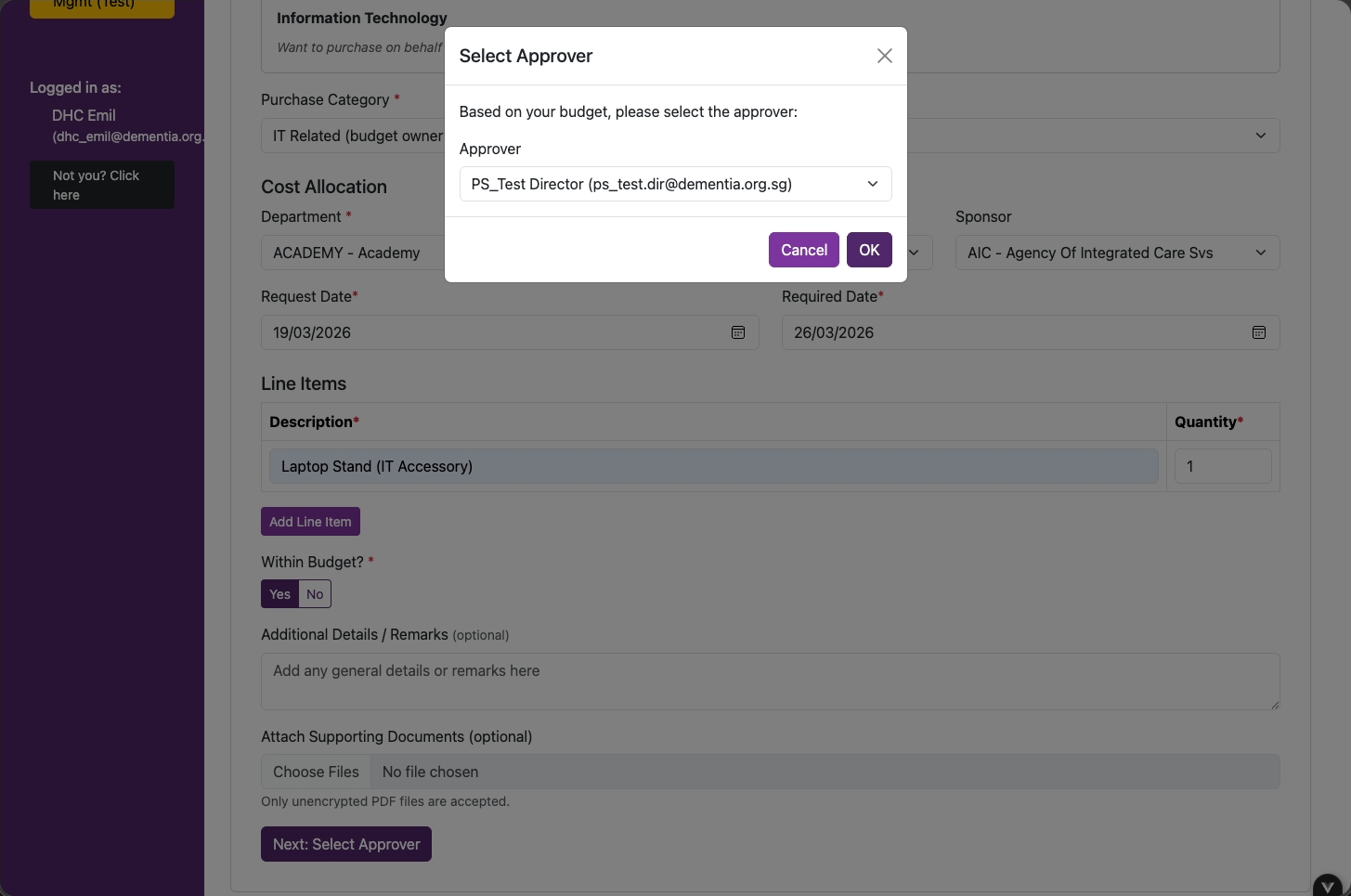
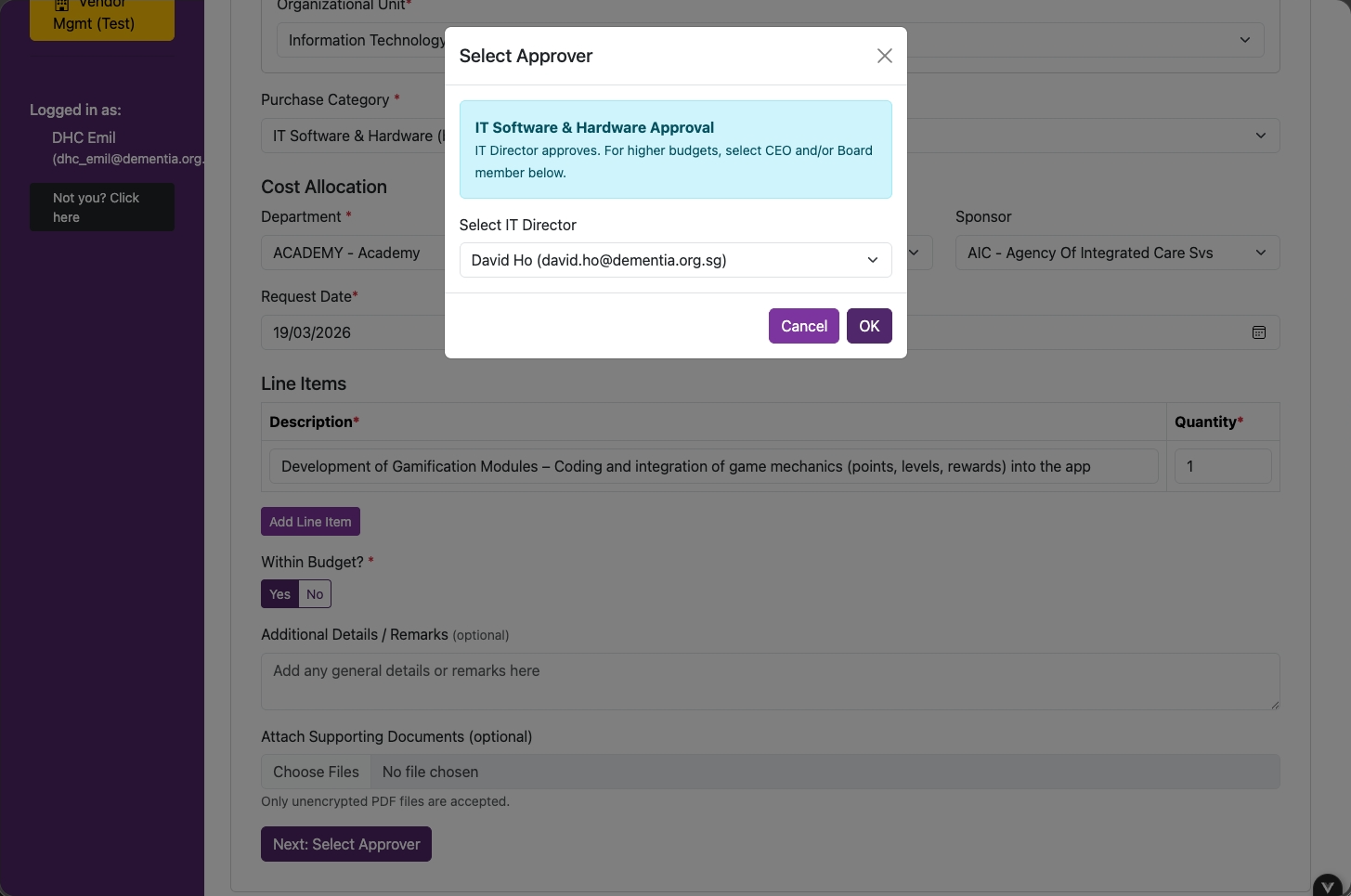
Select Approver — IT Budget Owner Flow
Select the IT Director as approver and click OK.
This cannot be changed — all IT purchases must be reviewed by the IT Director before vendor engagement, regardless of budget.
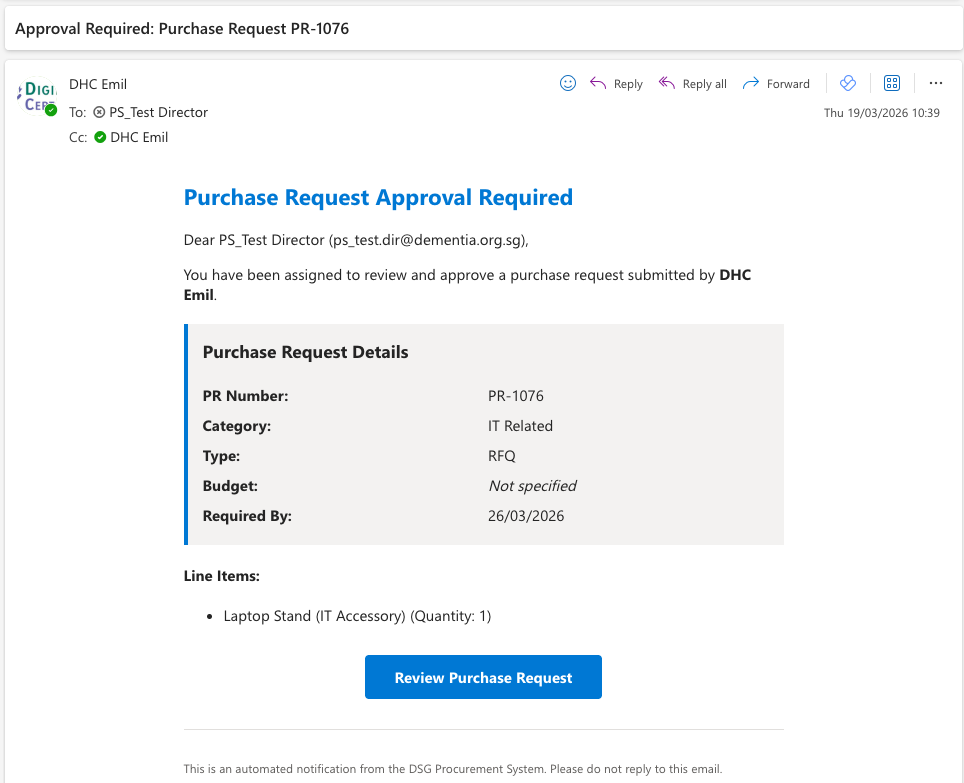
Email Notification — Approver
Click Review Purchase Request.
The email includes a summary (title, category, amount), a direct link, and the required-by date.
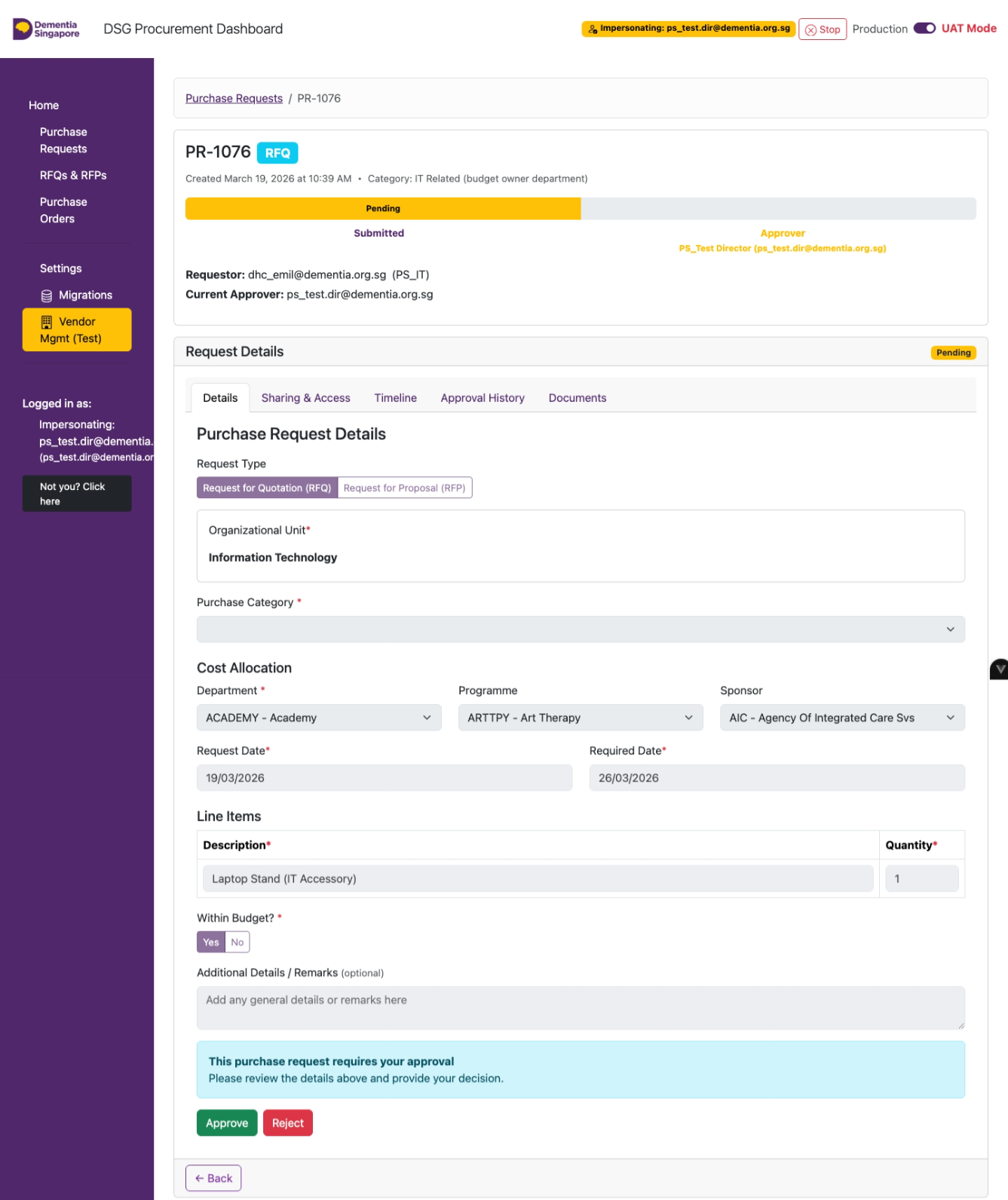
Approver Reviews the Request
Click on 'Approve' or 'Reject'.
Note: Requestors will need to create a new purchase request if the current purchase request is rejected
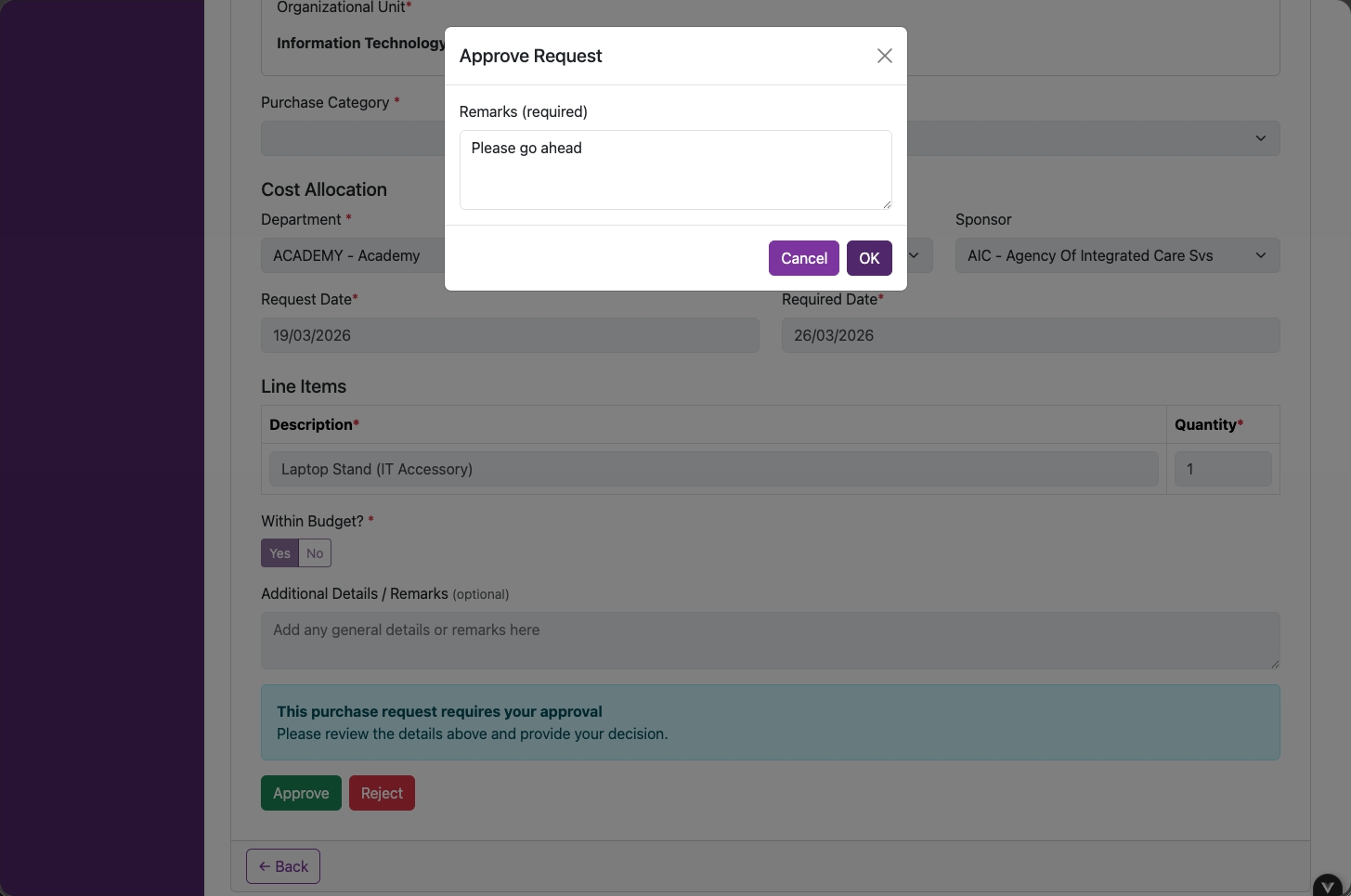
Approver — Add Remarks
Fill in Remarks and click OK.
Remarks are mandatory and become part of the permanent audit trail.
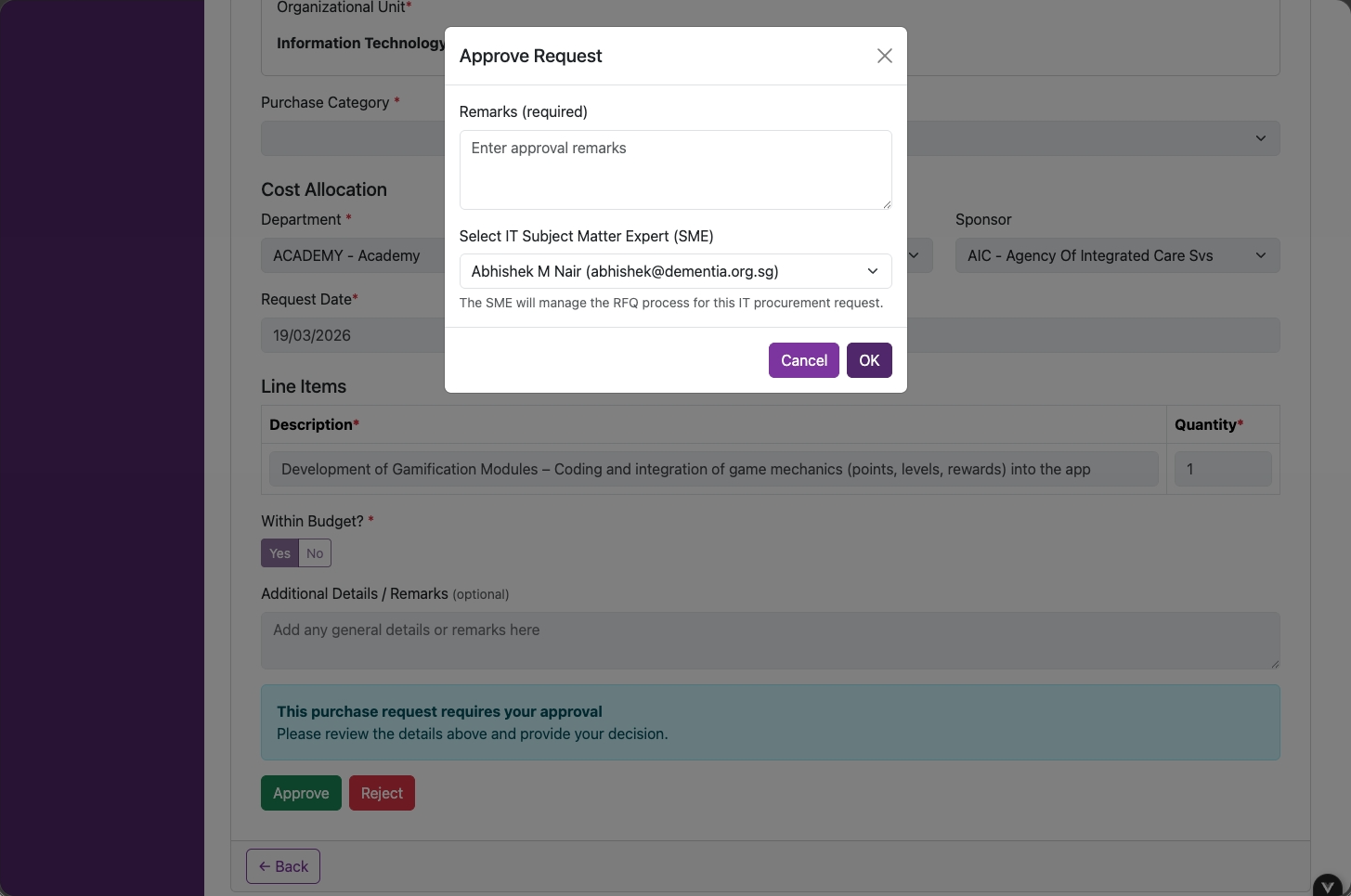
Approver — Remarks & Assign SME
Fill in Remarks, assign an IT Subject Matter Expert (SME), and click OK.
The SME oversees the procurement — evaluating proposals and coordinating with vendors. They take over vendor management from this point.
Requestor Receives Email Notification
Click View Purchase Request.
Once approved, invite vendors to submit quotations:
- Add vendors from the directory
- Send invitation emails from the system
- Set a submission deadline