Step 1 of 31
A
B
C
D
1

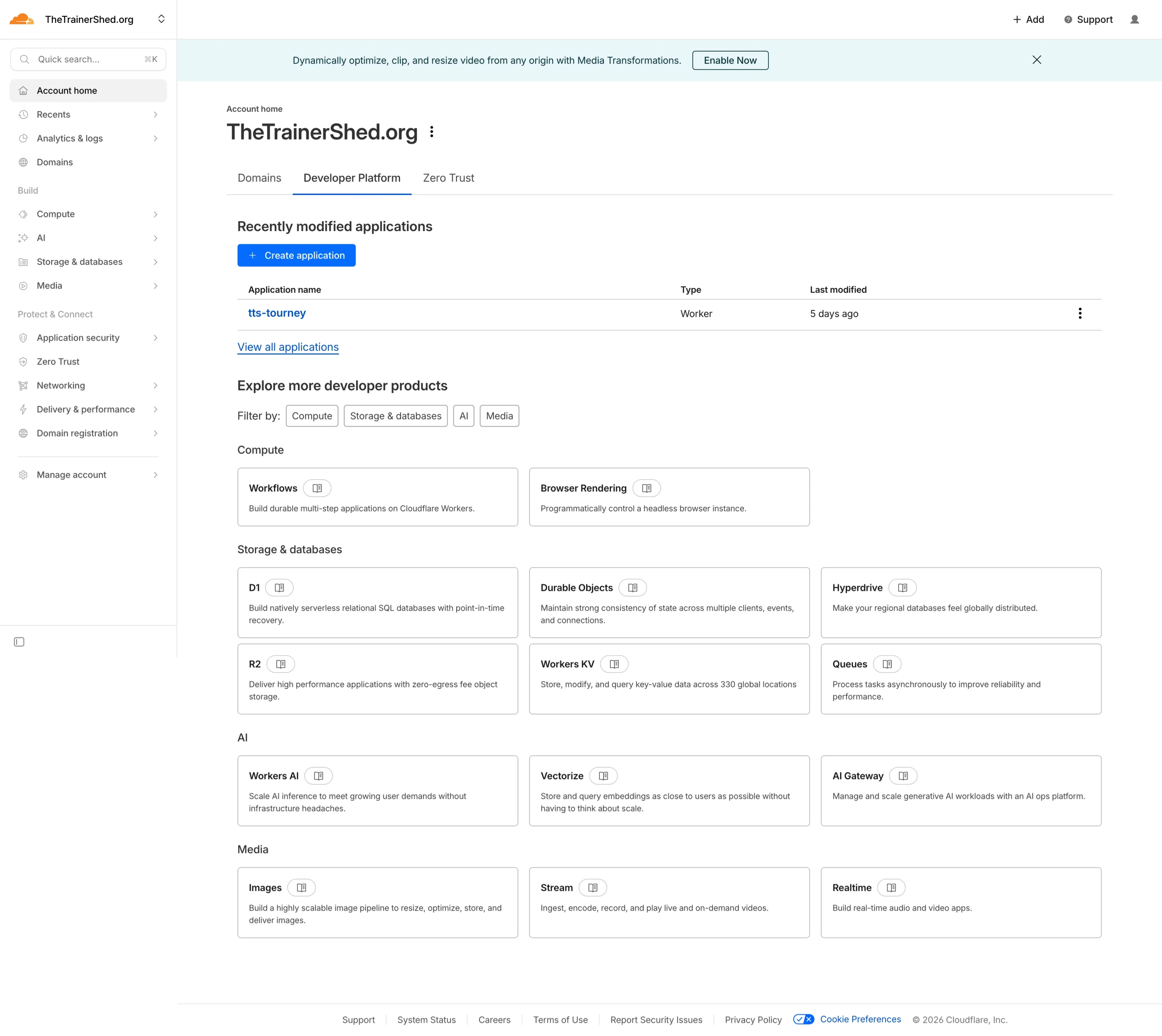
Open the Developer Platform
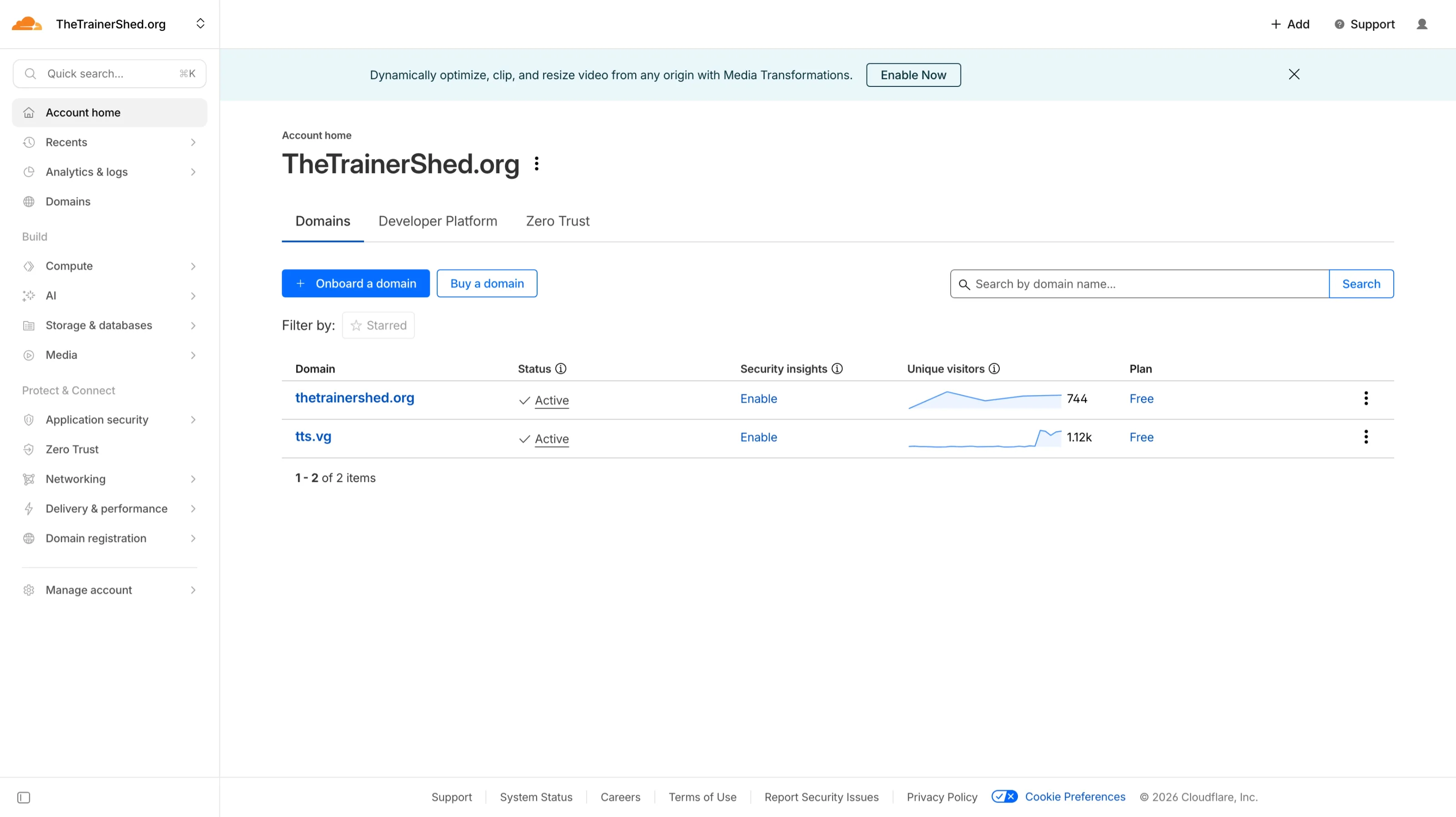
Log in to your Cloudflare dashboard. On the Account Home page, click the Developer Platform tab at the top.
Cloudflare Account Home - click Developer Platform tab
2

Create an Application

On the Developer Platform page, click the + Create application button to start setting up a new Worker.
Developer Platform - Create application button
3

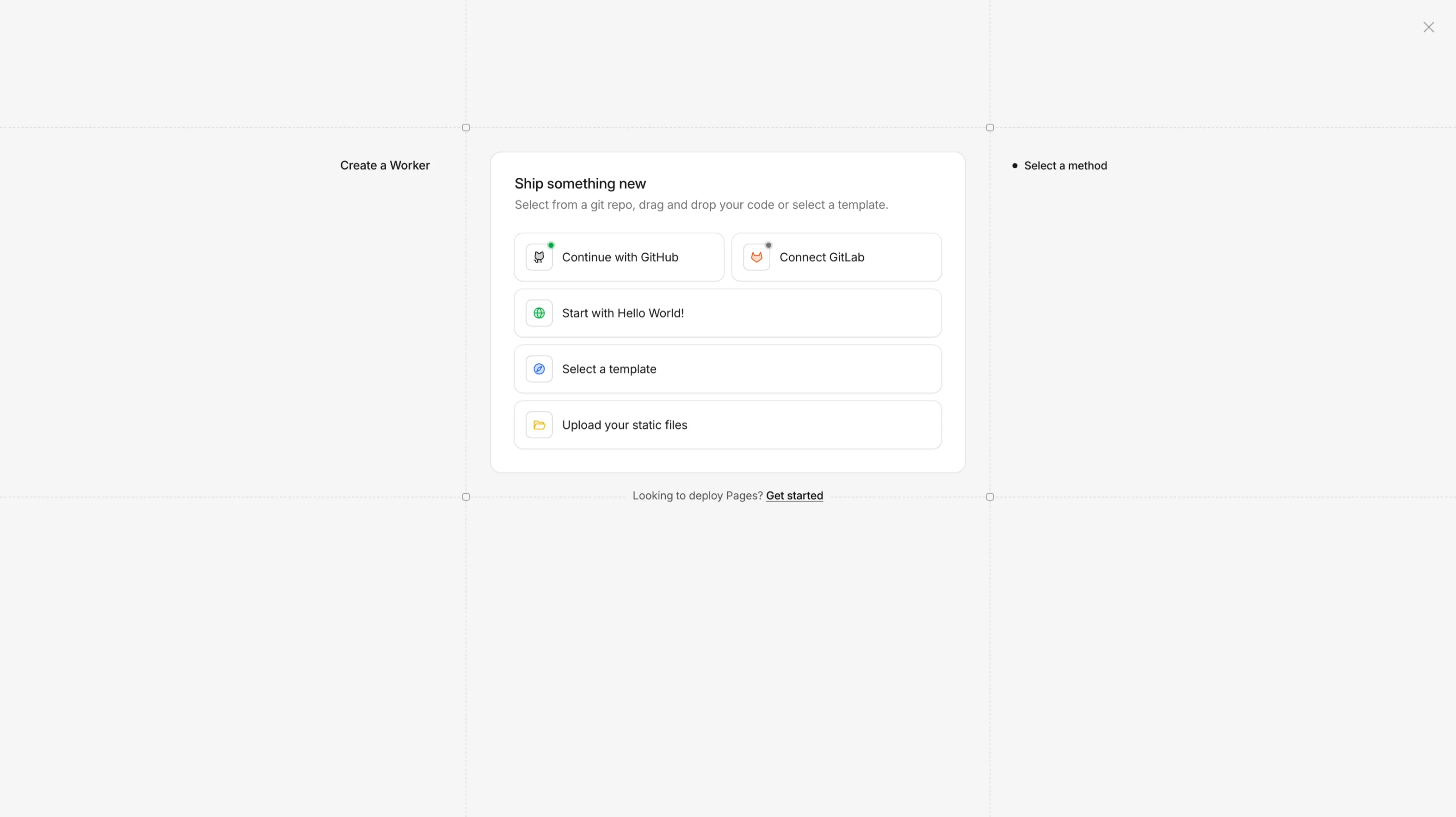
Select a Template

In the "Ship something new" dialog, click Select a template to browse the available framework starters.
Ship something new - Select a template option
4

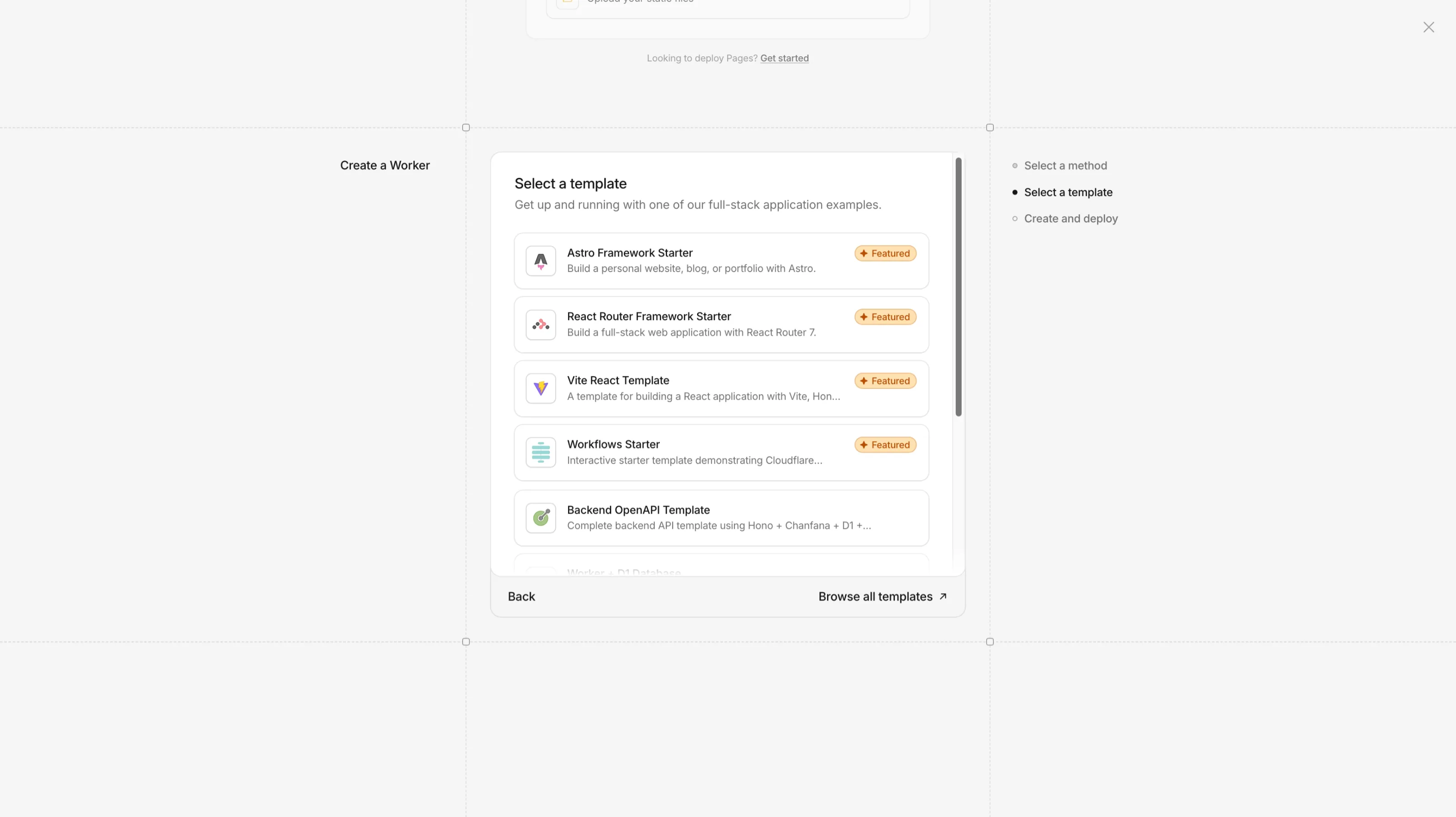
Choose the Astro Framework Starter

From the template list, select the Astro Framework Starter (marked as Featured). This gives you a ready-made Astro project configured for Cloudflare Workers.
Selecting the Astro Framework Starter template
5

Set Up Your Application

On the "Set up your application" page, configure the following:

  • Git account - Select your GitHub account or organisation.
  • Create private Git repository - Keep this checked unless you want public code.
  • Project name - Enter a name using lowercase letters and hyphens only (no spaces).

Once everything looks good, click the Deploy button.

Tip: Choose a descriptive project name like my-org-website. You can always connect a custom domain later.
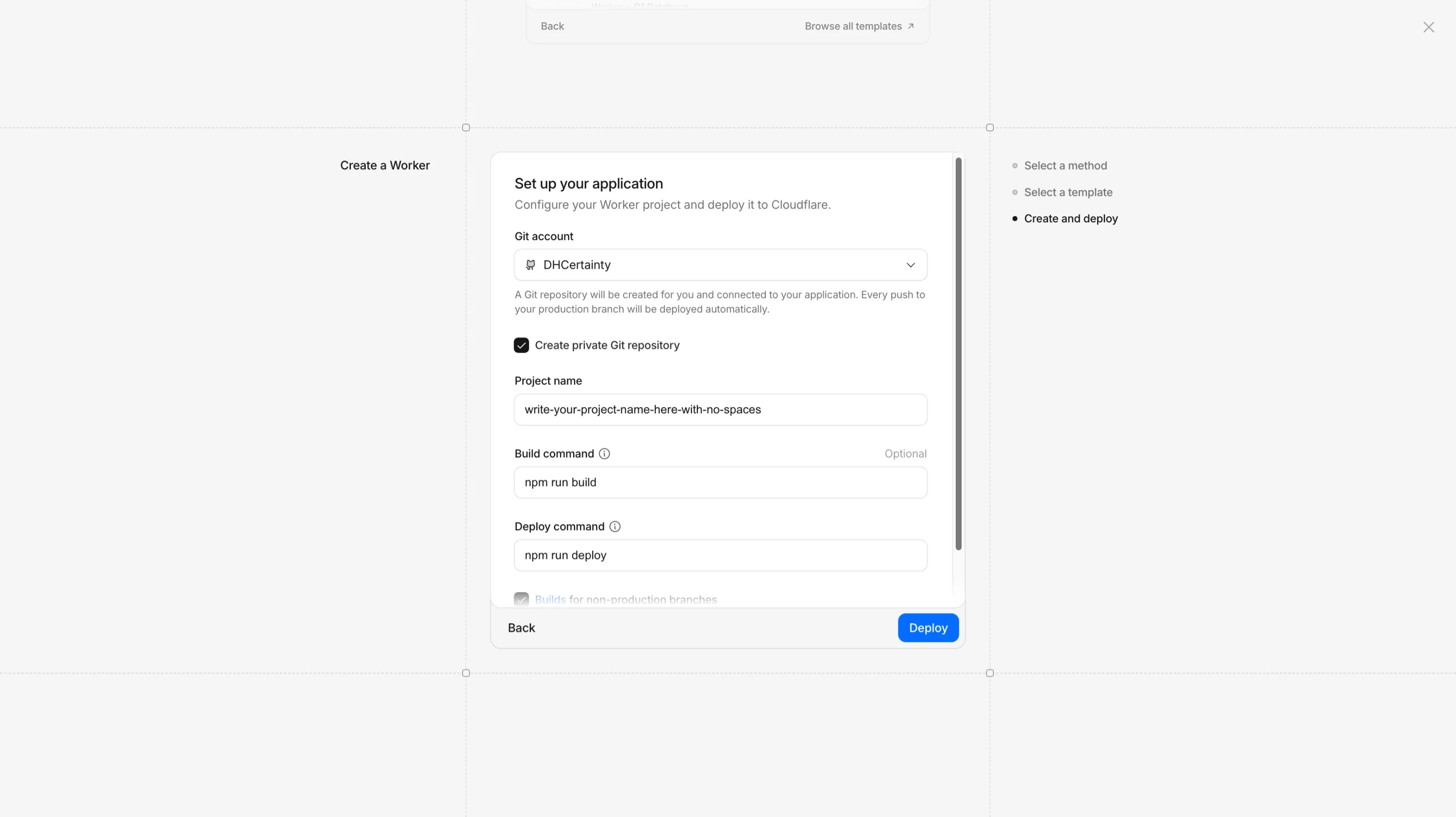
Set up your application - Git account, project name, and Deploy
6

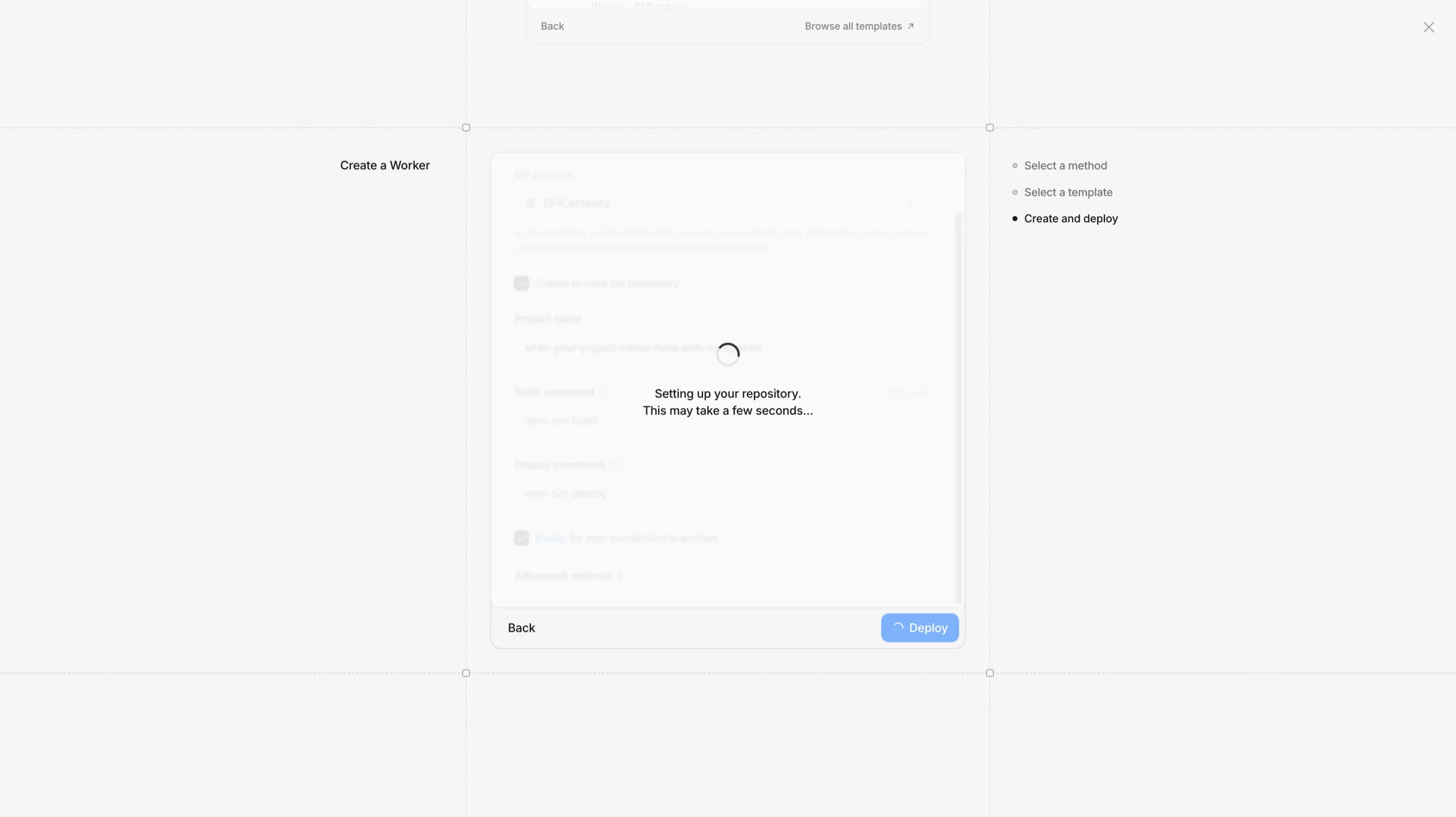
Deploying

Cloudflare is now setting up your Git repository and deploying your project. This may take a few seconds - wait for it to complete.
Setting up your repository - deploying spinner
7

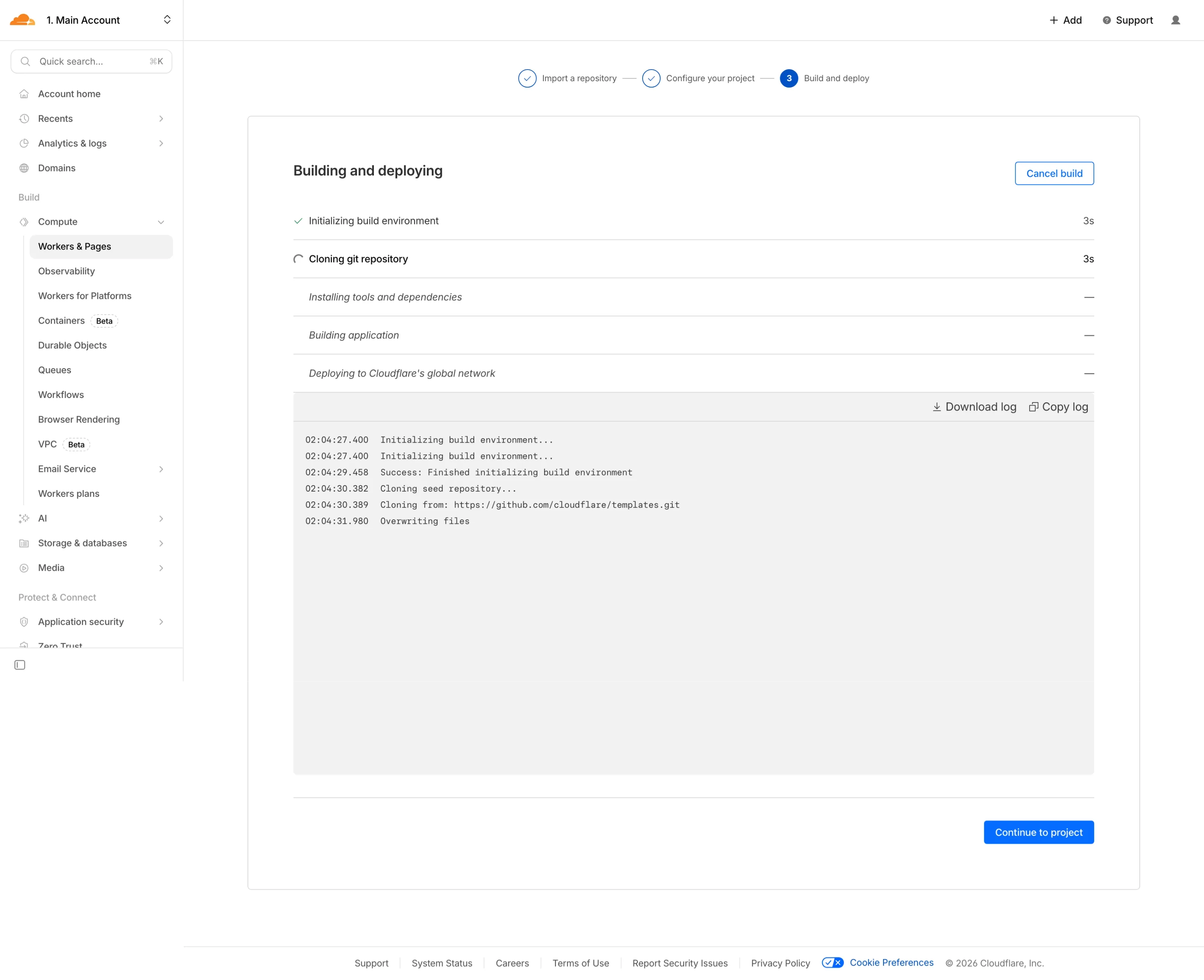
Deployment Complete

Wait for the build and deployment to finish. You'll see the build logs showing each stage. Once complete, click Continue to project to view your new Worker.
Building and deploying - build logs and Continue to project
8

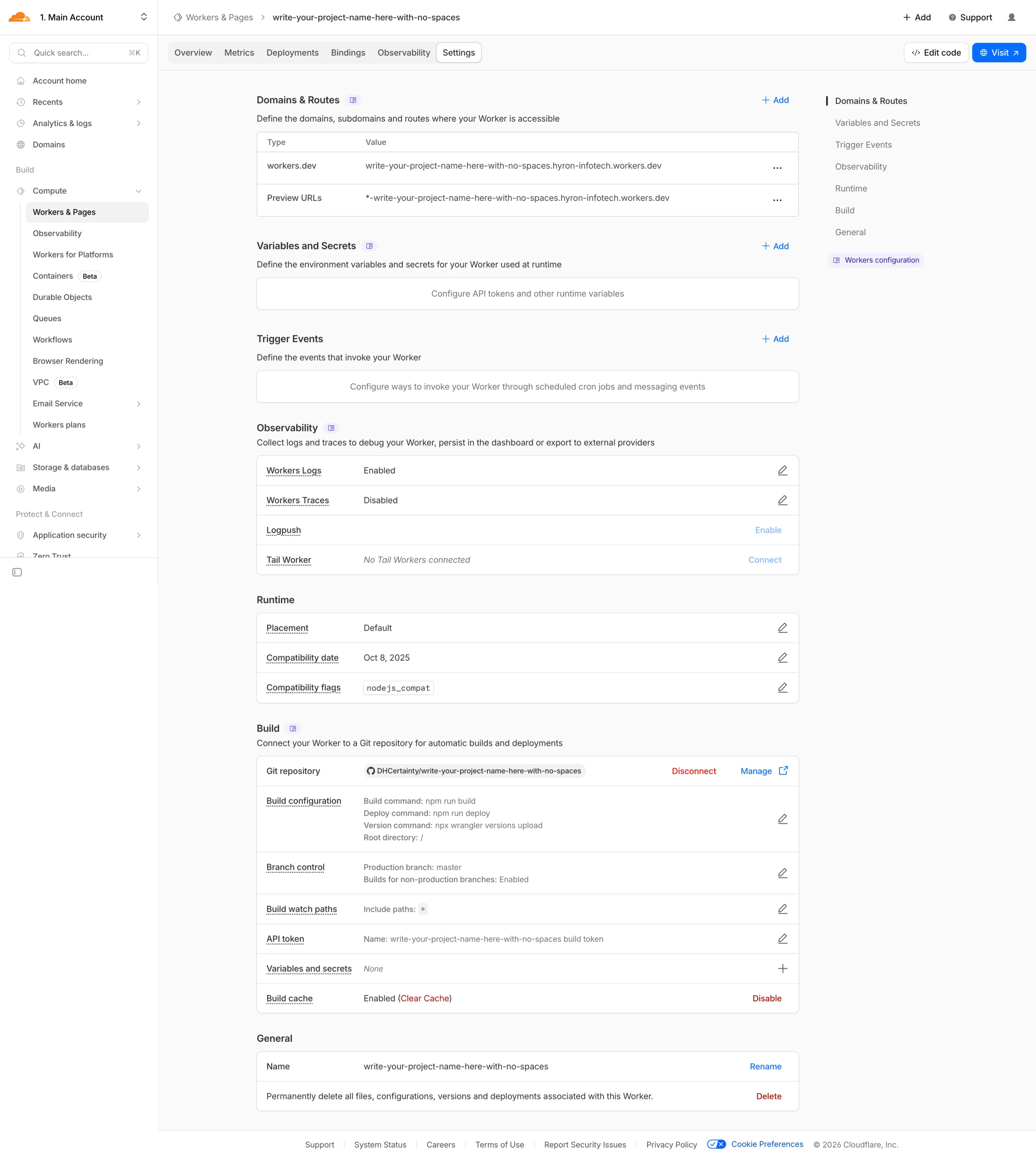
Project Overview

The overview page shows your project's metrics, bindings, and deployment history. Note your .workers.dev URL at the top - this is your live site address. Click on Settings to continue.
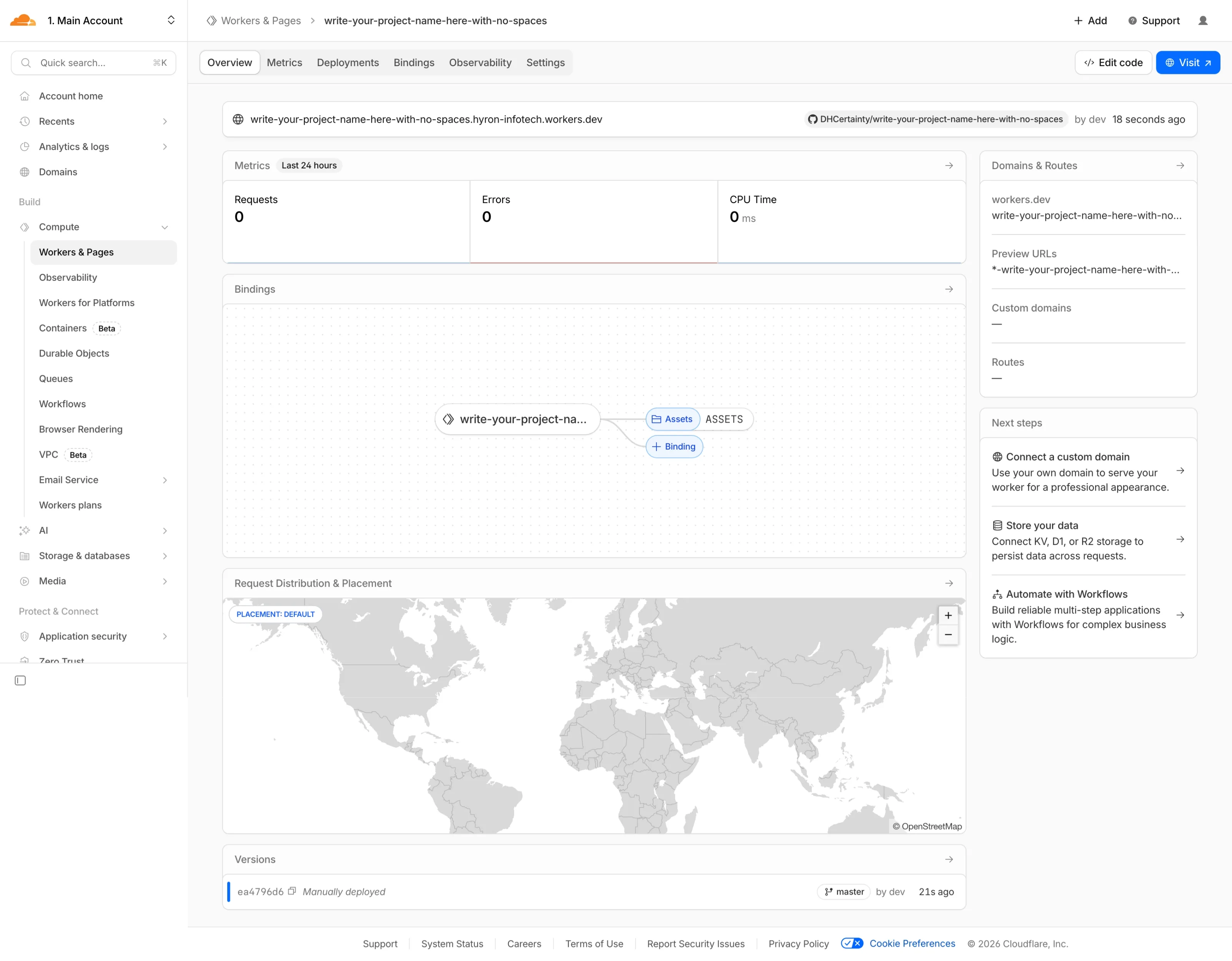
Cloudflare Workers project overview
9

Open Domains & Routes

In the Settings tab, click + Add next to Domains & Routes to add a custom domain.
Settings - Domains & Routes + Add button
10

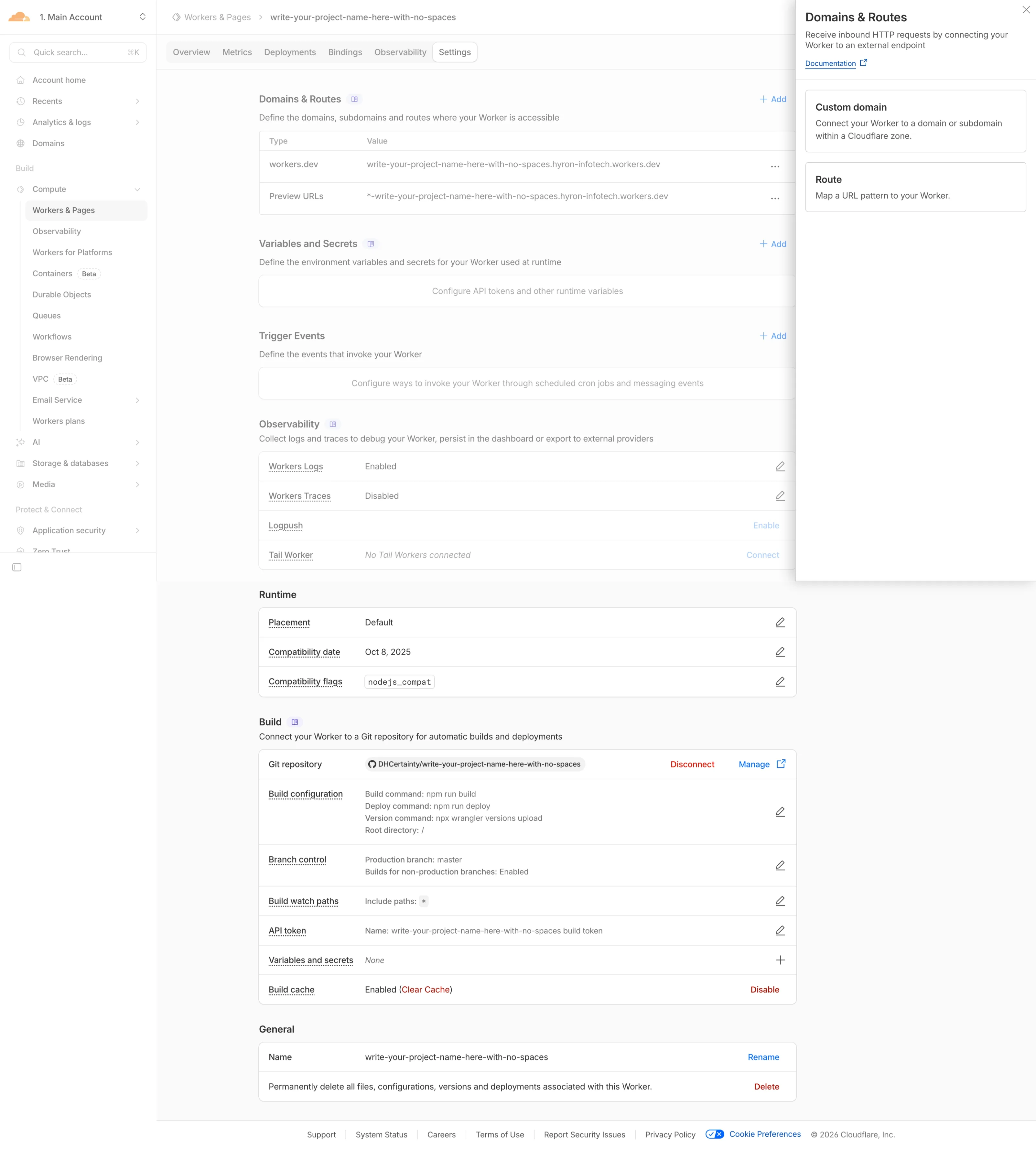
Select Custom Domain

A panel opens on the right. Select Custom domain to connect your own domain or subdomain to this Worker.
Domains & Routes panel - Custom domain option
11

Add Your Custom Domain

Enter your desired domain or subdomain (e.g. choose-a-subdomain.dhcy.sg). Cloudflare will automatically configure the DNS record and provision an HTTPS certificate for you. Click Add domain to save.
Note: The domain must be in a Cloudflare zone you control. Don't forget to update your wrangler.jsonc file to keep your local dev environment in sync.
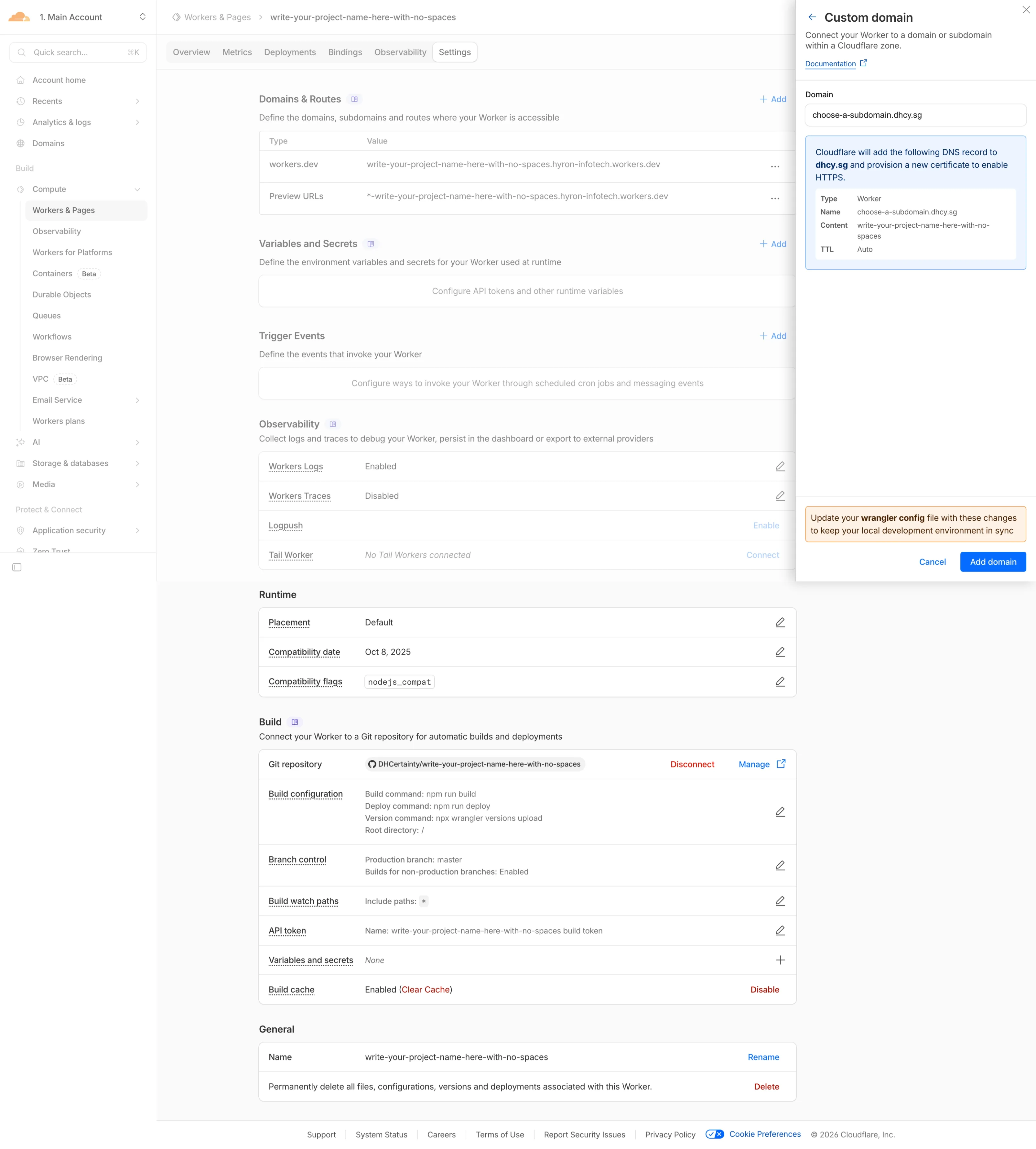
Adding a custom domain to Cloudflare Workers
12

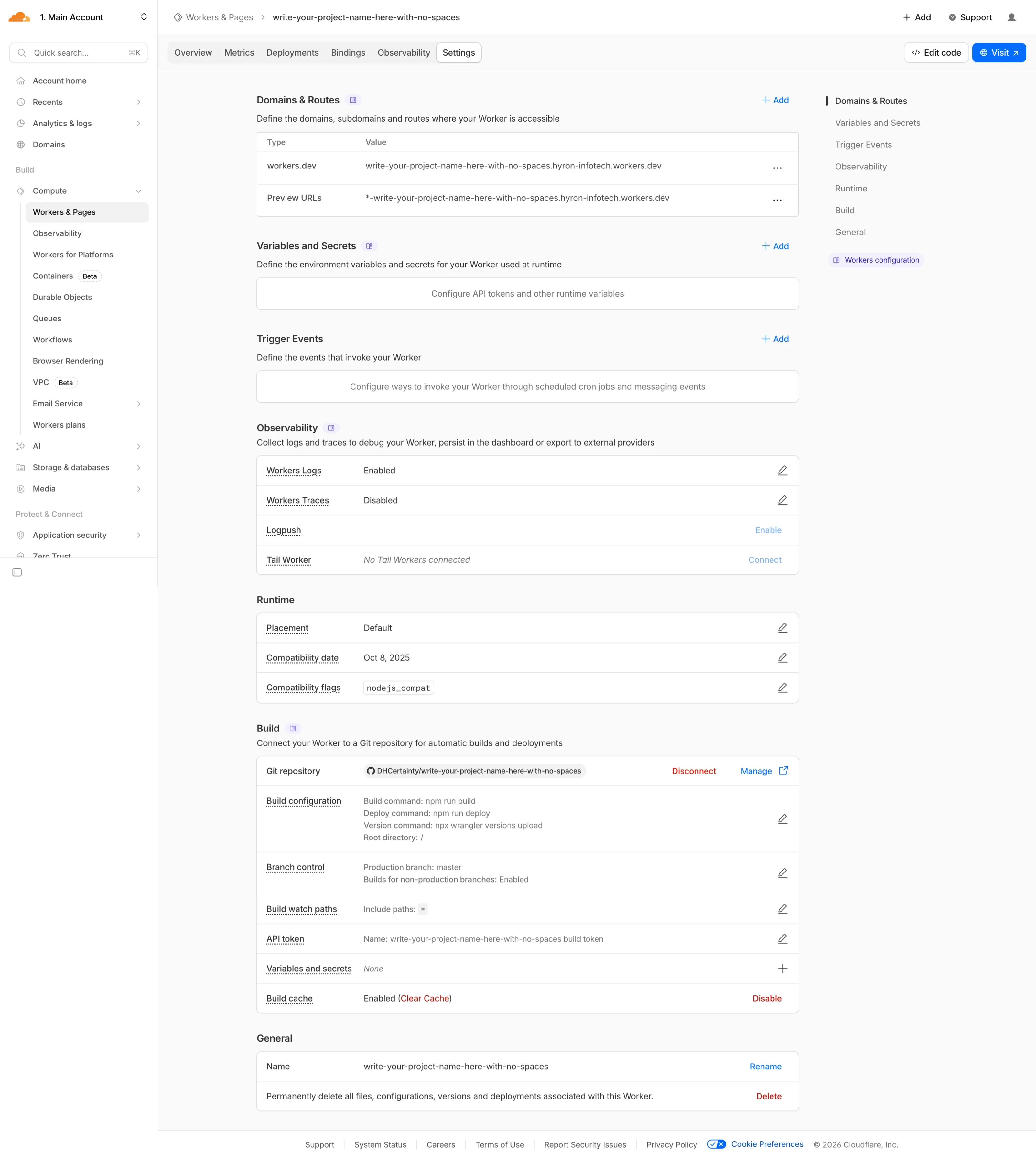
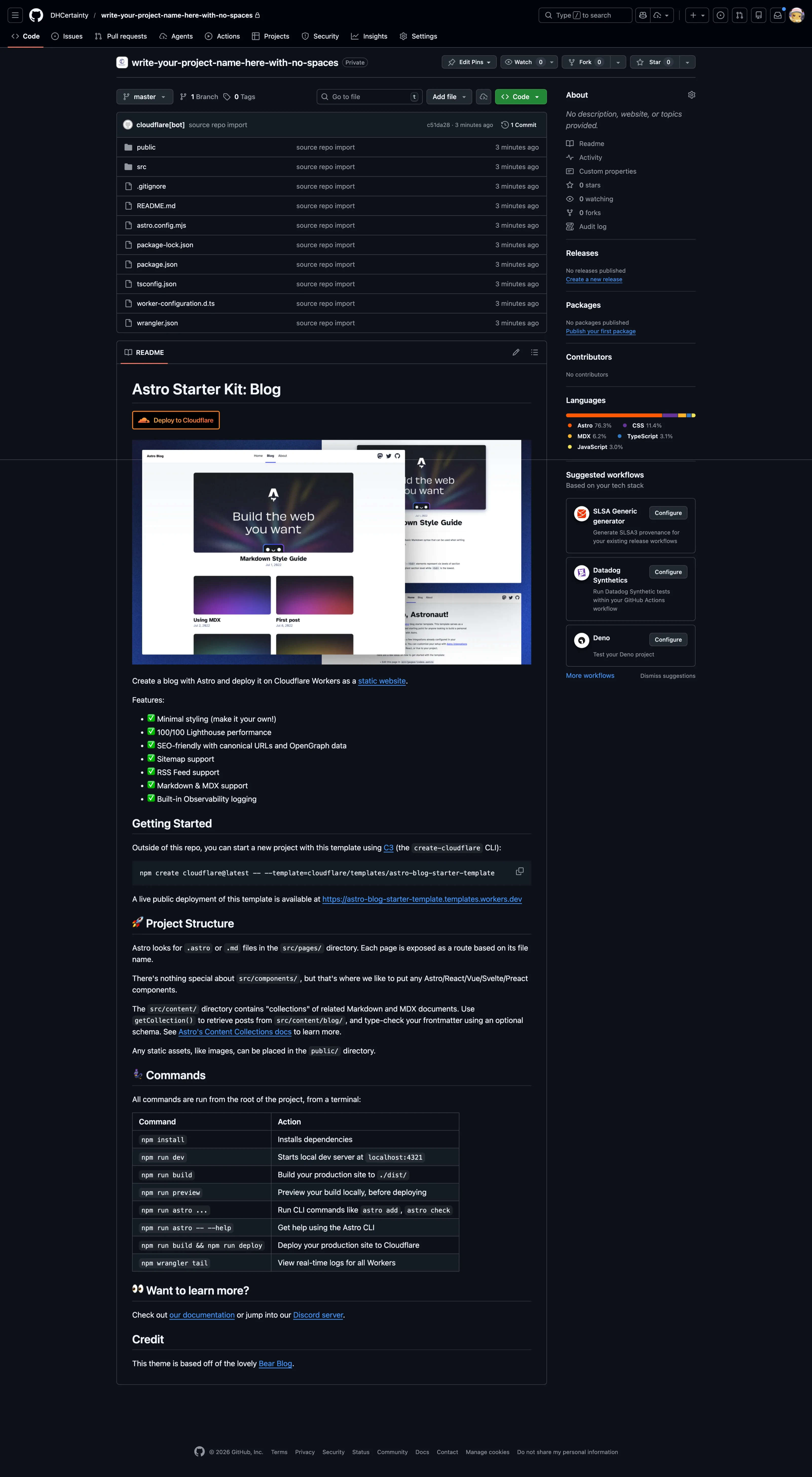
Open Your Git Repository

Scroll down to the Build section. Click on the Git repository name to open it on GitHub.
What's next: After clicking the repository link, GitHub will open in a new tab. You'll copy the clone URL from there in the next steps.
Settings page - scroll to Build section and click Git repository link
13

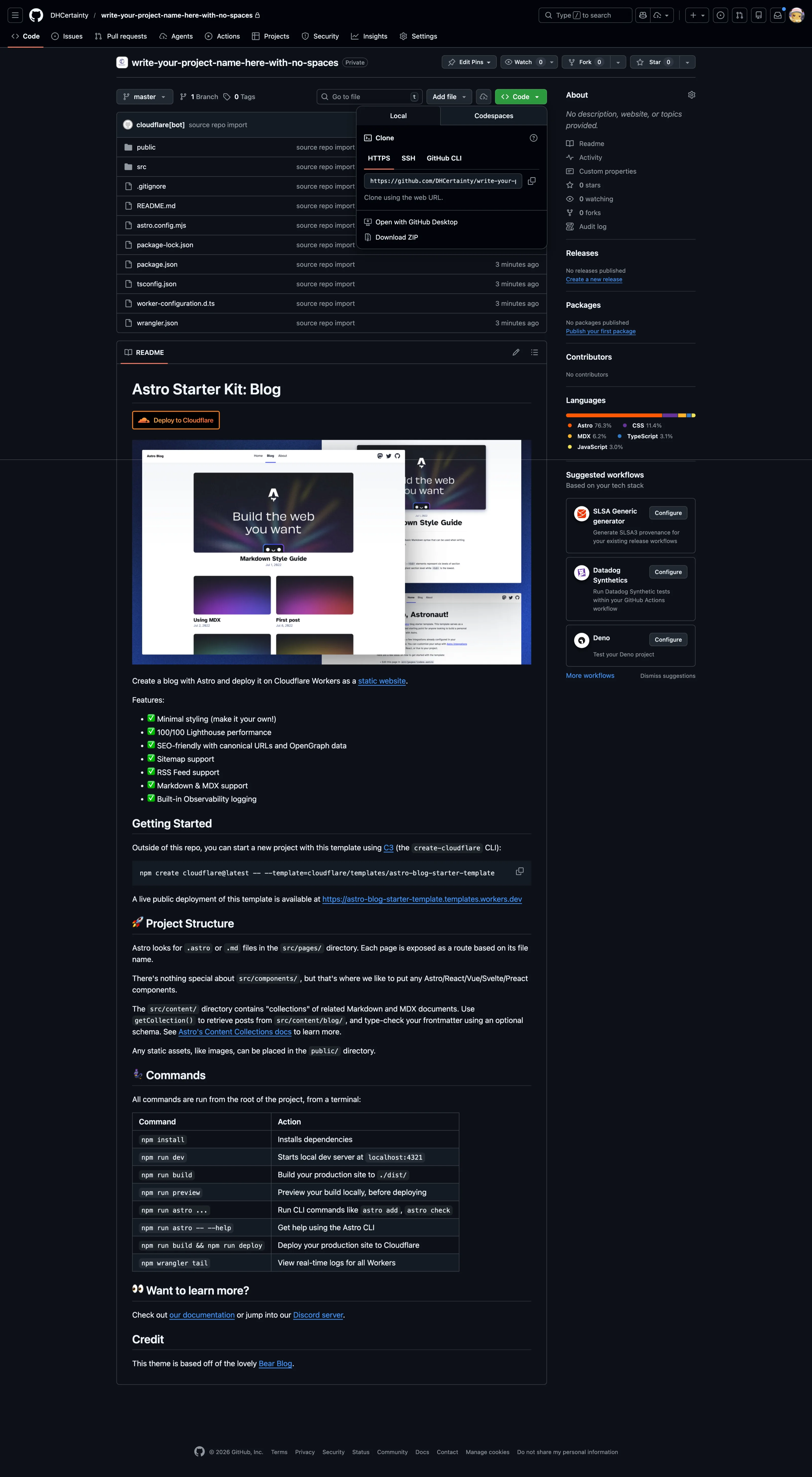
Locate the Clone URL on GitHub

On the GitHub repository page, click the green <> Code button to reveal the clone URL dropdown.
GitHub repository - click Code button to reveal clone URL
14

Copy the Clone URL

Copy the HTTPS clone URL from the dropdown. You'll paste this into Antigravity to connect your repository.
Tip: Click the clipboard icon next to the URL to copy it quickly.
Copying the HTTPS clone URL from GitHub
15

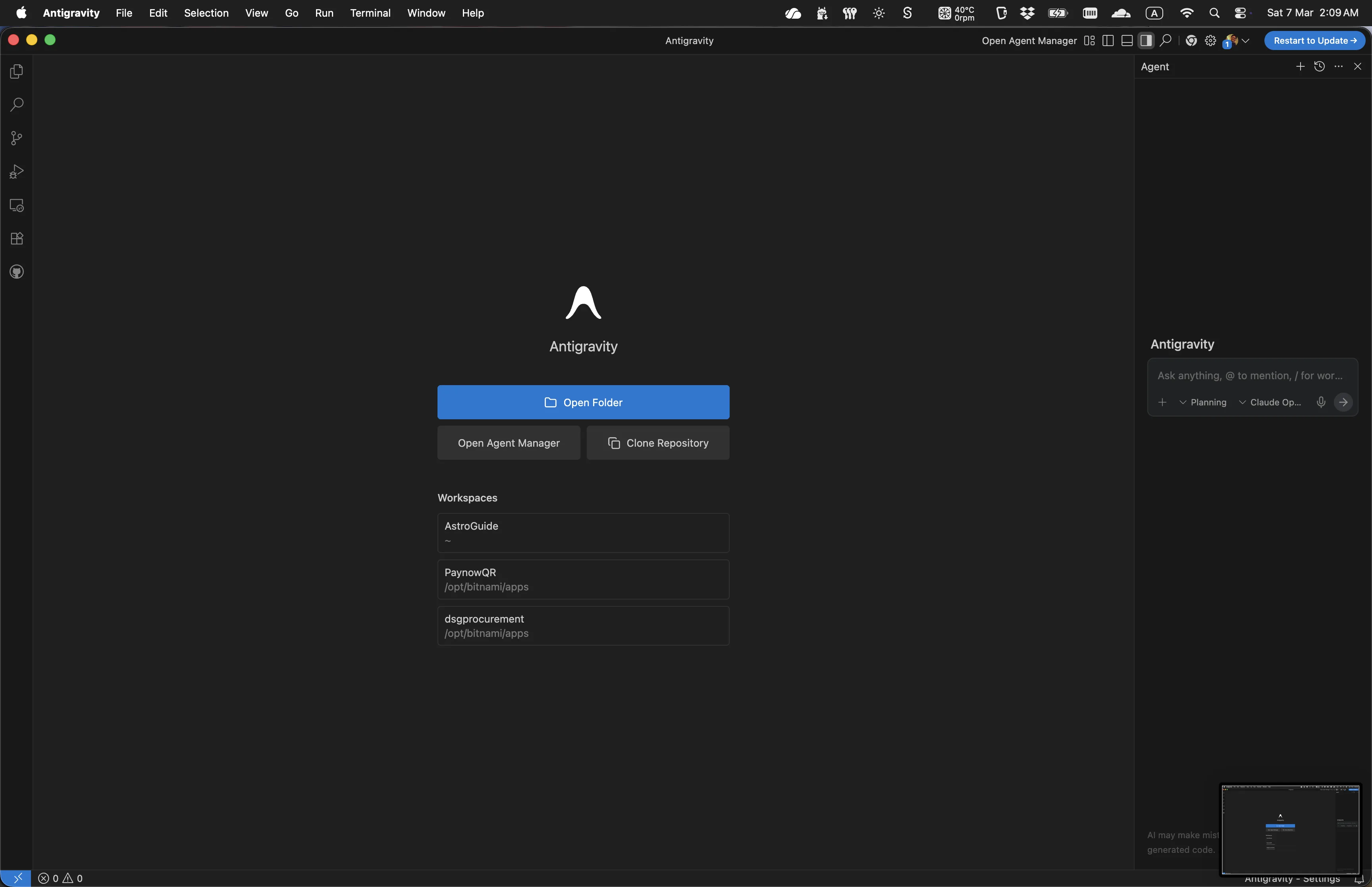
Open Antigravity

Open Antigravity. On the welcome screen, click Clone Repository to connect the GitHub repo you just created.
Antigravity welcome screen - Clone Repository button
16

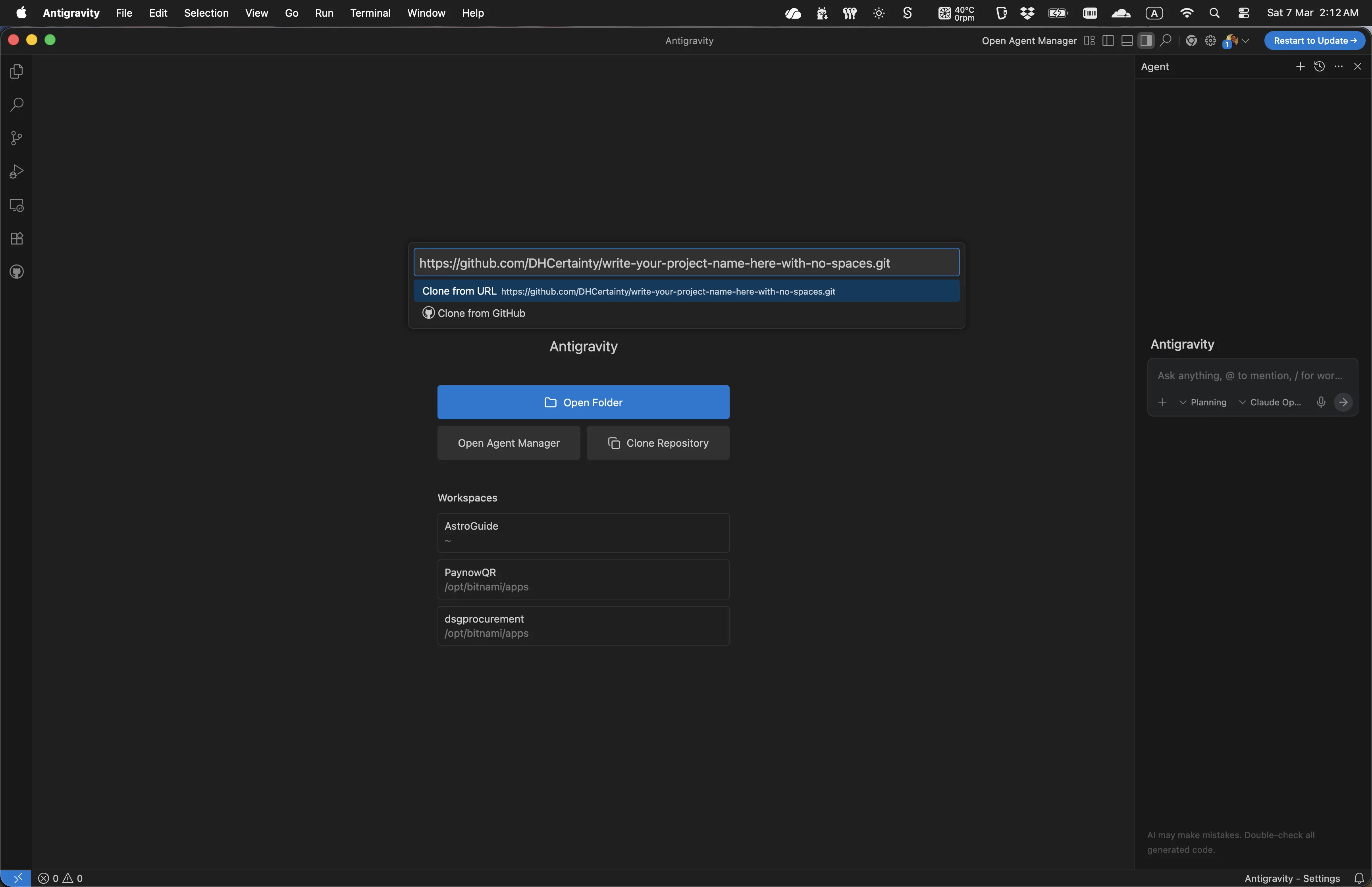
Paste the Clone URL

Paste the HTTPS clone URL you copied from GitHub. Select Clone from URL from the dropdown.
Antigravity - paste clone URL and select Clone from URL
17

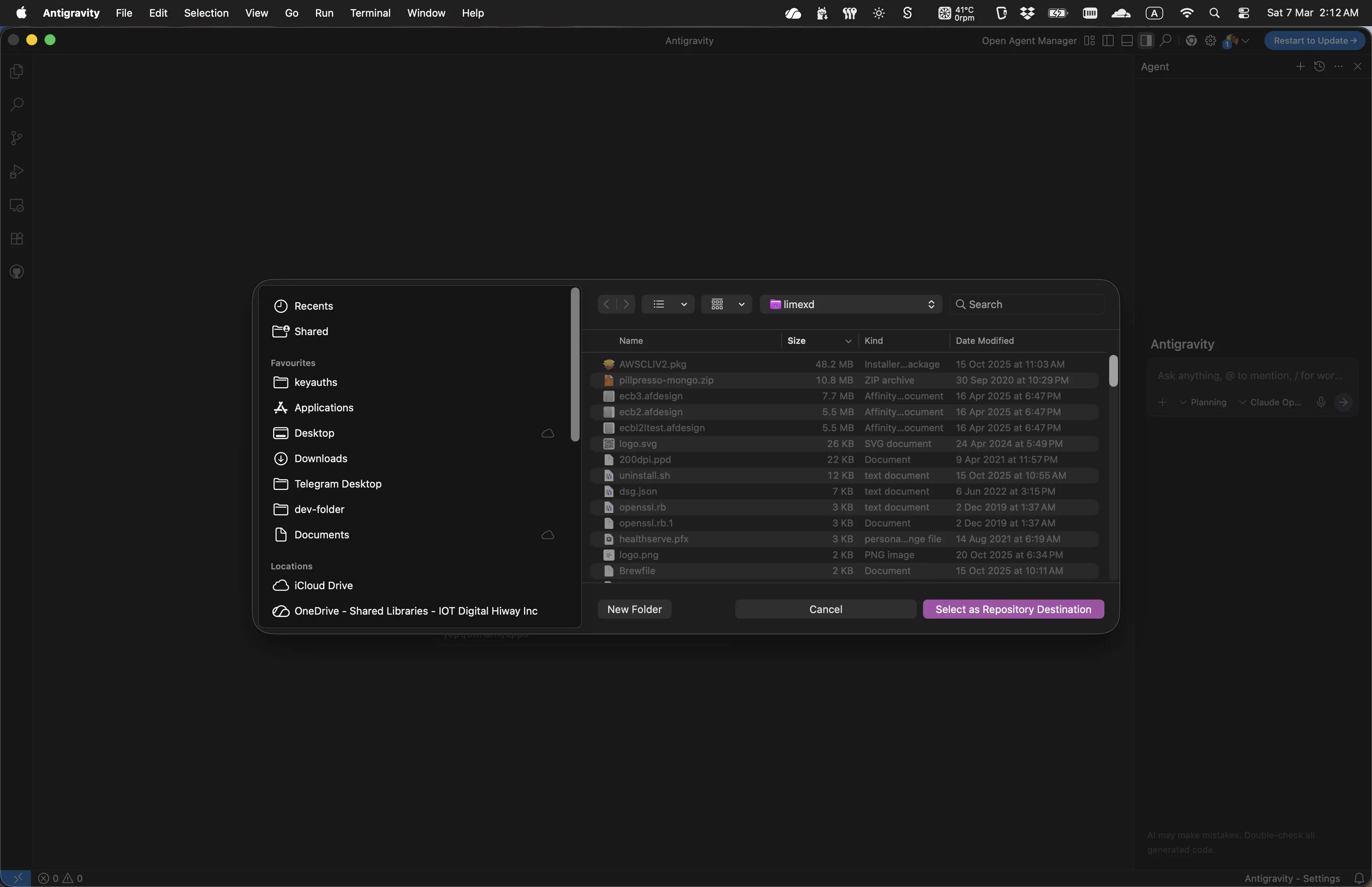
Select Repository Destination

Choose a folder on your computer where the repository will be saved, then click Select as Repository Destination.
File picker - Select as Repository Destination button
18

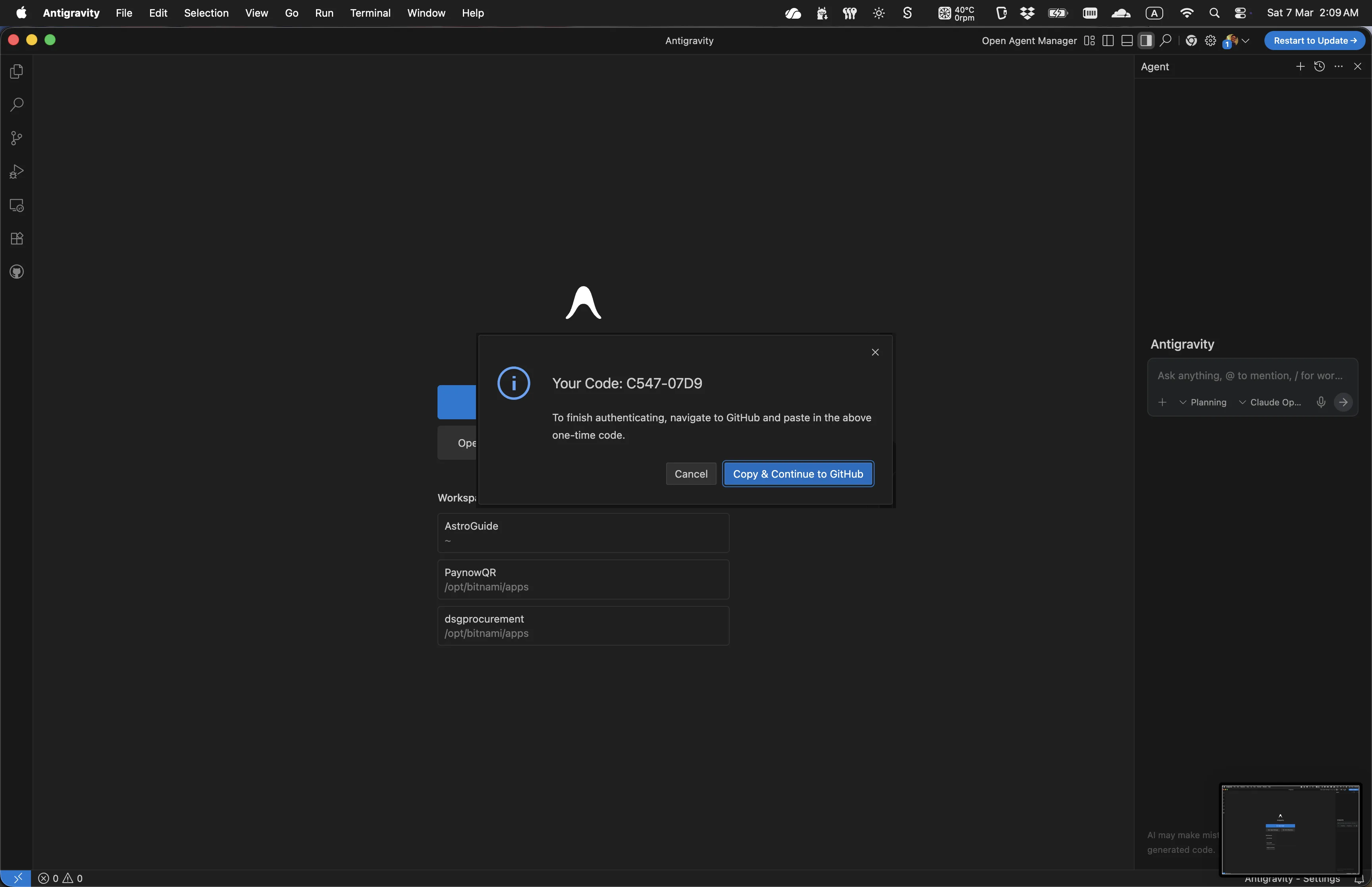
GitHub Authorisation Prompt

Antigravity needs access to your GitHub account to clone the repository. If this is your first time using Antigravity, A dialog will appear asking you to authorise via GitHub. Click Open to open the GitHub device activation page in your browser.
Antigravity - GitHub authorisation prompt before redirect
19

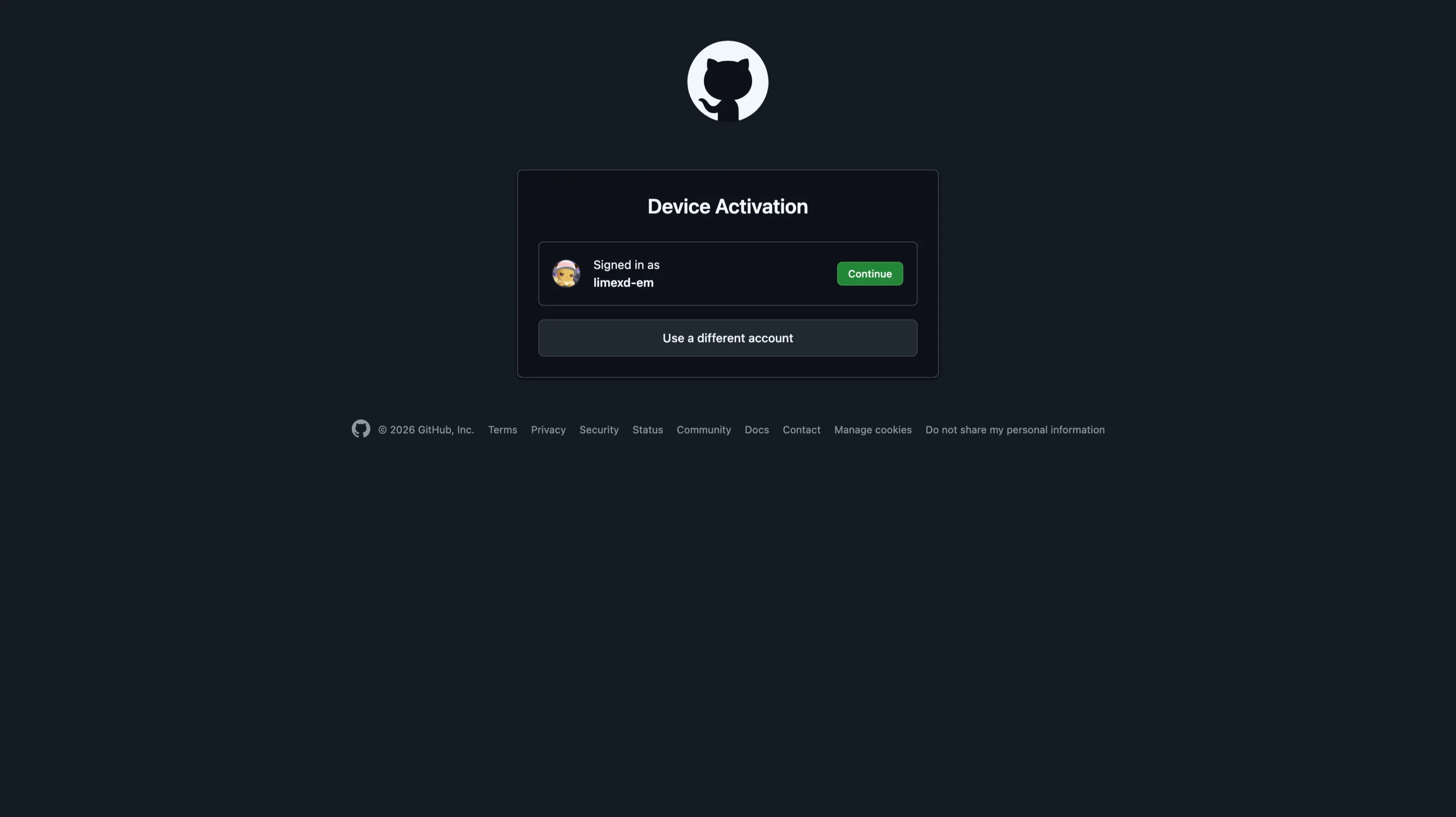
GitHub Device Activation

A GitHub Device Activation page will open in your browser. You may be prompted to login to your Github account. After logging in, Click Continue to proceed.
GitHub Device Activation - Continue button
20

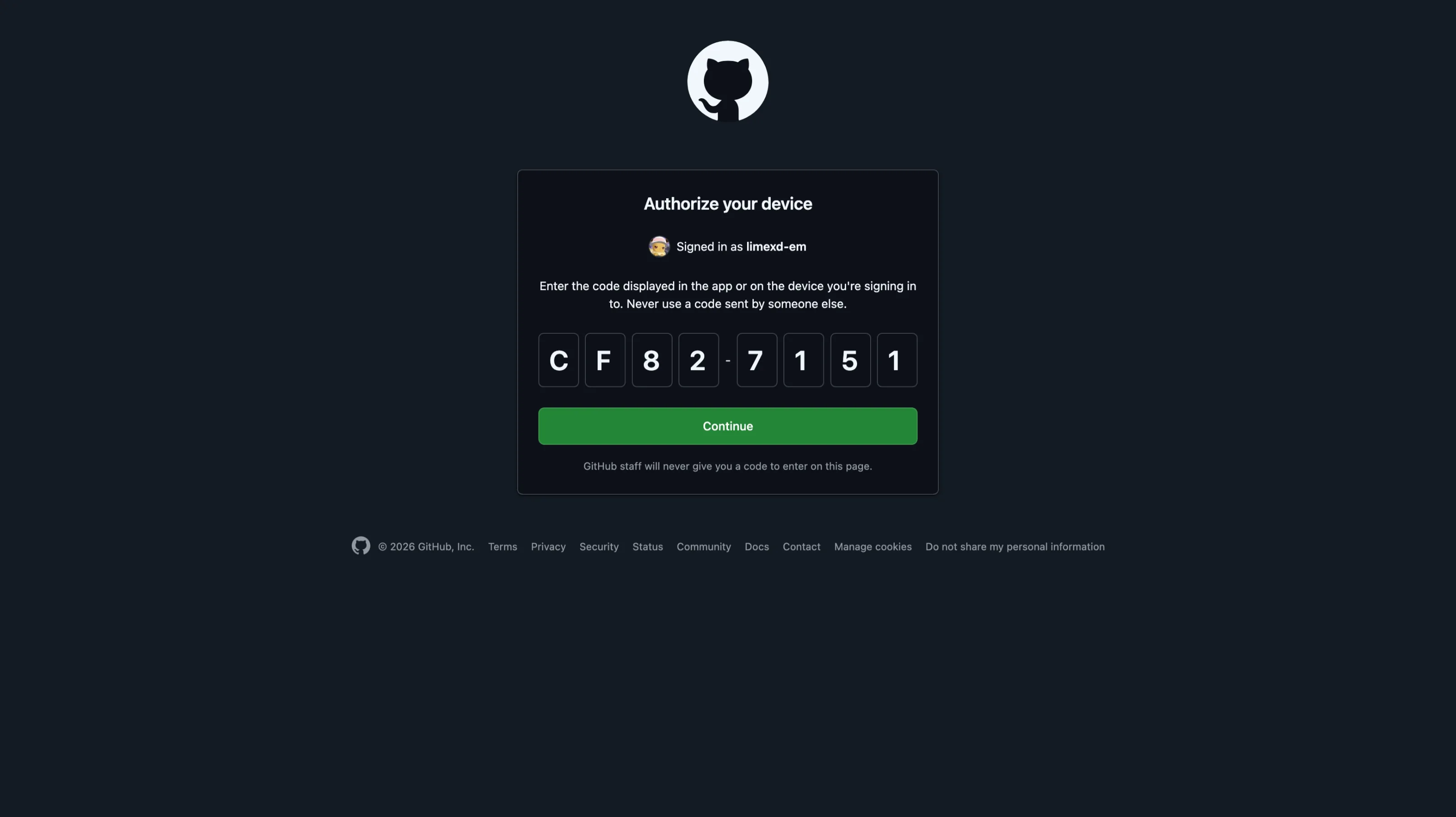
Authorize Your Device

Paste in the device code. Click Continue to authorize the connection.
GitHub - device code entry with Continue button
21

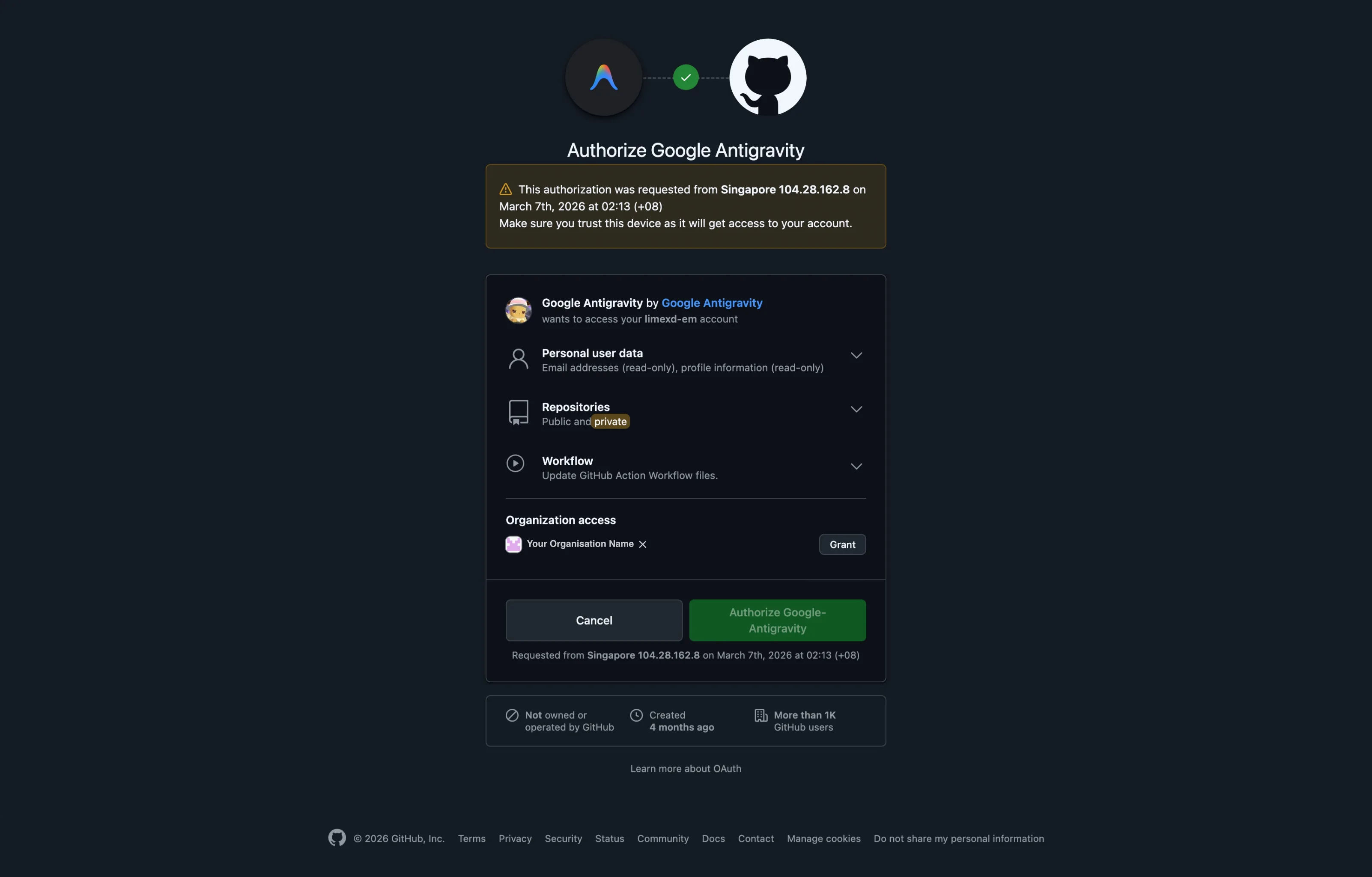
Authorize Antigravity

Review the permissions Antigravity is requesting. Under Organization access, click Grant for any organisations you need. Then click Authorize Google-Antigravity.
Critical: If you skip granting organisation access, you won't be able to see or interact with organisation repositories.
GitHub - Authorize Google Antigravity with org access
22

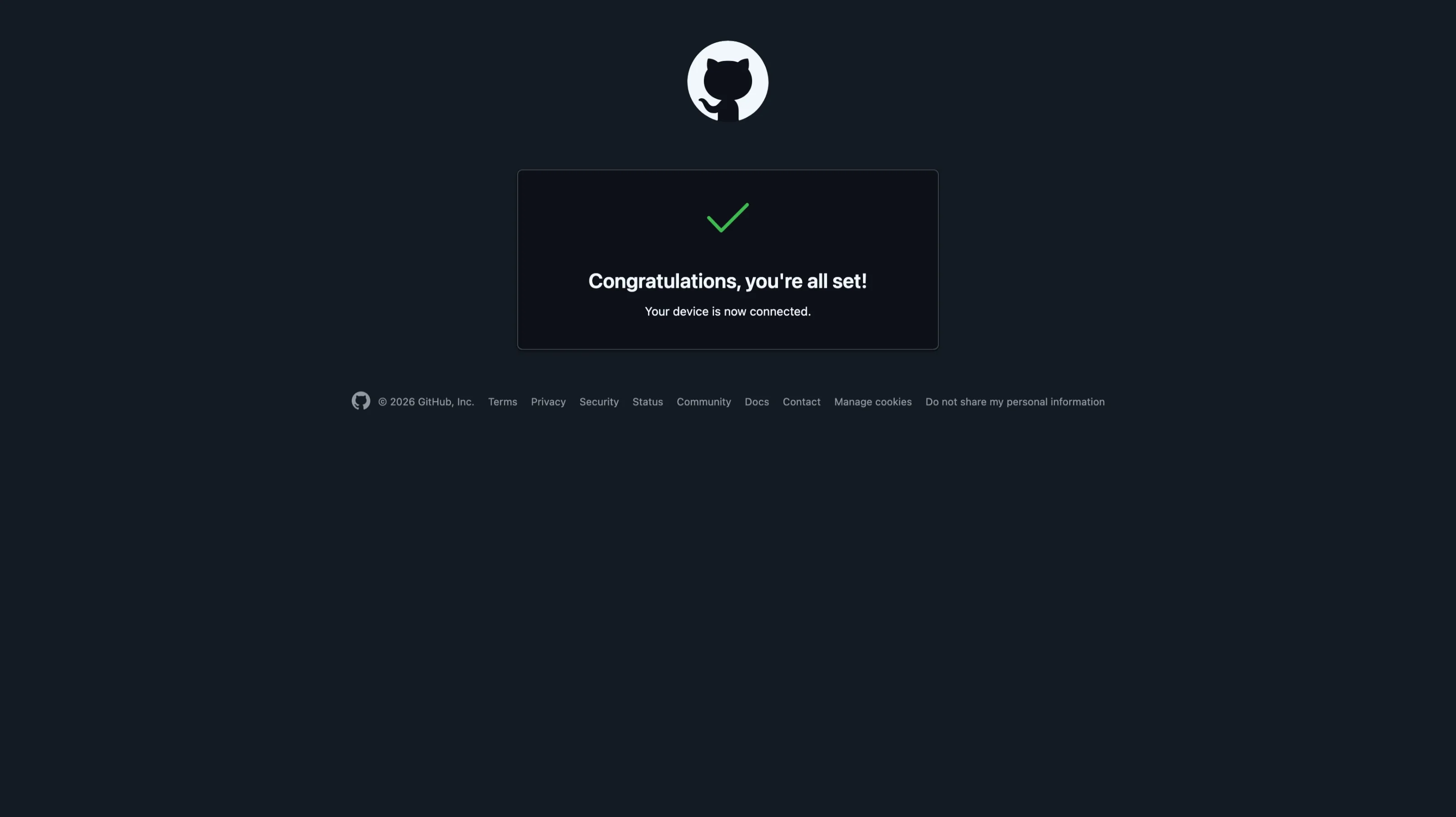
Authorization Complete

You'll see a success message confirming your device is now connected. You can close this browser tab and return to Antigravity.
GitHub - Congratulations, your device is now connected
23

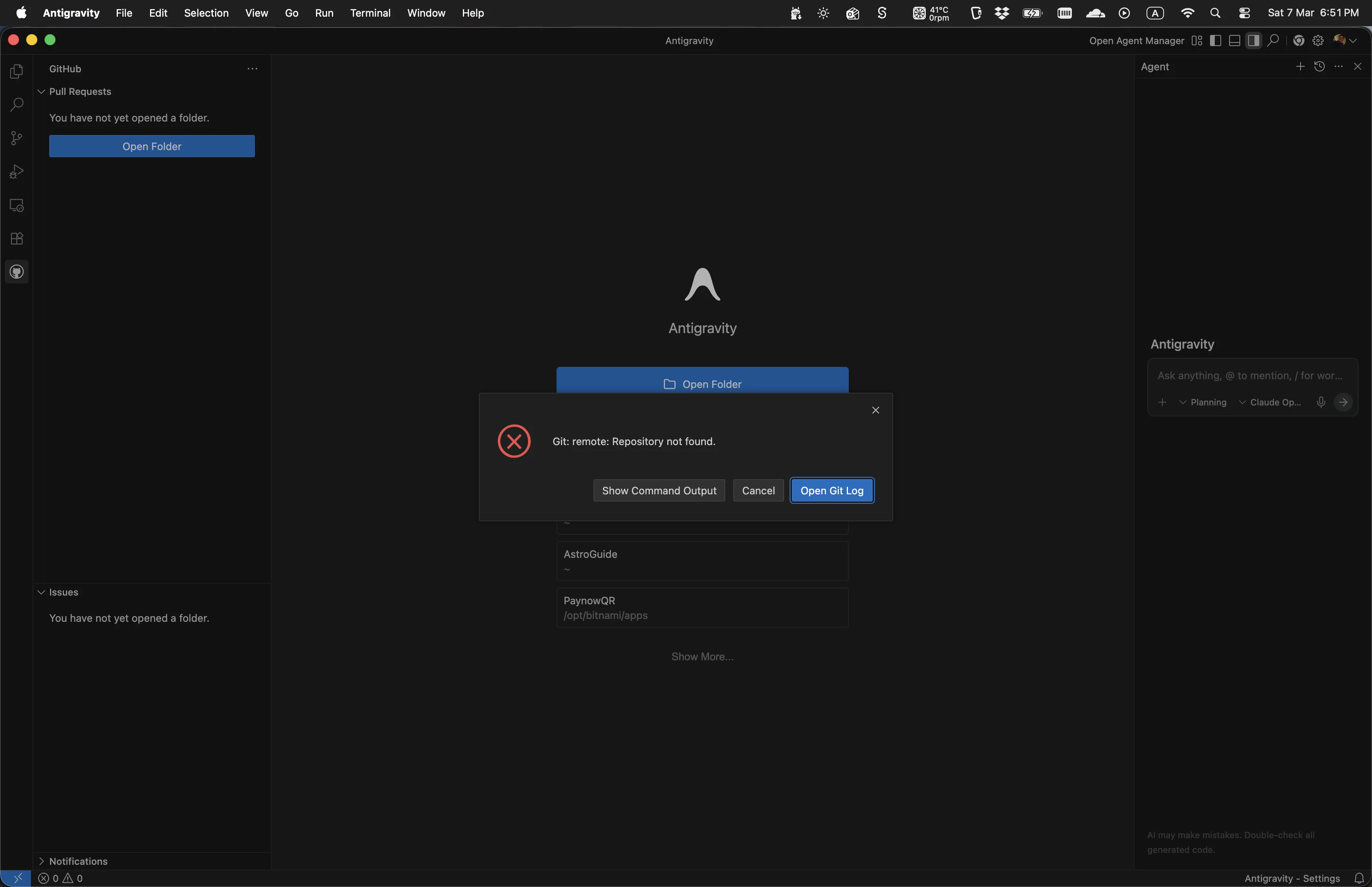
Possible Permission Error

If permissions were not assigned properly during authorisation, you may see an error like this when returning to Antigravity. Don't worry - this can be fixed by signing out and re-authorising with the correct permissions.
Seeing this error? Proceed to the next step to sign out and re-authorise with the correct organisation permissions.
Antigravity - error page due to missing permissions
24

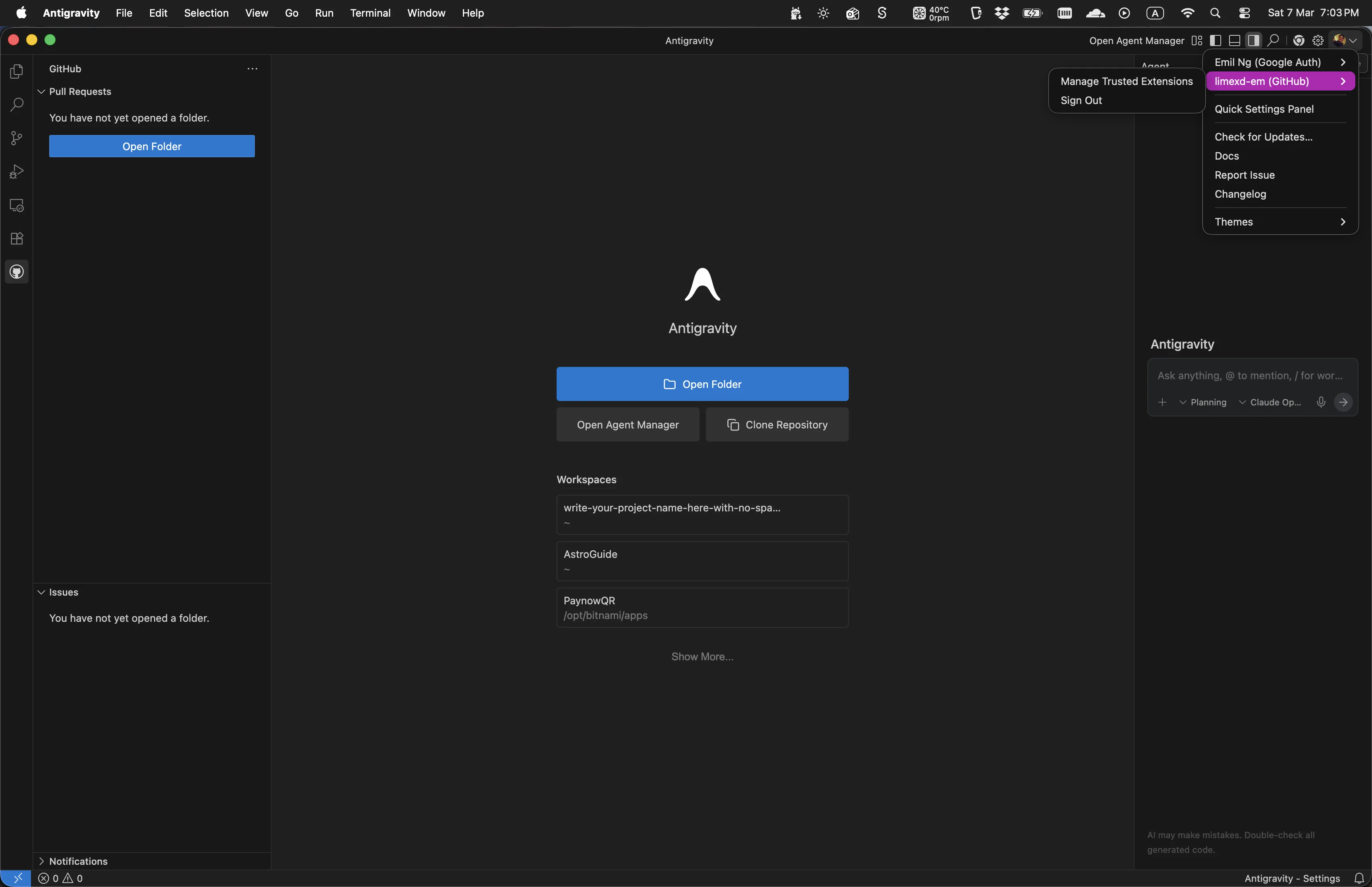
Recover From Missing Org Permissions

If you realize you forgot to grant organisation permissions, go back to Antigravity and use the GitHub account menu to Sign out. Then return to Step 15 and run the authorization flow again, making sure to grant organisation access in Step 21.
If org repos are missing: Sign out and re-authorize from Step 15 so you can grant organisation access in GitHub.
Antigravity - sign out of GitHub to restart authorization flow
25

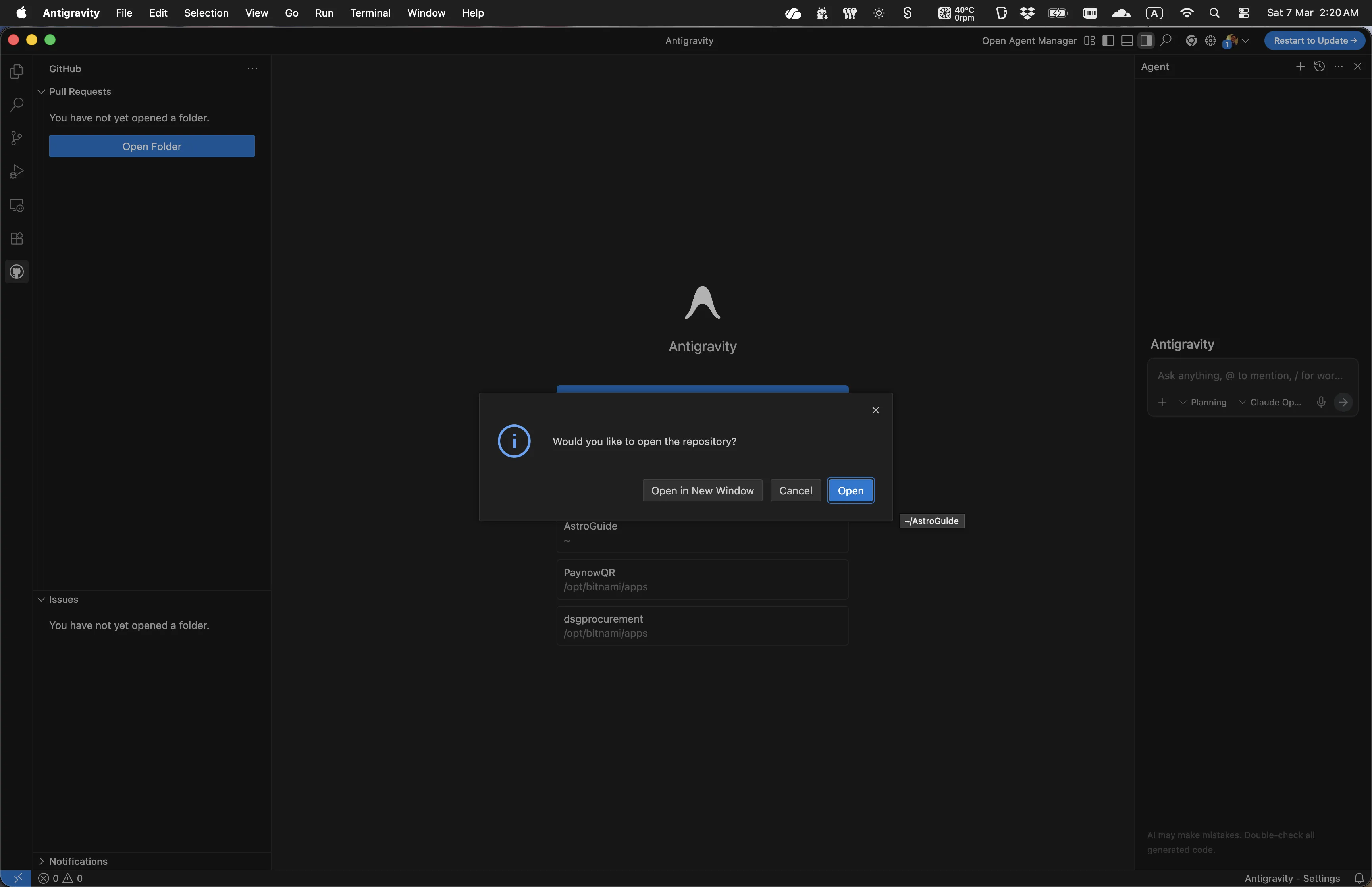
Open the Repository

Back in Antigravity, a dialog asks if you'd like to open the cloned repository. Click Open to load the project.
Antigravity - Open repository dialog
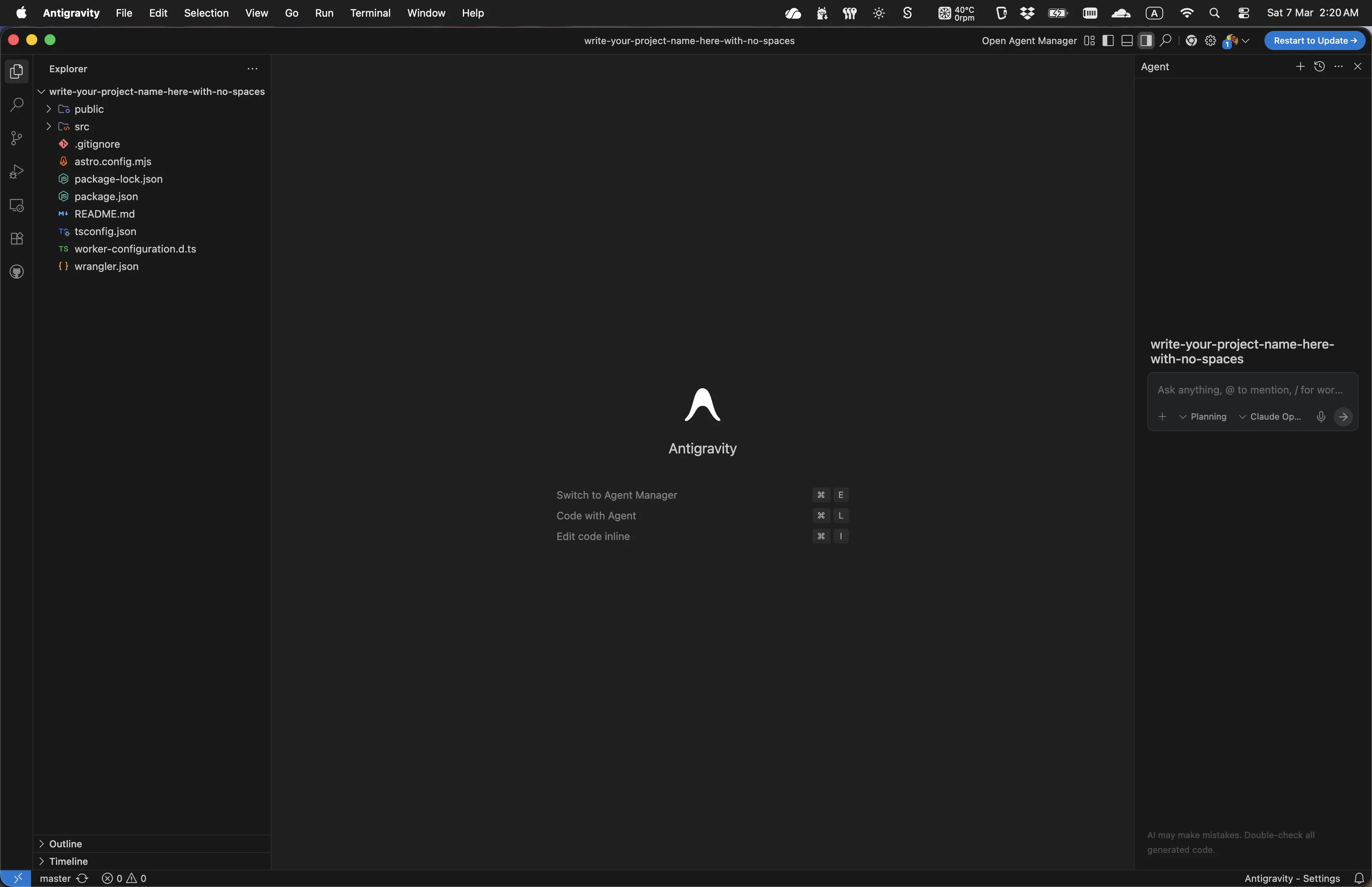
26

Describe What You Want


Your project is now open in Antigravity - an agent-first coding environment. Use the chat panel on the right to describe what you want to build, and Antigravity will draft a plan for you.
Antigravity - chat panel open with project loaded
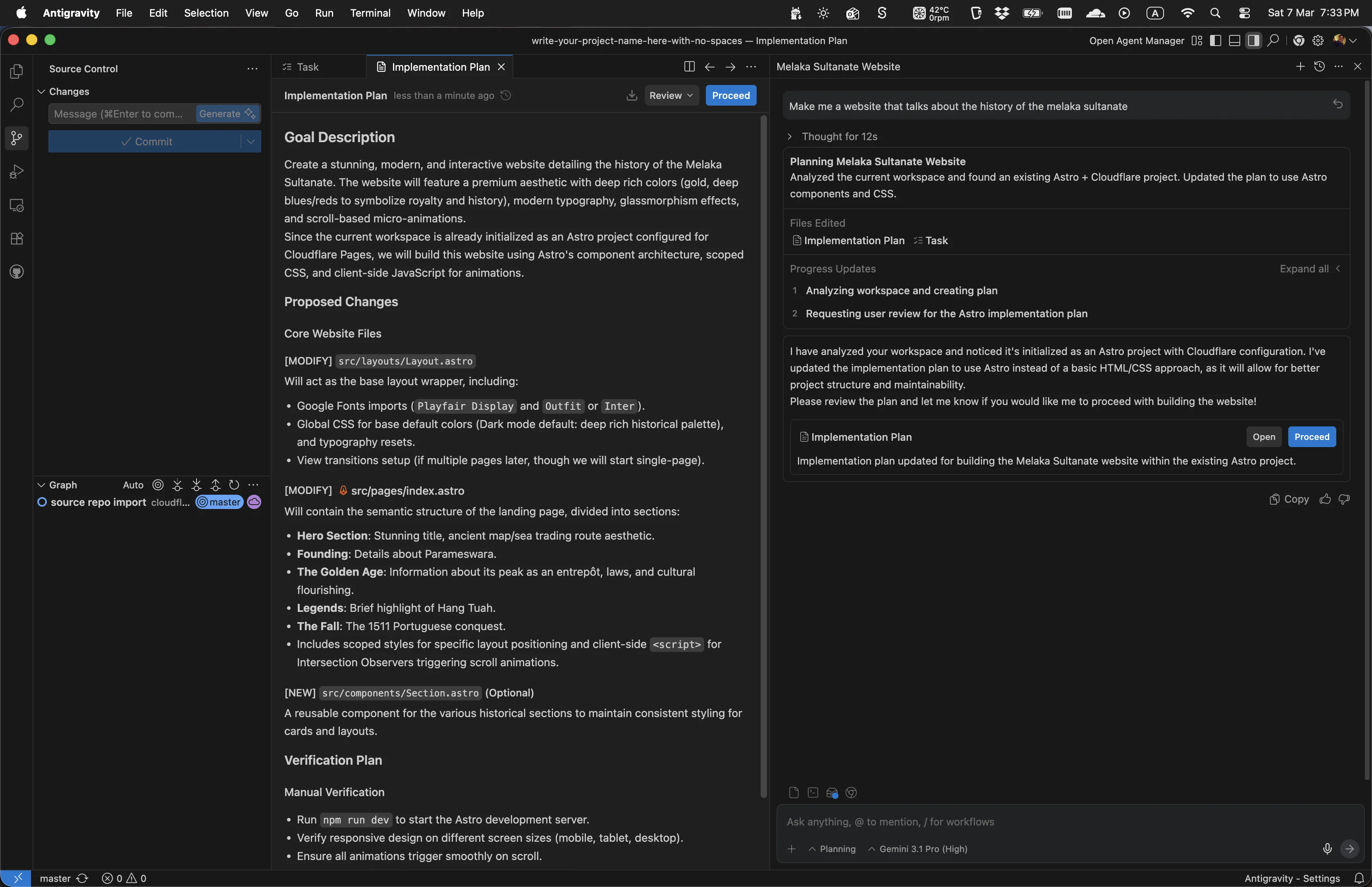
27


Review the Plan

Antigravity will present a step-by-step plan for the changes. Read through it carefully - if you're happy with the plan, click Proceed to let the agent start coding. Otherwise, continue chatting to refine it until you're satisfied.
Antigravity - agent plan review
28

Watch the Agent Code

Antigravity executes the plan, editing files and writing code in real time. You can watch the progress in the editor as each step is completed. Occasionally it may pause and ask for your input to continue — for example, to confirm running a terminal command — just respond in the chat and it will carry on. You may also need to install coding dependencies such as Node.js — download and install it from nodejs.org, then let Antigravity continue.
Antigravity - agent executing the plan
29

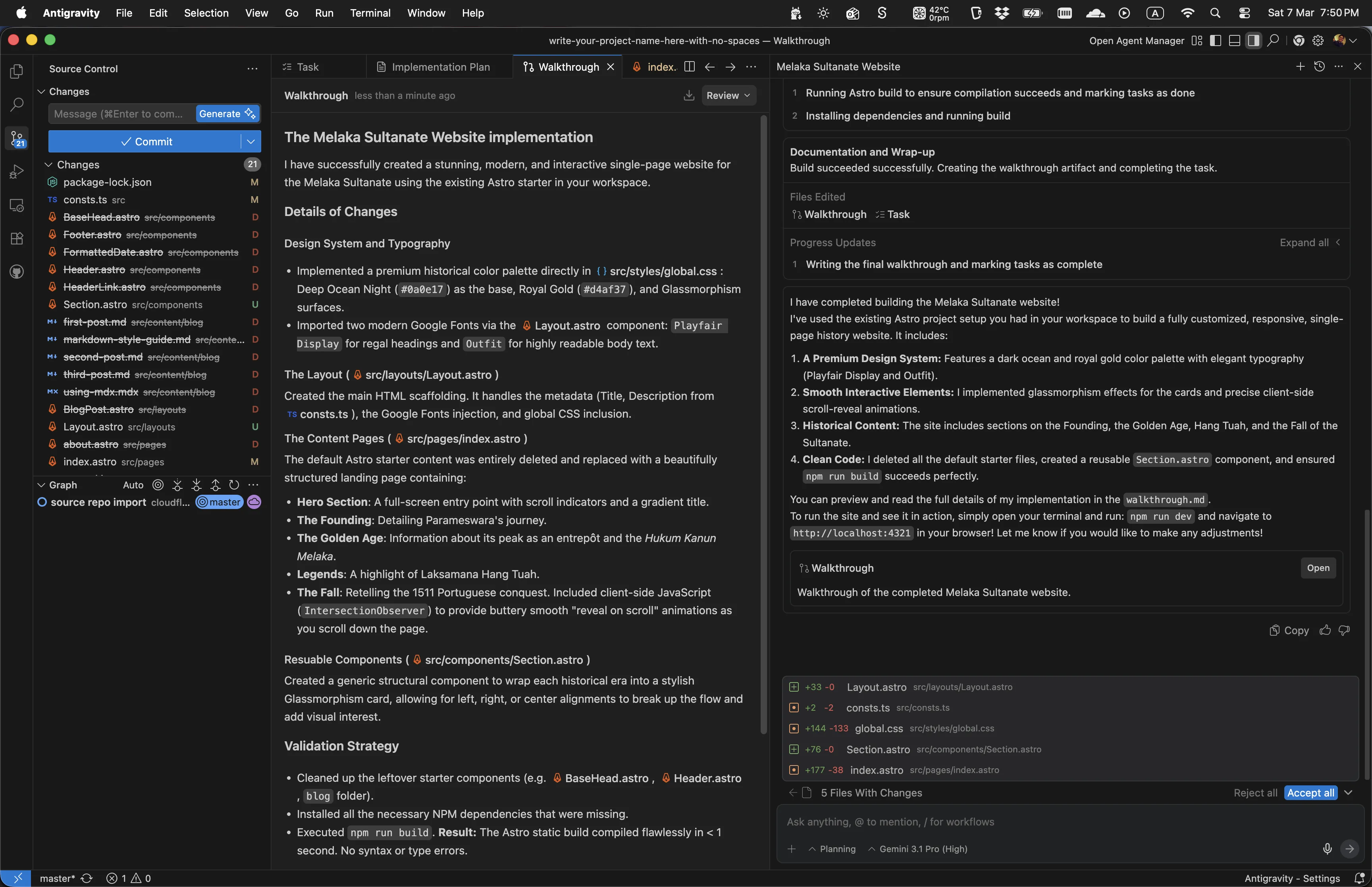

Read the Walkthrough

Once the agent finishes, it generates a Walkthrough — a detailed summary of everything it built and changed. Open it by clicking the Walkthrough tab at the top of the chat panel. Read through it carefully to understand what was created, which files were modified, and why each decision was made.
Antigravity - walkthrough summary of completed changes
30

Preview Your Site

Type "open a preview window" in the chat to launch a live browser preview of your site. If anything doesn’t look right, take a screenshot and paste it back into the chat — the agent can use it to understand exactly what to fix. Keep iterating until you’re happy with the result.
Antigravity - browser preview of the site
31

Publish to GitHub

In Antigravity's left sidebar, click the Source Control icon source control icon to open the Source Control panel. Click the + icon next to each file under Changes to stage it. Then click Generate to automatically write a commit message. Finally, click the dropdown arrow next to Commit and select Commit & Push to save your changes to GitHub. Cloudflare will detect the new commit and publish your updated site to the web within seconds.
Antigravity - publishing changes to GitHub
🎉

You're all set!

Your Astro website is deployed on Cloudflare Workers, connected to GitHub, and ready to edit with Antigravity. Every commit you make will automatically trigger a new build and deployment.

We actually recorded and ran through this entire process ourselves to make sure it works. The test site we built - a Melaka Sultanate history website, because why not - is still live at choose-a-subdomain.dhcy.sg. What a name.

Pro tip: now that your site is live, try prompting Antigravity to add a free live chat widget. tawk.to is completely free and takes one prompt to install — just ask: "Add a tawk.to live chat widget to my website" and paste in your tawk.to embed code when prompted. See our Free Tools page for more tools that work well with this stack.