C Submitting Quotation for Approval
Step 1 of 11
C
RequestorIT SME
27
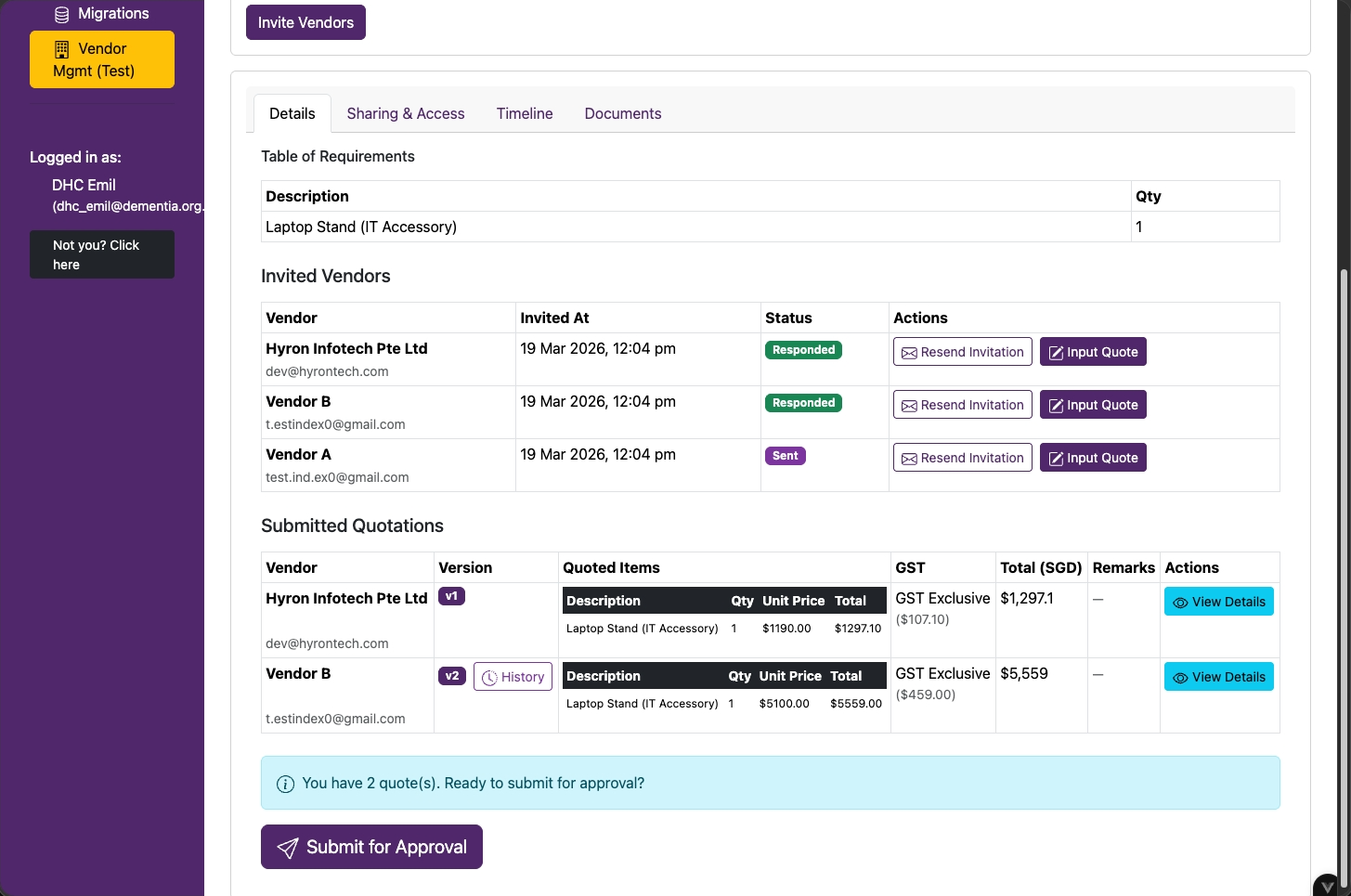
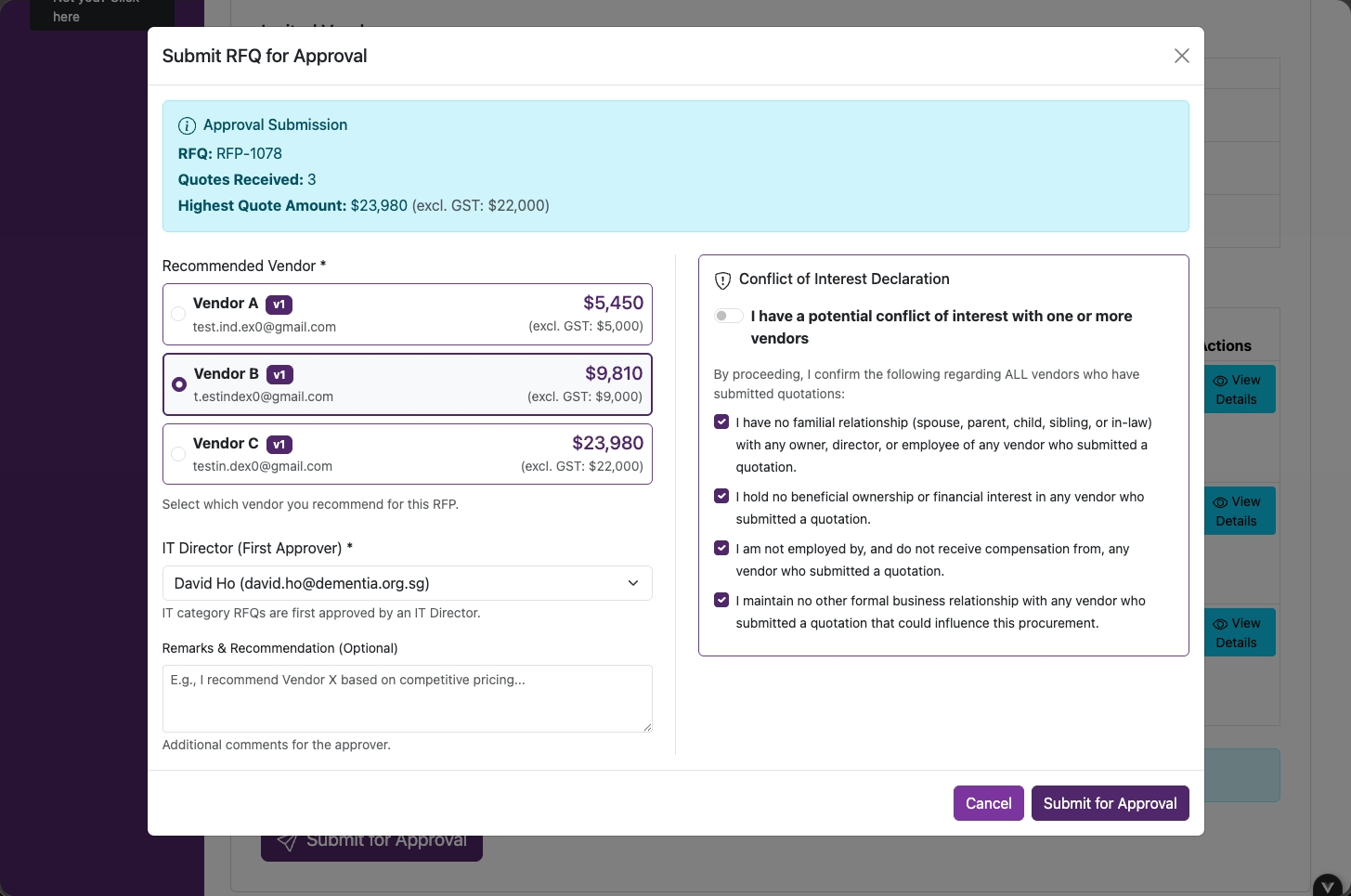
Submit Quotation for Approval
Review the submitted quotes and click on Submit for Approval.
RequestorIT SME
30
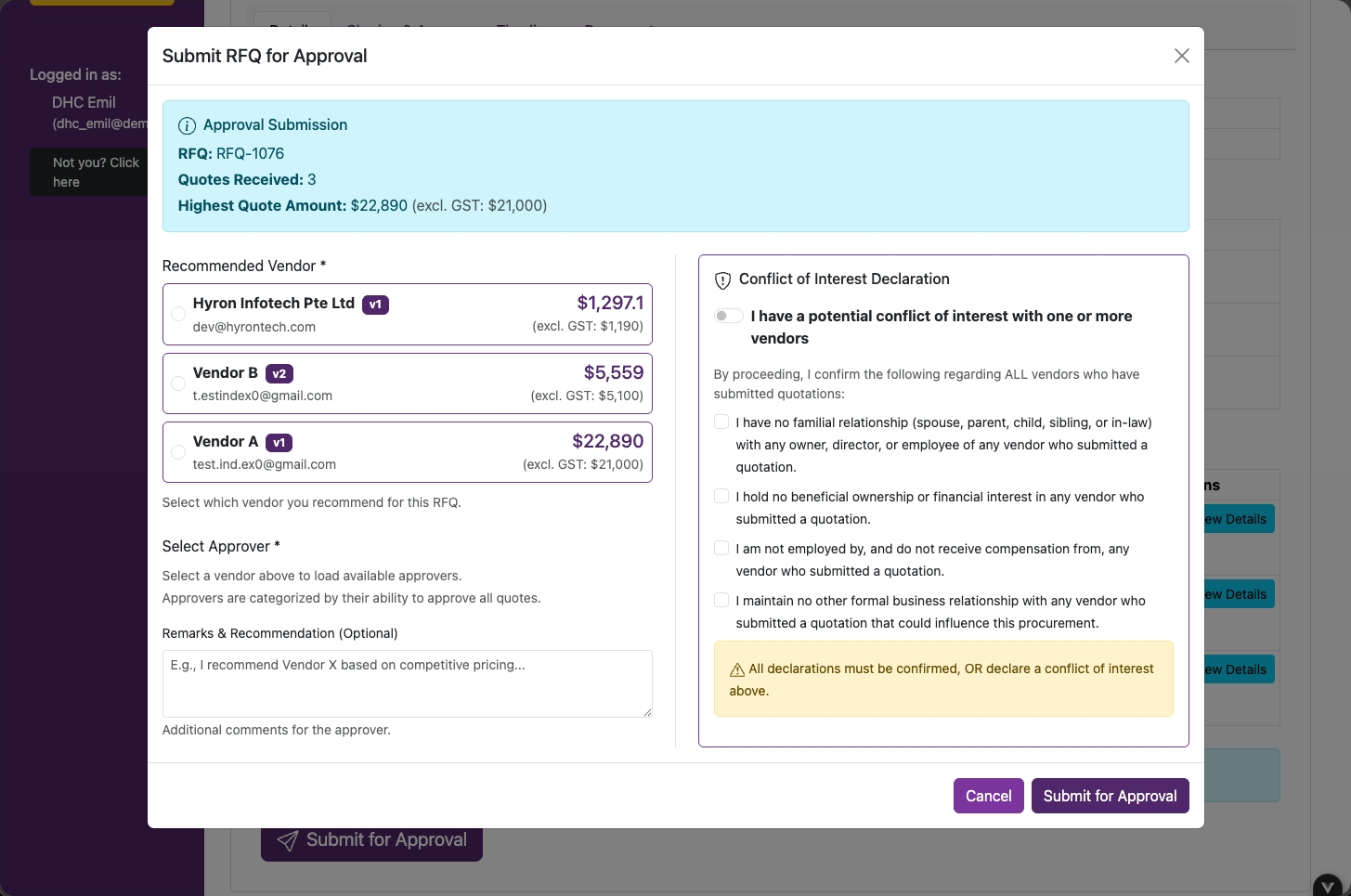
Recommend Vendor & COI Declaration
- Select a vendor to recommend
- Declare any Conflict of Interest (COI) with the vendors by clicking on checkboxes
RequestorIT SME
28
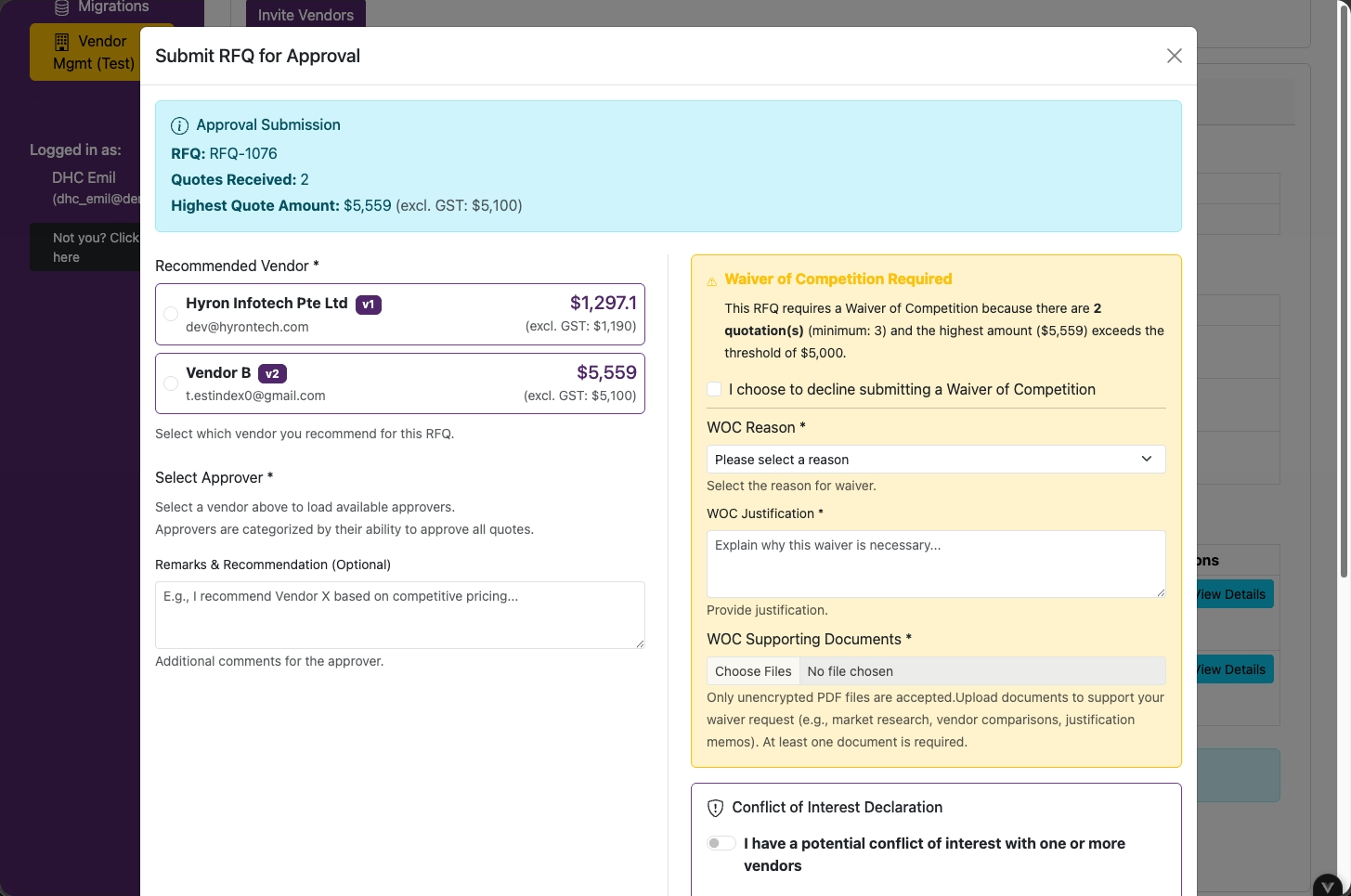
Waiver of Competition (WOC)
If a WOC is required, fill in all the fields.
IT SME
32
Select Approver
For IT purchases, approval routes to the IT Director first, regardless of amount.
Click on Submit for Approval.
RequestorIT SME
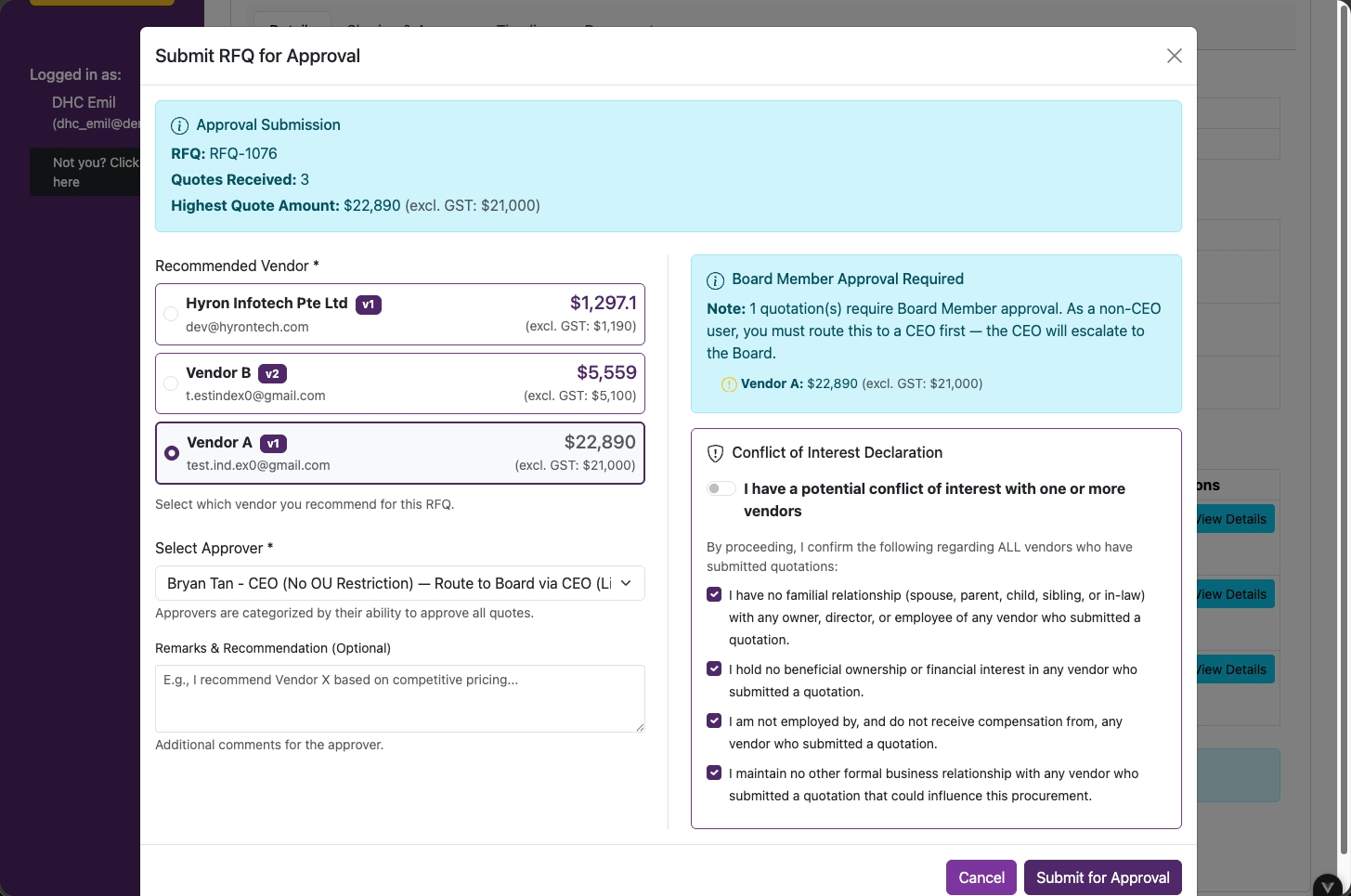
33
Select Approver
Based on the selected vendor's quotation amount, select the appropriate approver based on the approval matrix.
Approver
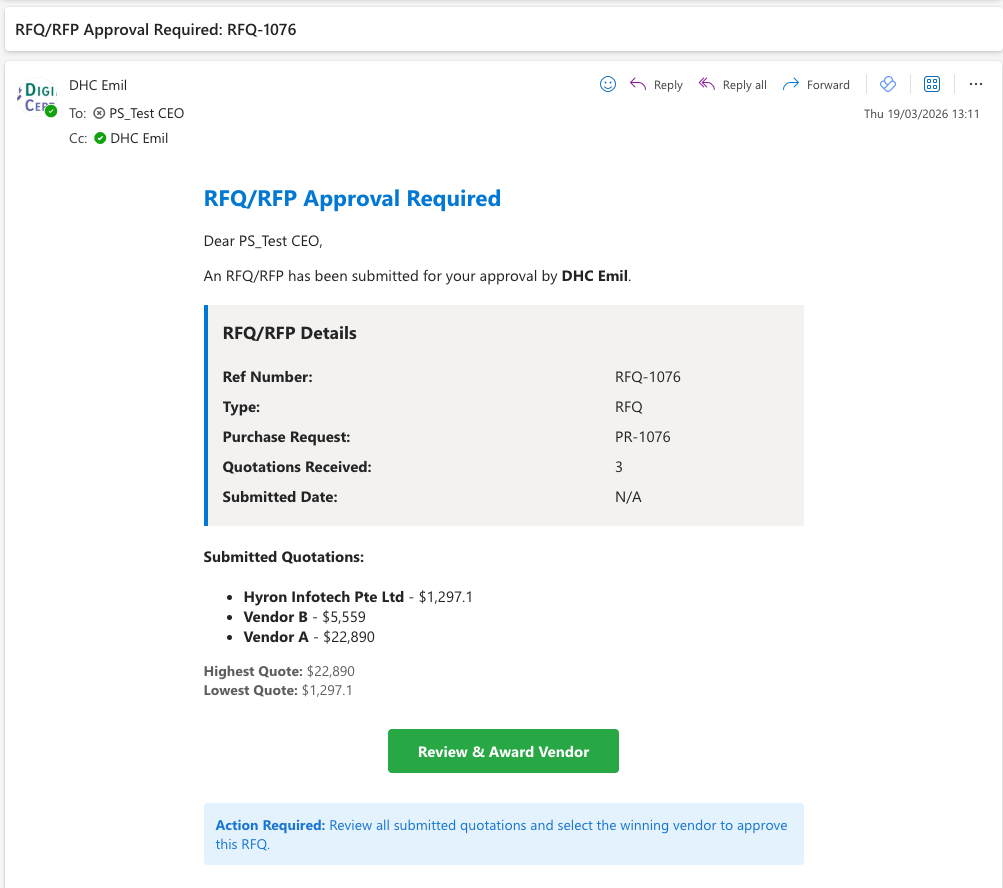
34
Email Notification — Approver
Click on Review & Award Vendor.
Approver
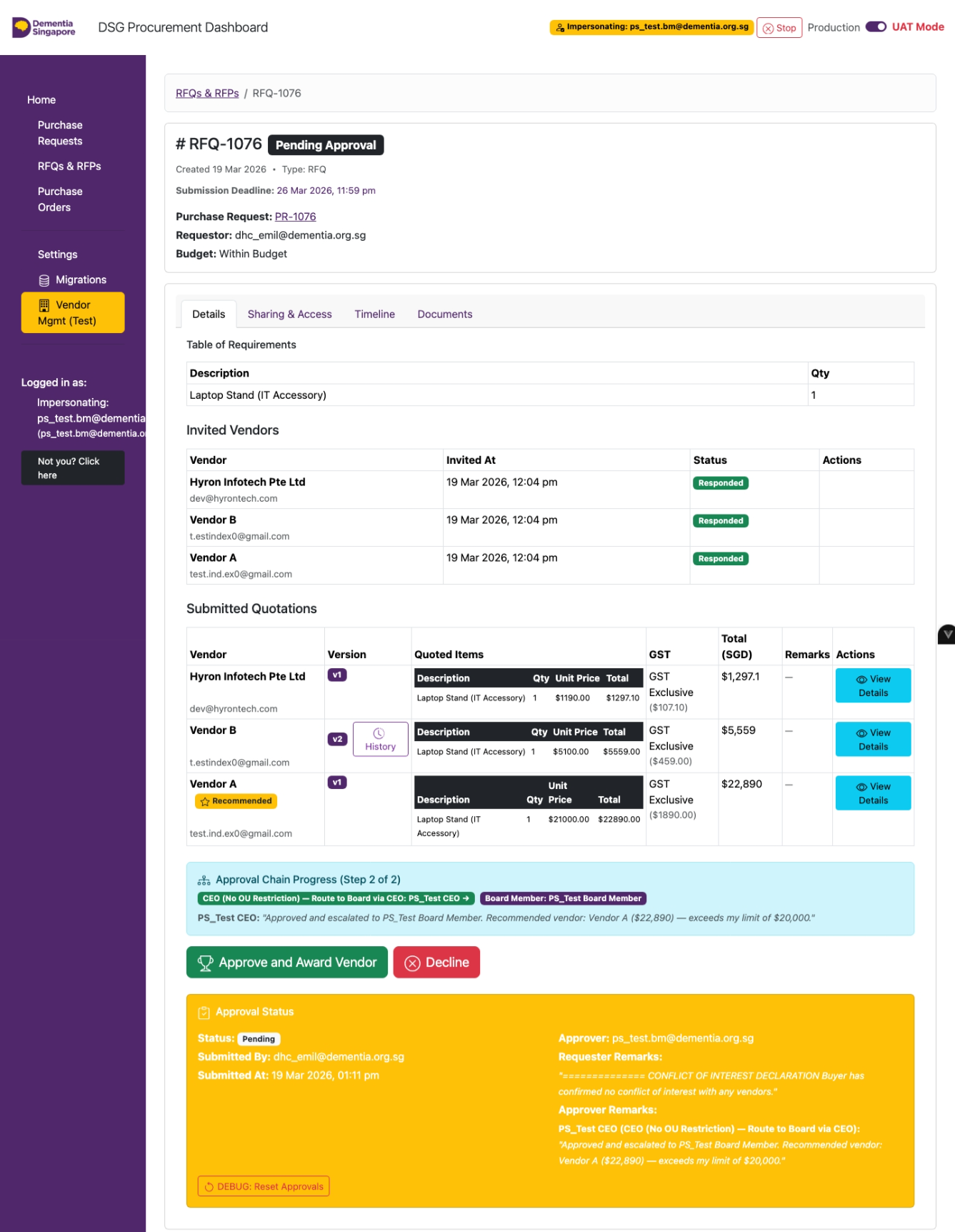
35
Quotation Approval / Rejection
Click on Approve and Award Vendor or Decline.
Note: Requestors will need to create a new purchase request or get new quotations if the request is rejected.
Approver
36
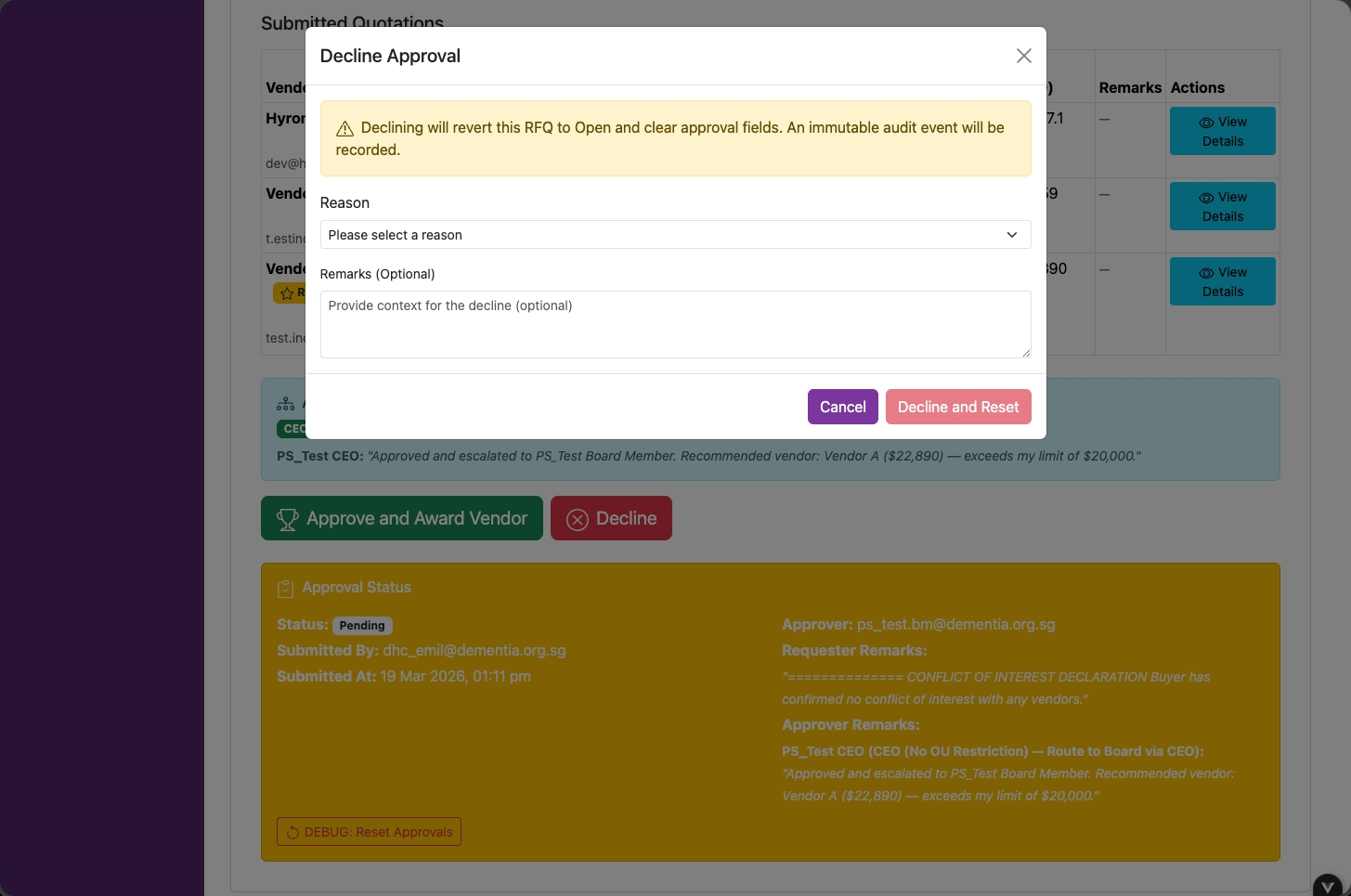
Approver Rejection — Remarks
Select a reason and click on Decline and Reset.
Approver
37
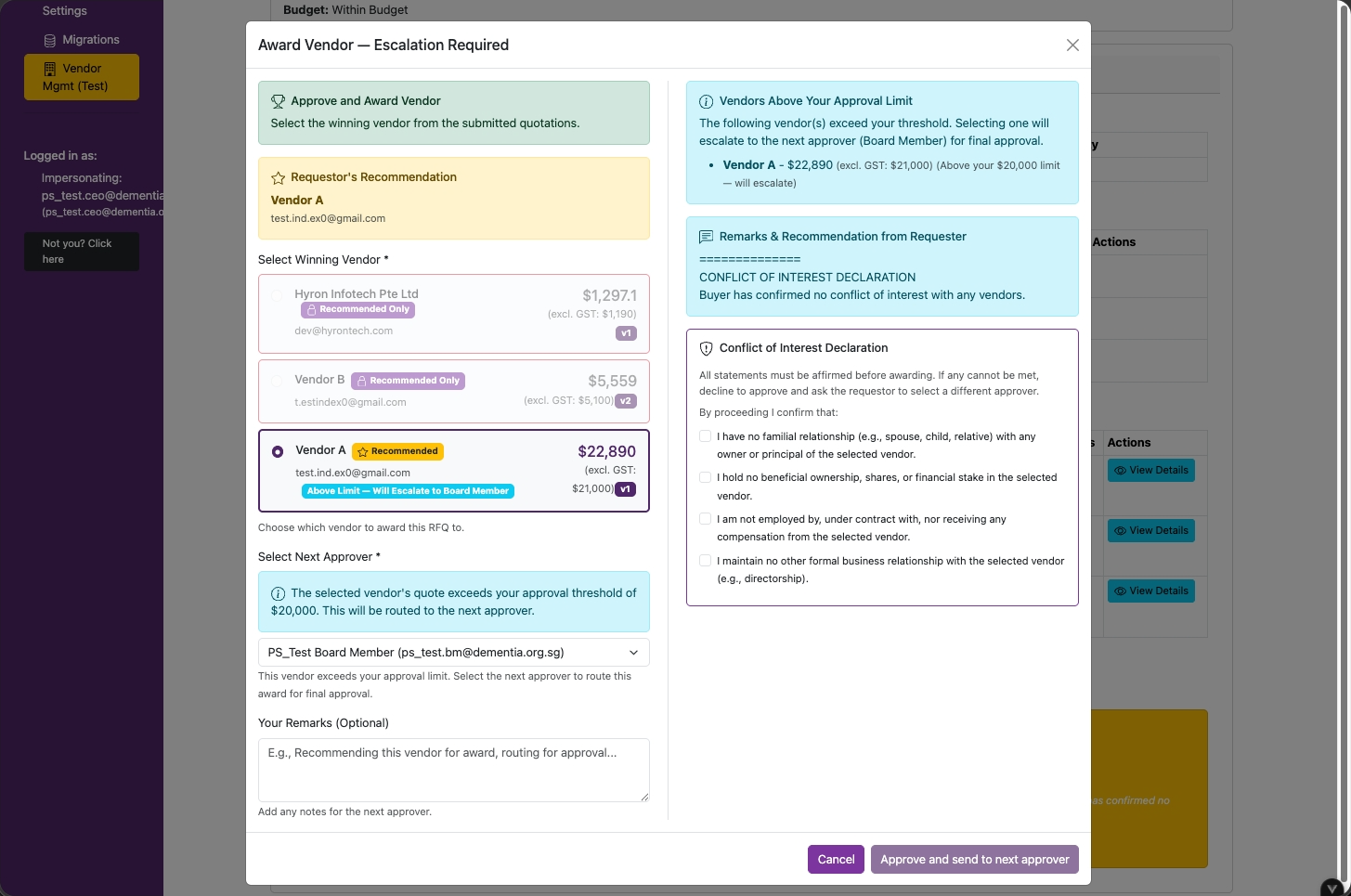
Multi-Level Approval
If an approver selects a vendor quotation amount above their approval limit, they will need to select the appropriate approver.
Approver
38
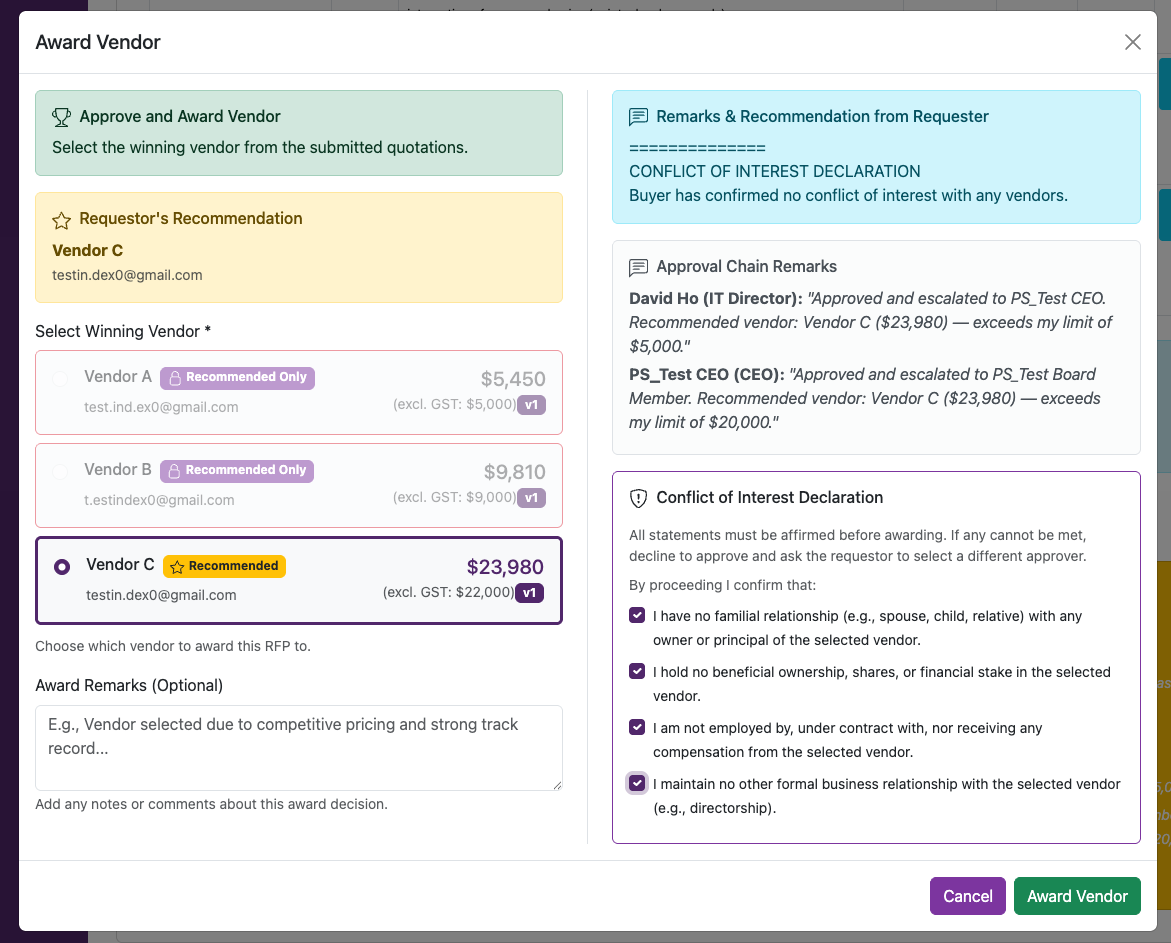
Award Vendor & COI Declaration
- Select a vendor to award
- Declare any Conflict of Interest (COI) with the vendors by clicking on checkboxes
- Click on Award Vendor
RequestorIT SME
39
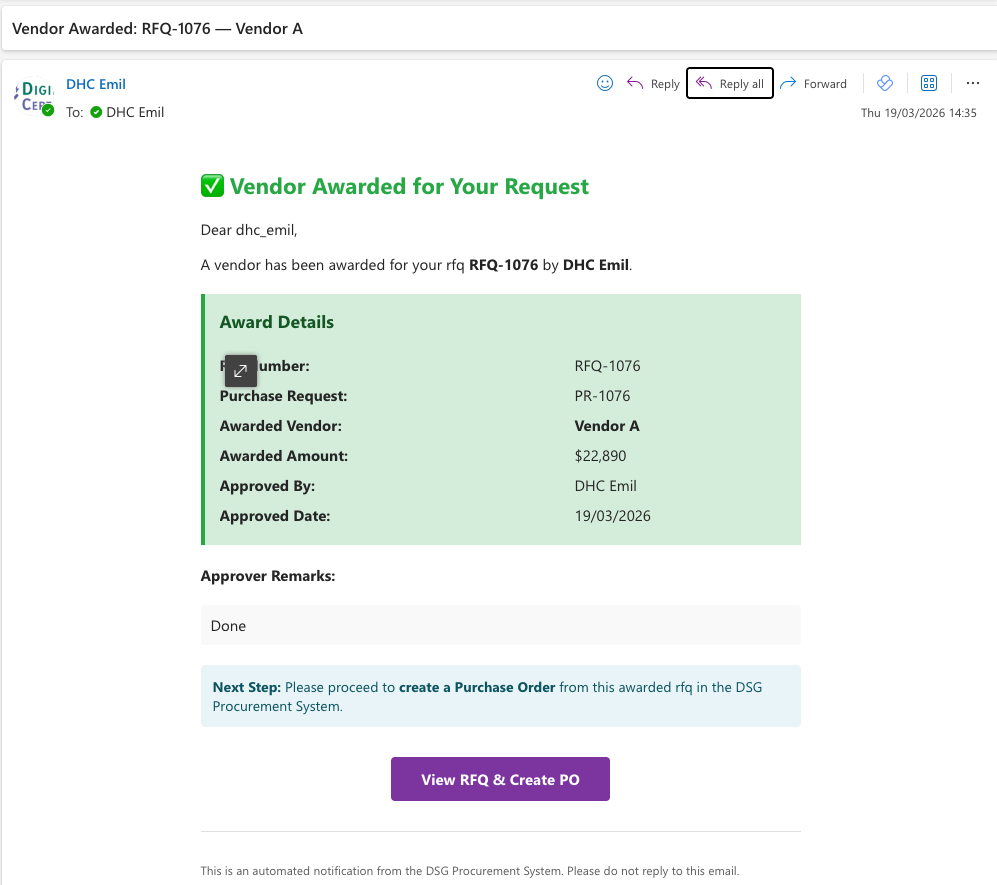
Email Notification — Requestor
Click on View RFQ/RFP & Create PO.