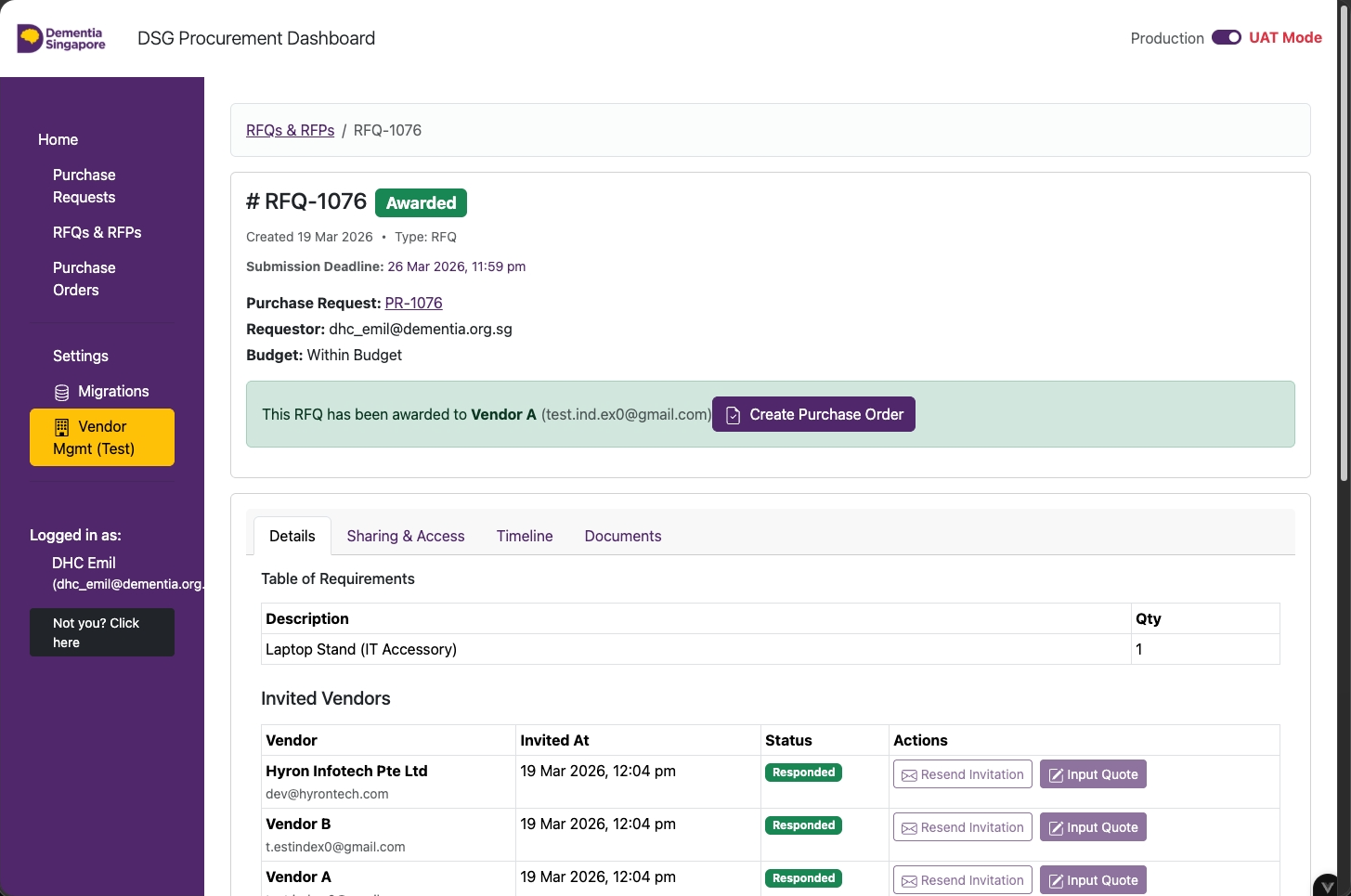
Create Purchase Order
From the RFQ/RFP page, click on Create Purchase Order.
The PO is pre-populated with the awarded vendor's details, line items, and pricing. This also triggers a PO notification email to the vendor.
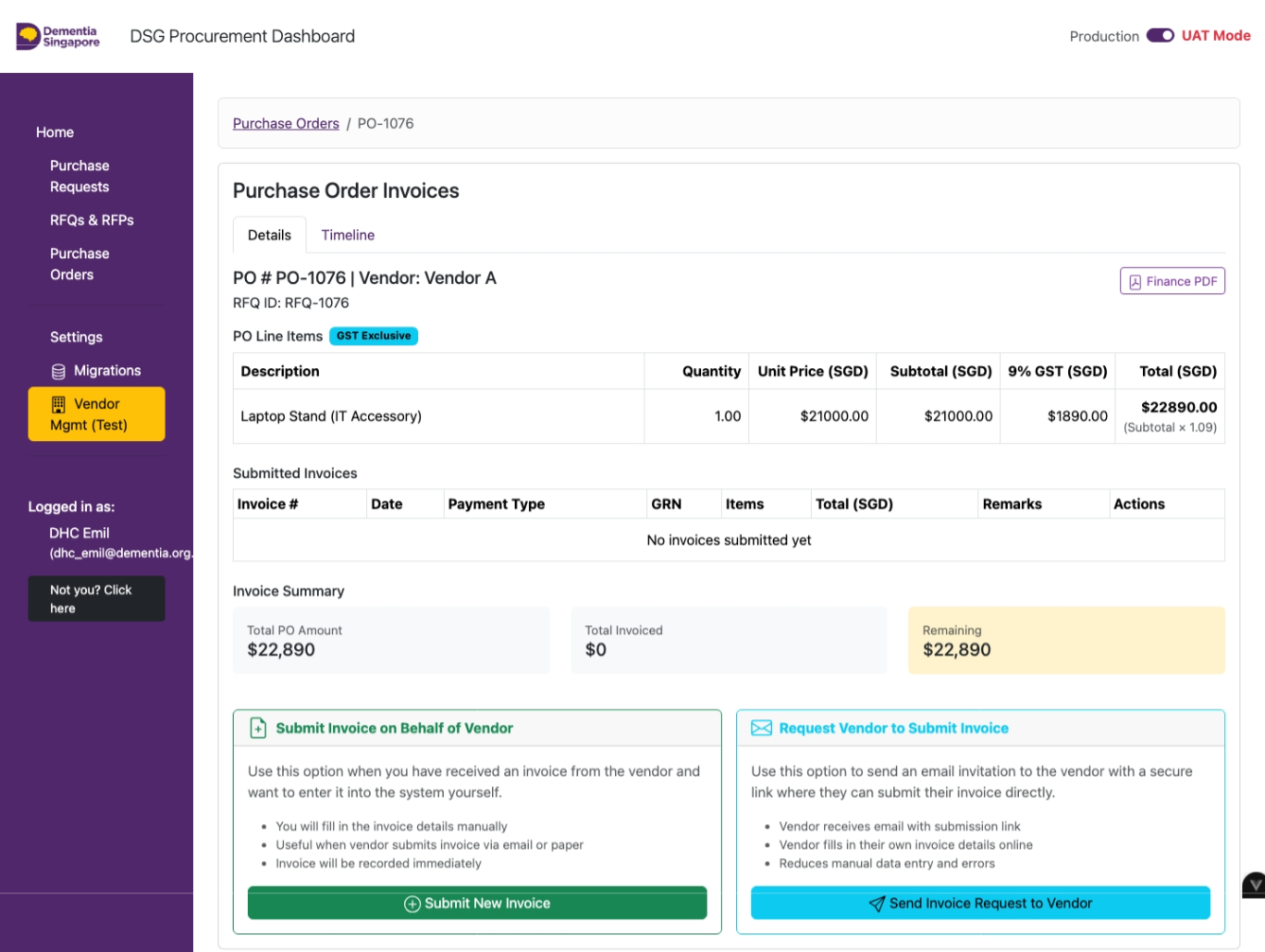
PO Page — Invoice Uploading
- Click Submit New Invoice to enter the invoice details on behalf of the vendor
- Click Send Invoice Request to request for the vendor to enter the invoice details
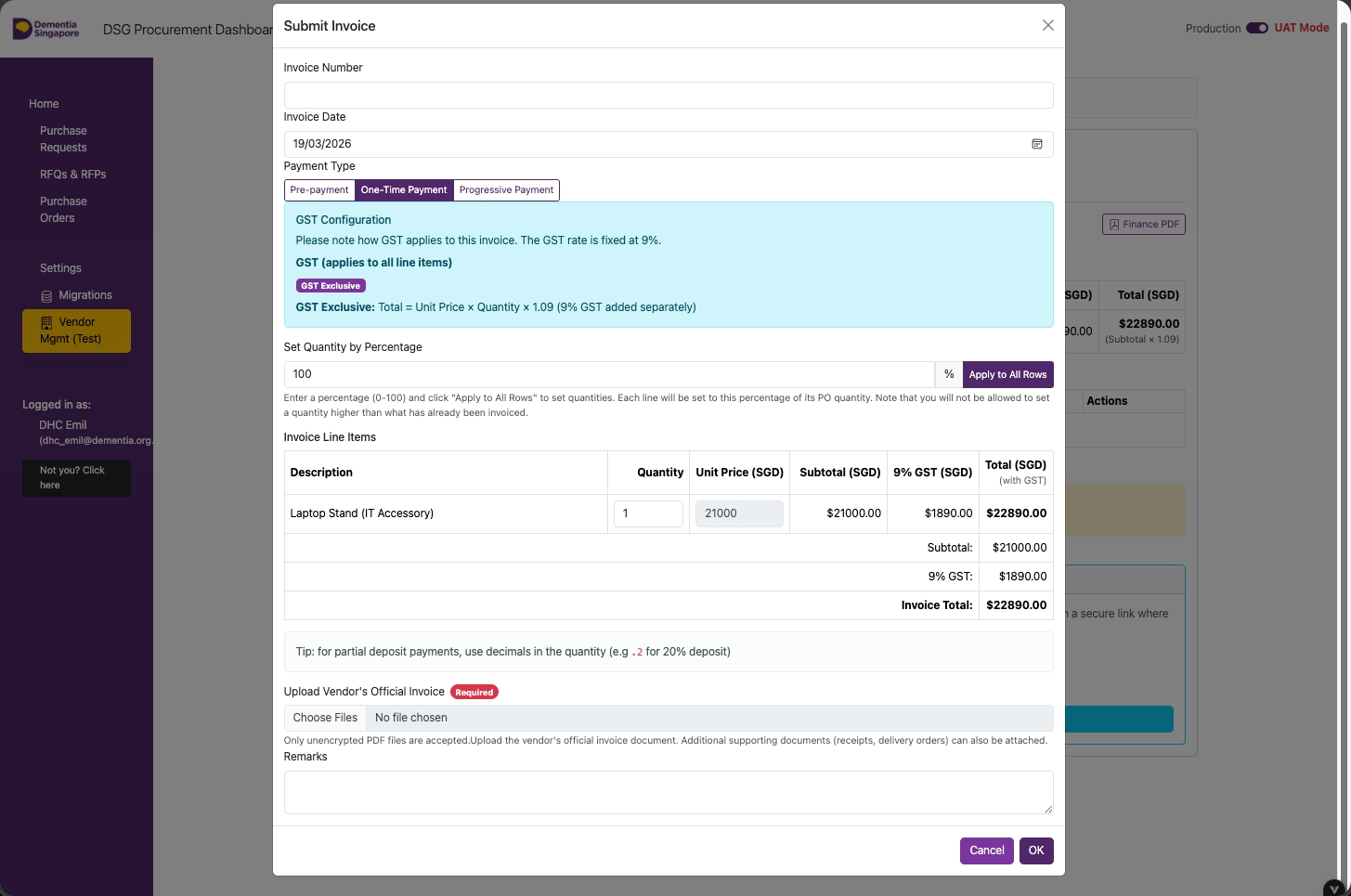
Submit Invoice Form
Fill in the invoice form:
- Invoice Number
- Invoice Date
- Payment Type
- Line item quantities
- Upload official invoice
- Remarks
- Click OK
One-Time and Progressive invoices require a GRN before Finance can pay. Prepayment does not.
Invoices Submitted — Review
Click on View.
For One-Time and Progressive invoices, a GRN must be declared before Finance can process payment.
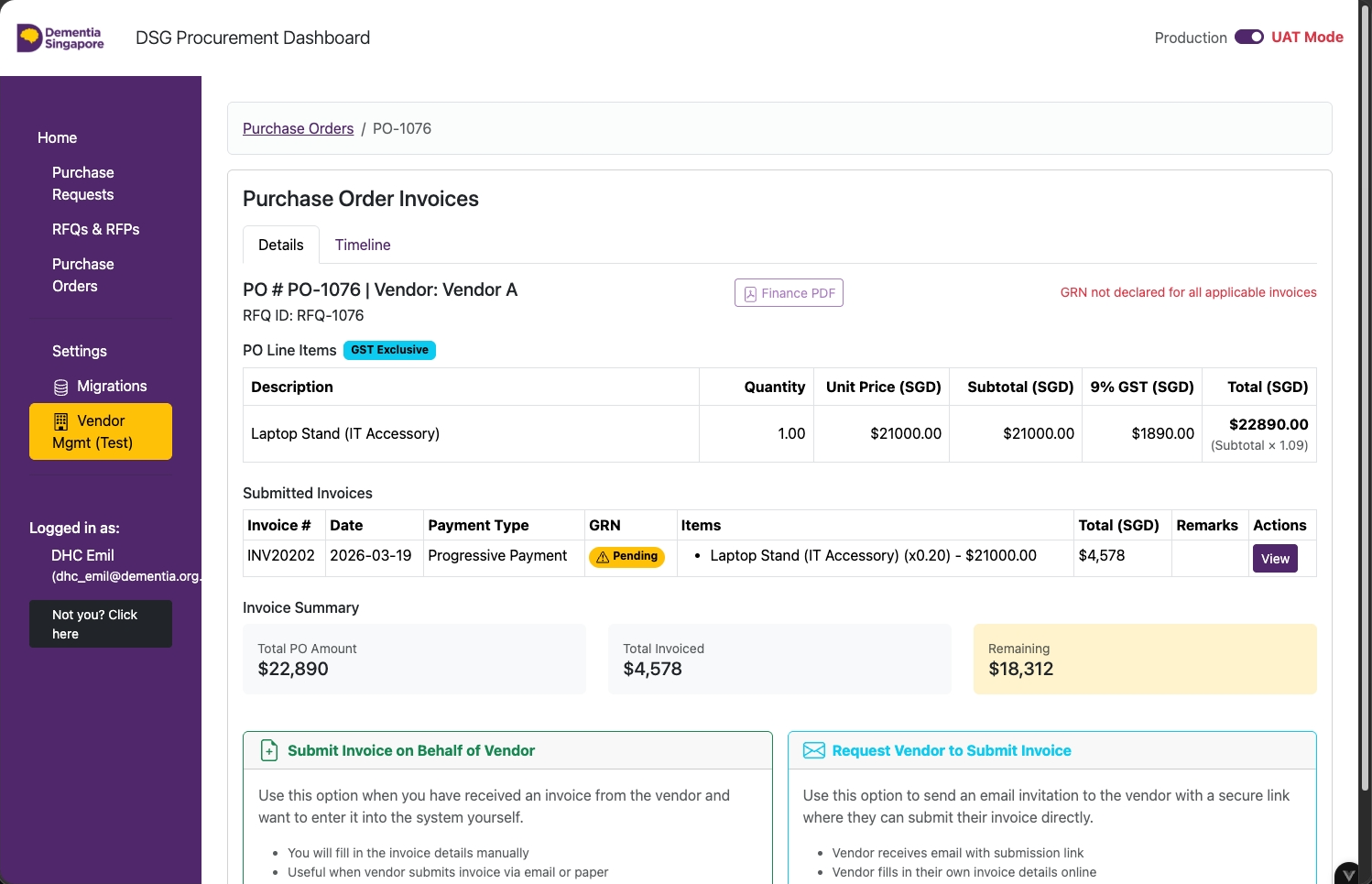
Submitted Invoices - GRN Declaration
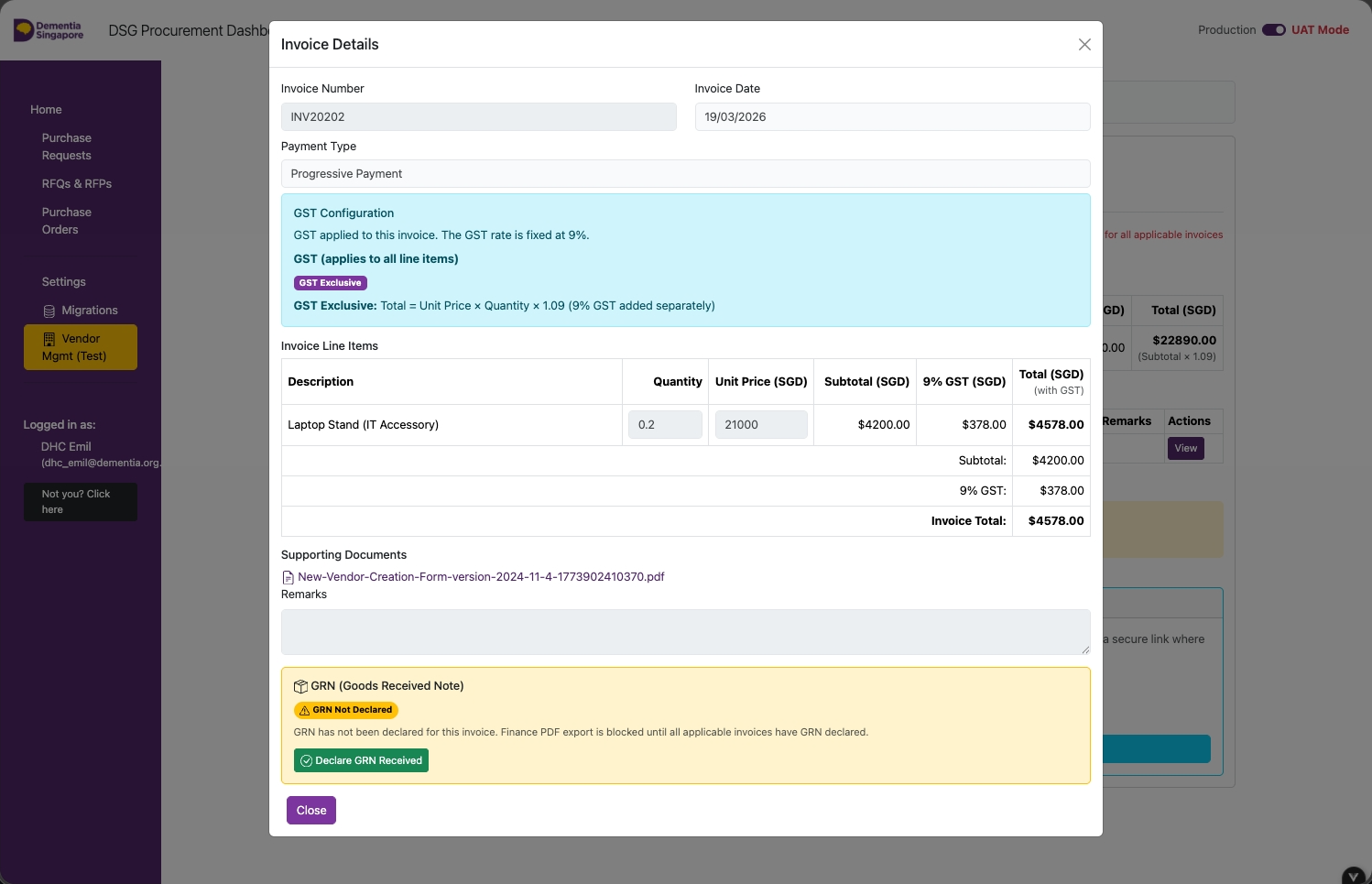
Scroll down and click Declare GRN.
This button only appears for invoice types that require a GRN (One-Time and Progressive).
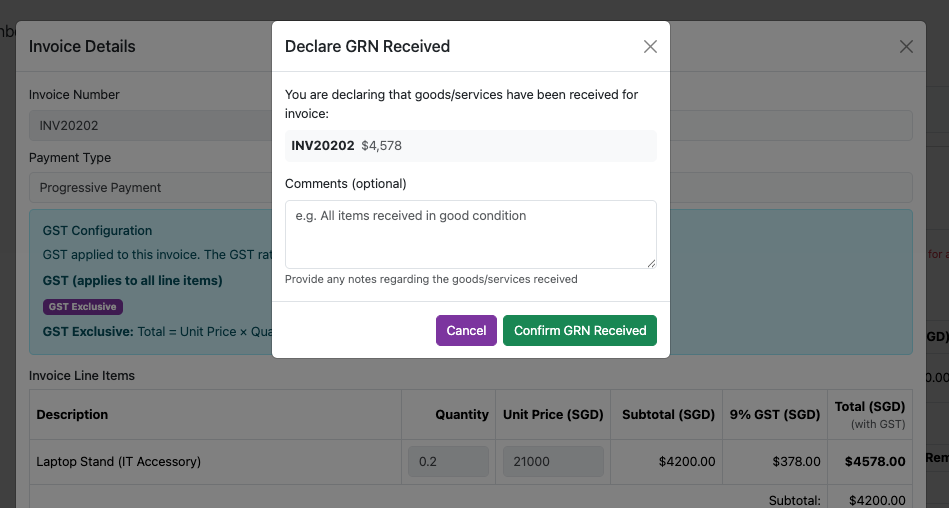
GRN Declaration — Comments
- Add comments (if any)
- Click Confirm GRN Received
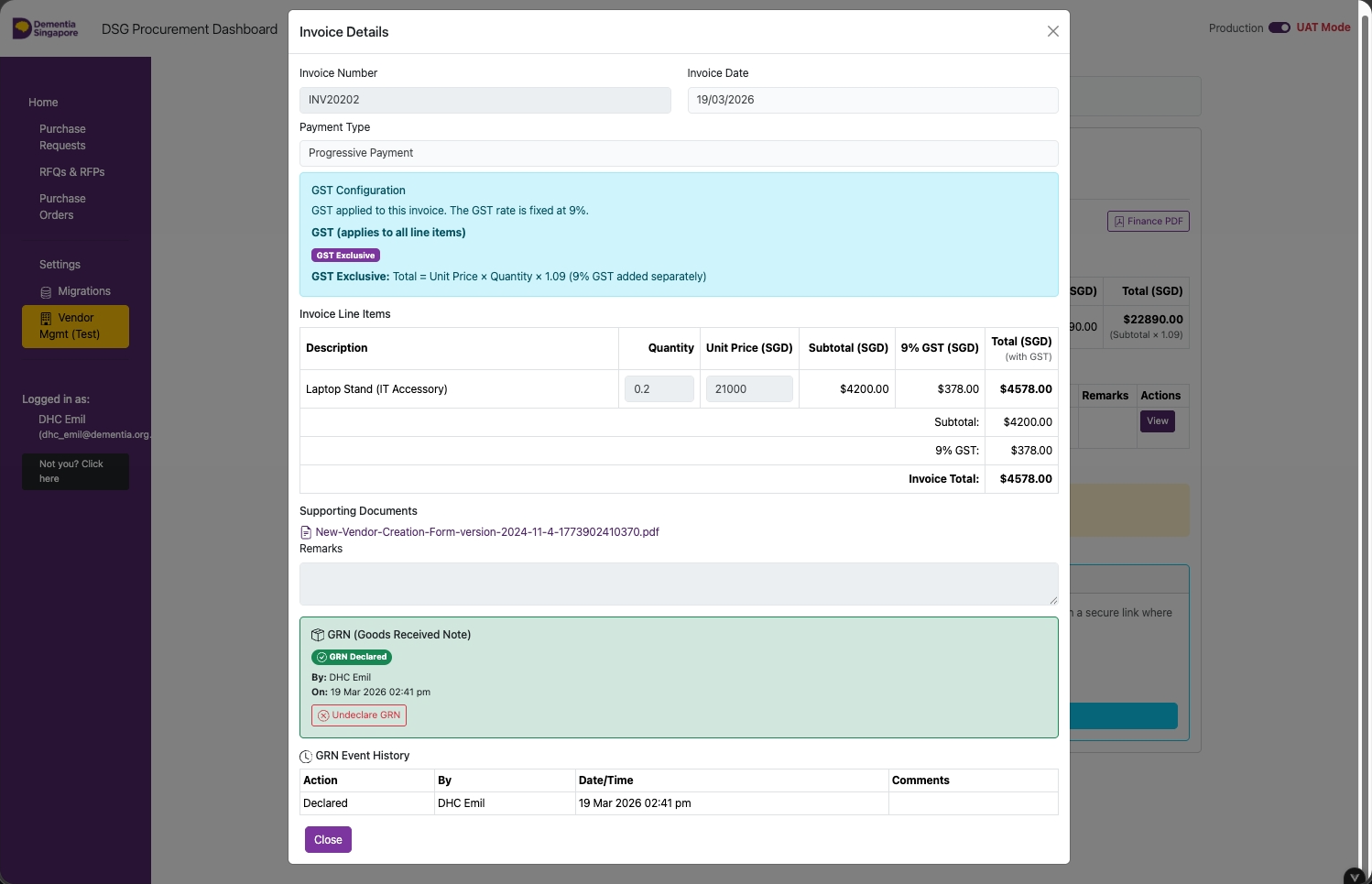
GRN Declaration — Close Window
Click on Close.
With the GRN declared, the invoice is ready for the Finance team to process payment.
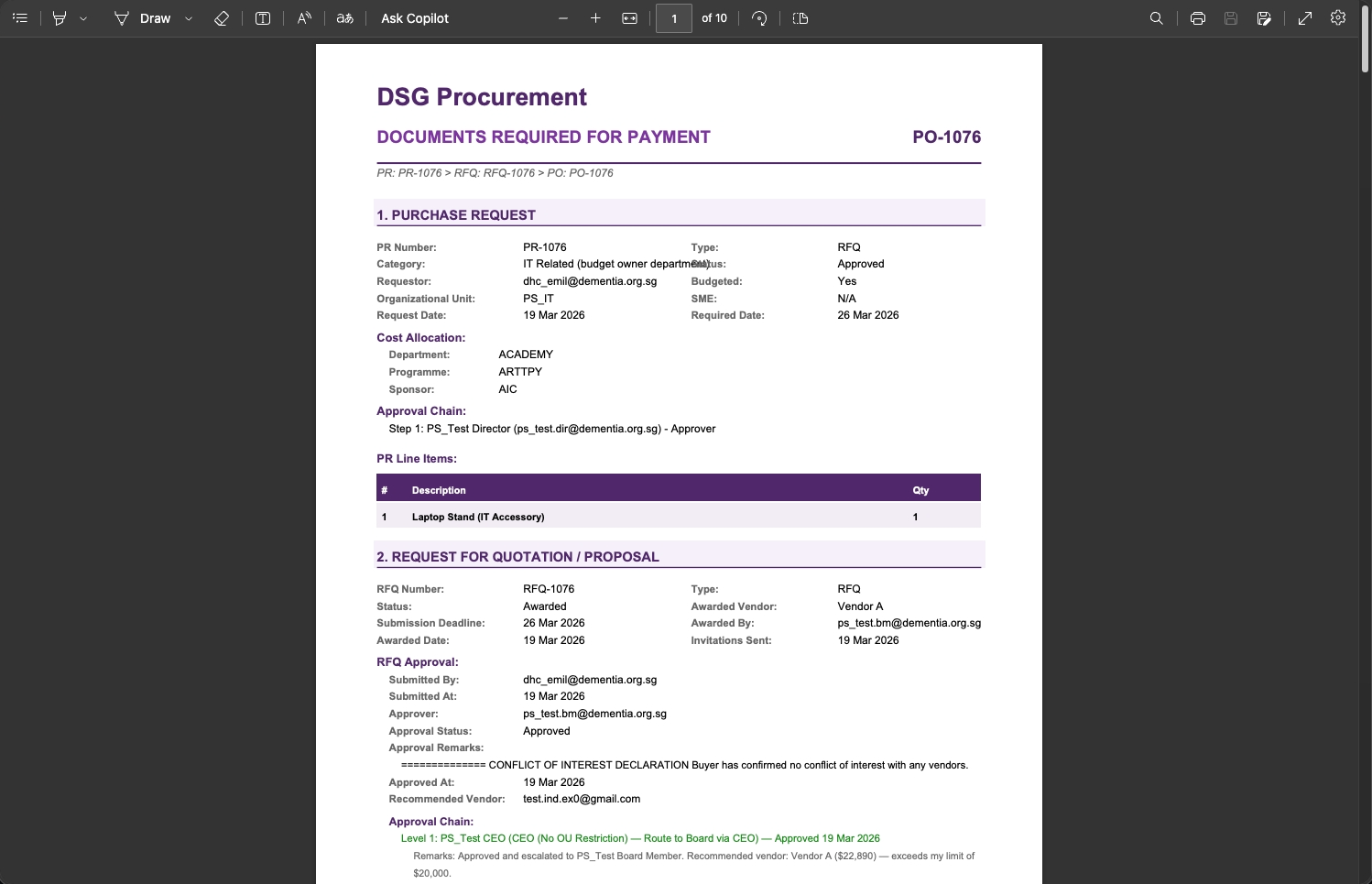
Export Finance PDF
Click Finance PDF to generate and download a PDF file for payment submission.
This is the formal payment request document to hand to the Finance team.
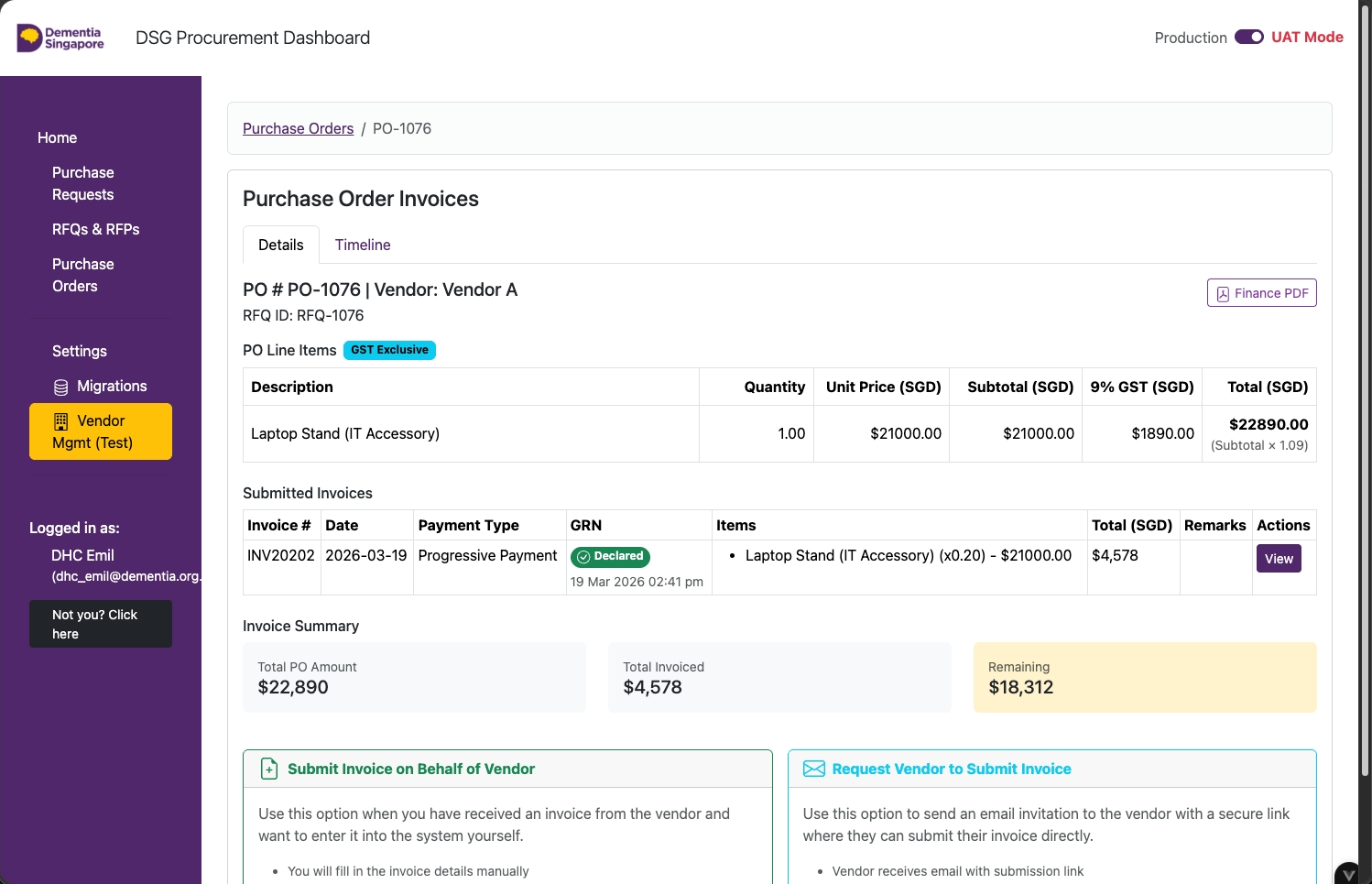
Finance PDF — Payment
Submit the exported Finance PDF to Finance for payment.
The PDF includes:
- PO number, vendor name, and total amount
- Line items, unit prices, and GST breakdown
- Invoice number, date, and payment type
- Approval trail and award details